












Continuous Deployment
The Continuous Deployment platform (APPID: deploy) is where OpsAny publishes production releases. It is application-centric and supports orchestrating deployment tasks, and it integrates with the Workbench to enable ticket-triggered automated deployment.
1. Continuous Deployment
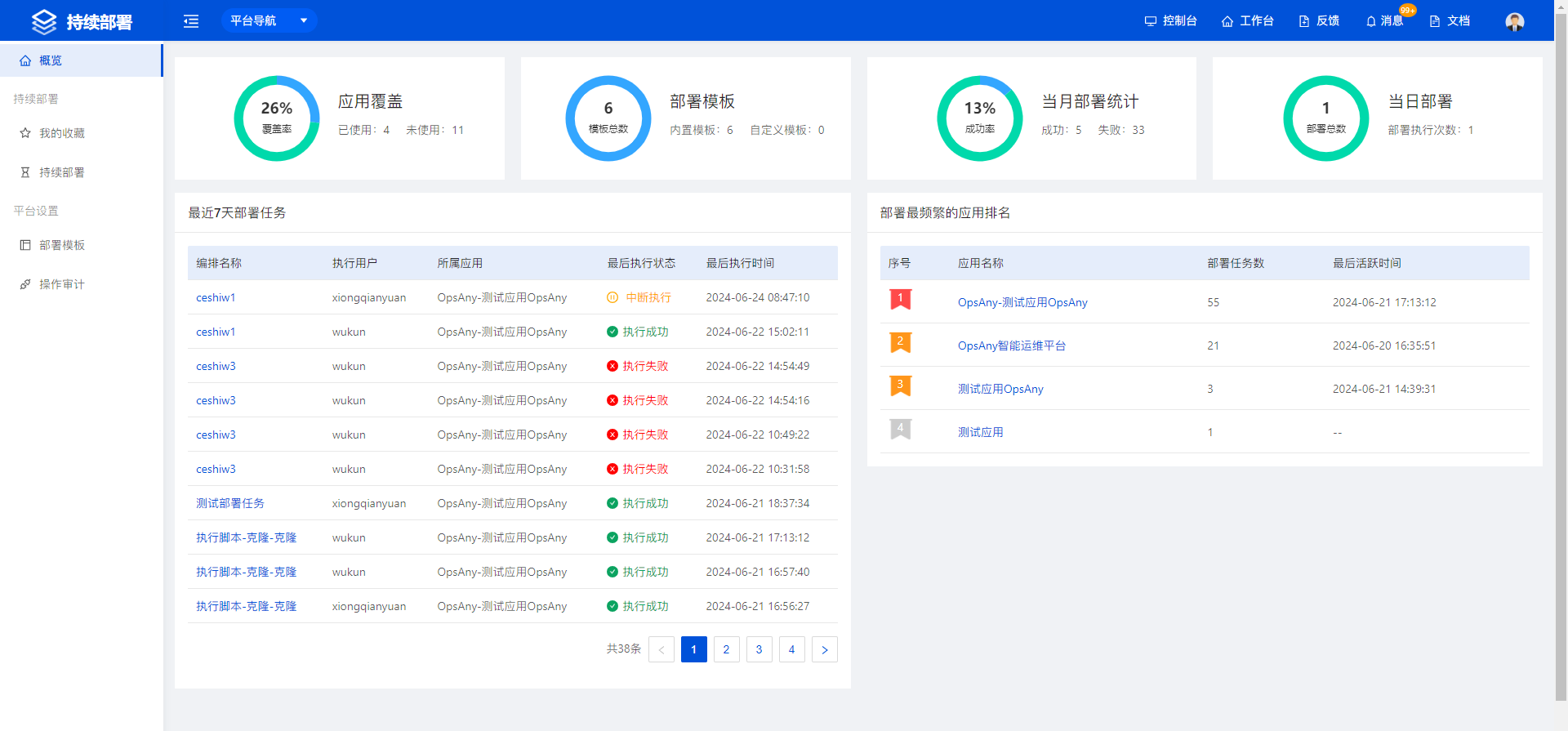
This is the daily management center of Continuous Deployment. Frequently used deployments can be favorited and then viewed in My Favorites. You can create, edit, delete, and run deployments, among other routine operations.
1.1 View Management
You can create global views that span application systems and group continuous deployments by dimensions such as environment and front end/back end.
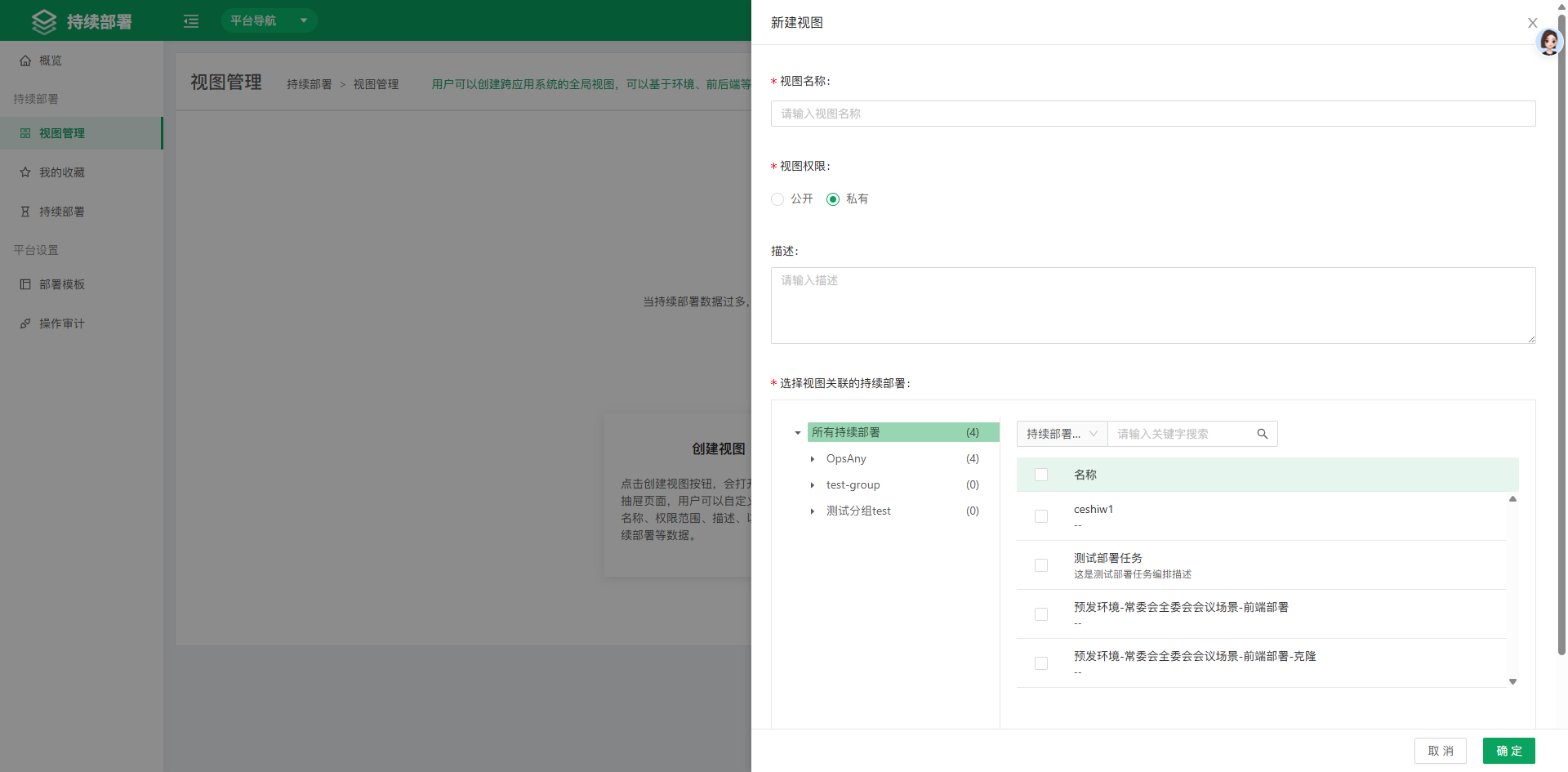 To create a view, name it, choose whether it is public, and select the continuous deployments to associate with it.
1.2 My Favorites
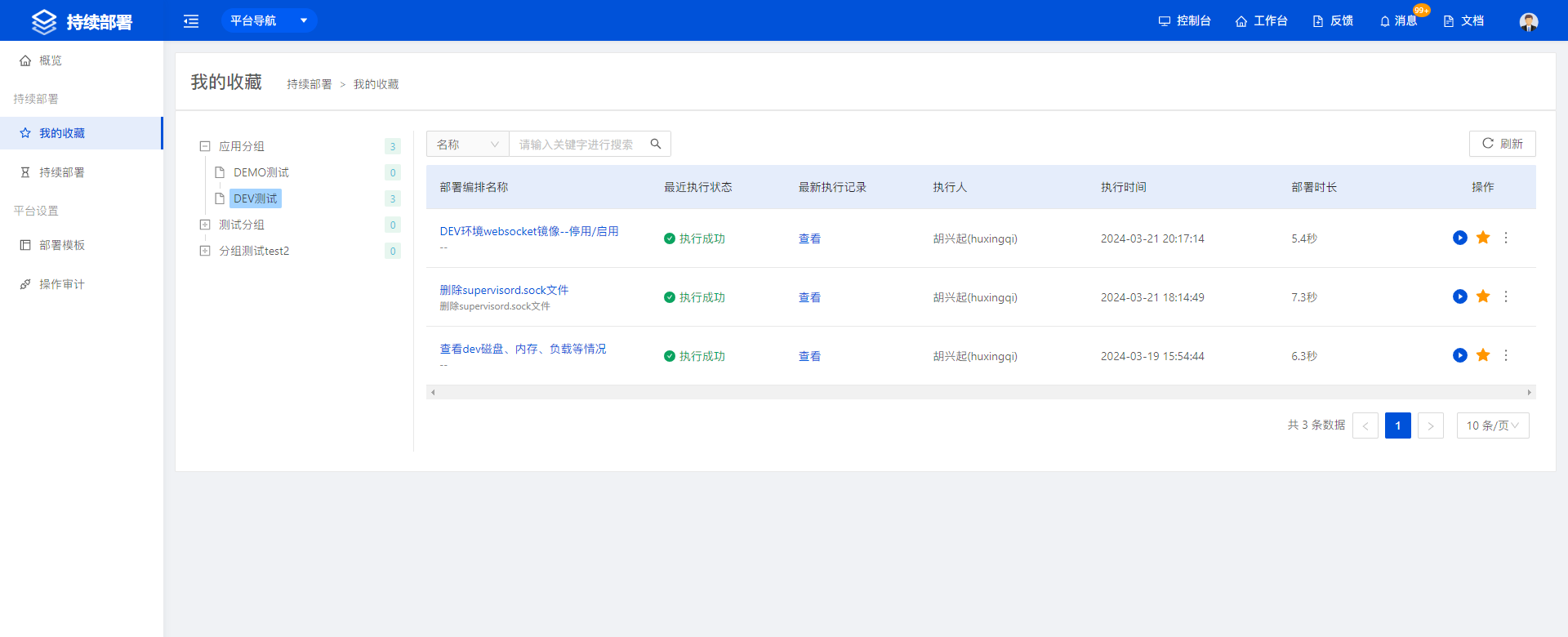
View the continuous deployments you have favorited. From a favorited deployment you can run deployments and view execution records.
1.3 Continuous Deployment
Continuous deployment lets users publish code in real production applications. Flexible step combinations adapt to more complex scenarios. In Continuous Deployment, you can create, edit, and delete deployments, run deployment tasks, and view execution records.
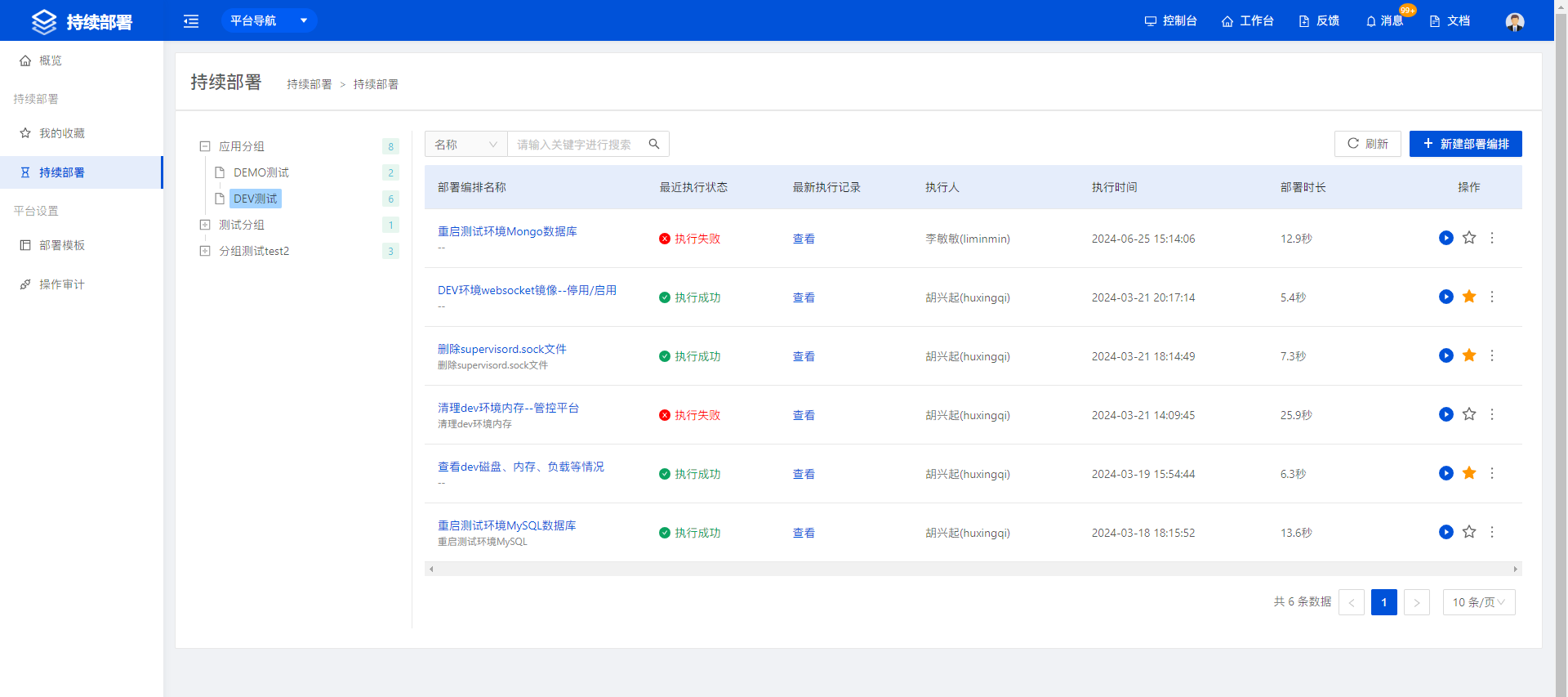
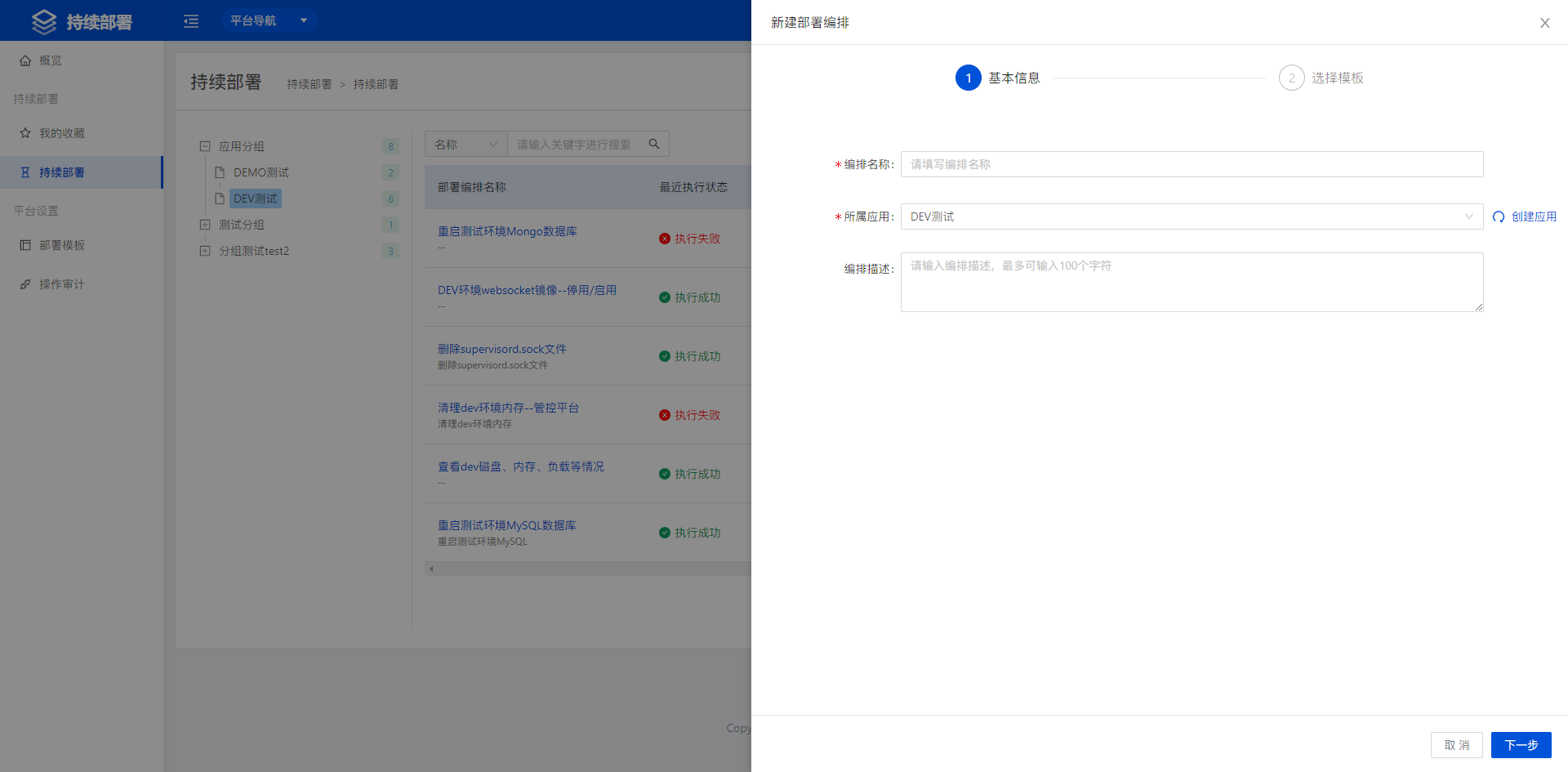
- Click New Deployment Orchestration in the upper-right corner to create a custom deployment orchestration. In the first step, configure basic information: enter the orchestration name, select the application it belongs to, and enter a description.
- In the second step, select a deployment template. Deployment templates include built-in general templates, and custom deployment templates are also supported.
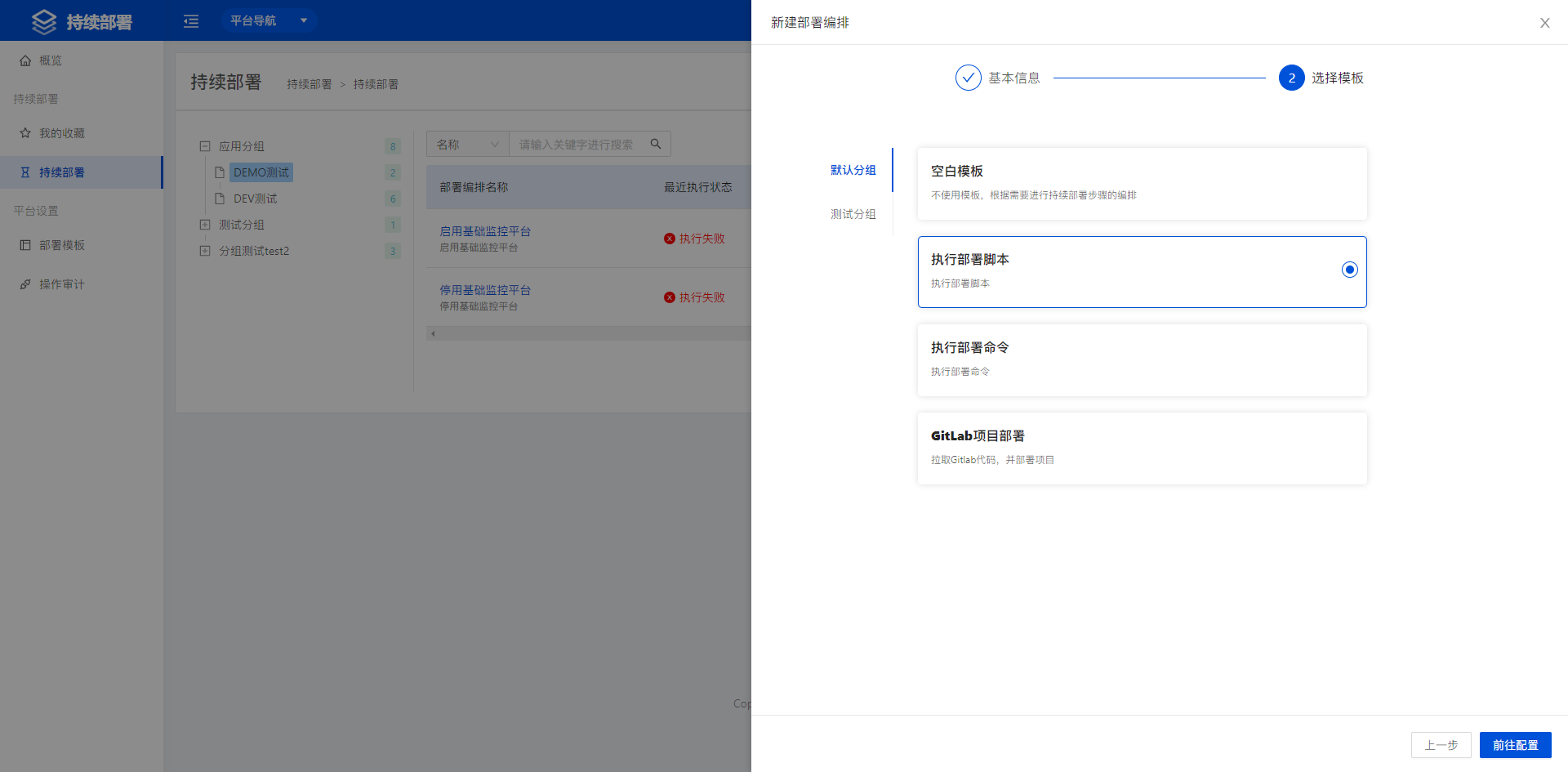
- For example, select the Execute Shell Script template, then click Submit to open the deployment step configuration page.
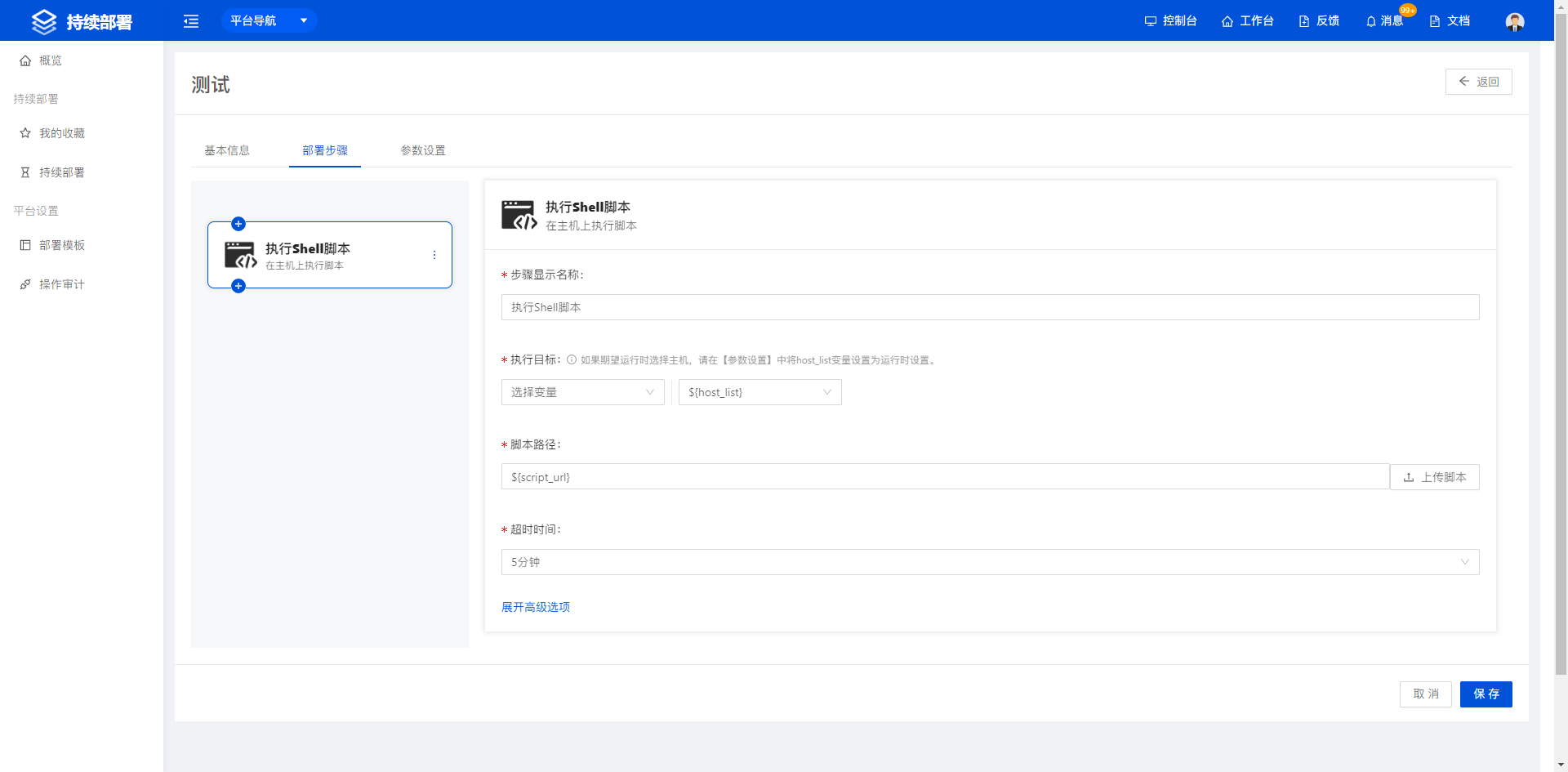 Click the plus icon on a step on the left to open the Add Step Template page, then click Add to keep adding steps.
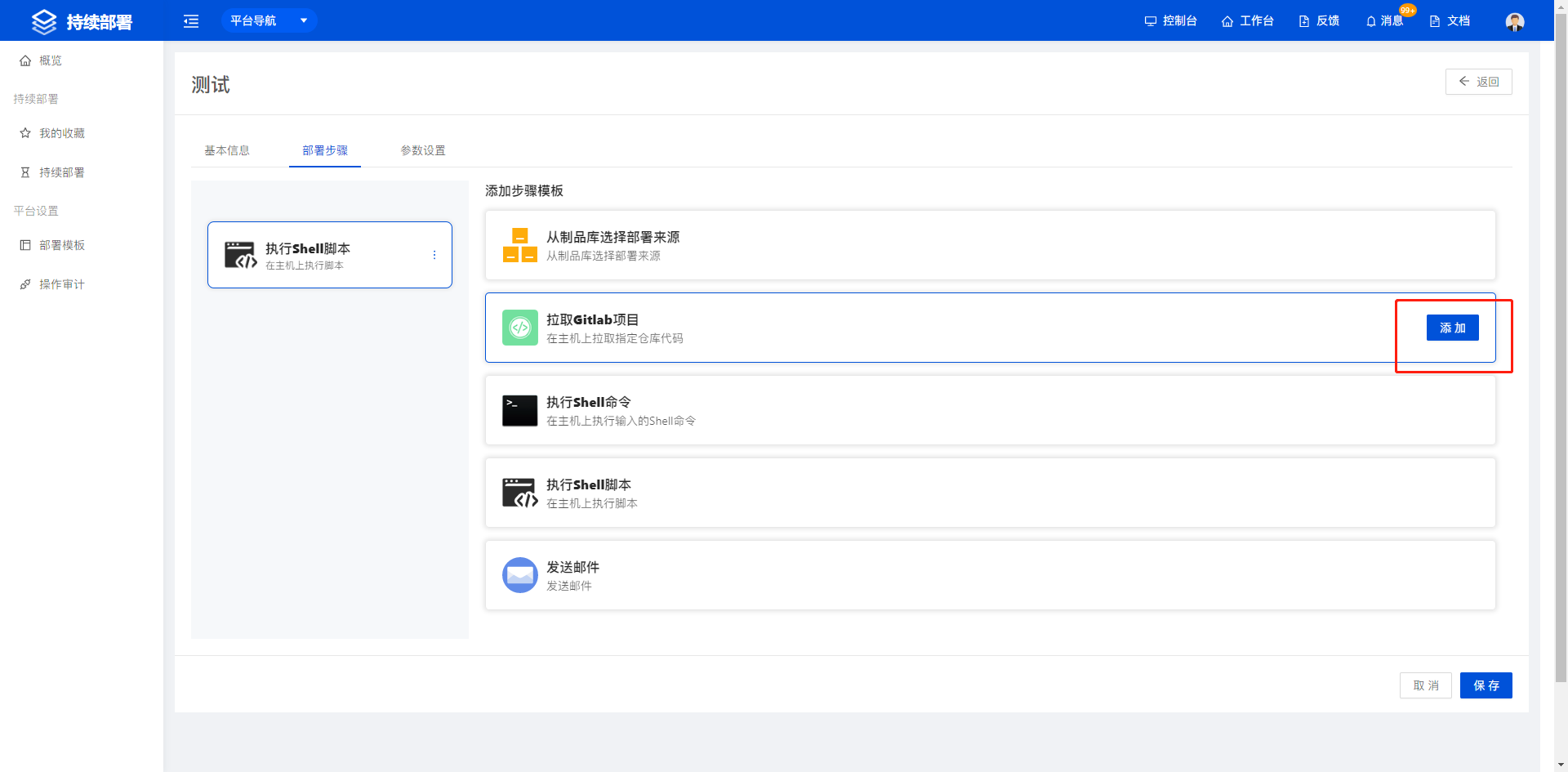 Complete the operation according to the field information on each step page.
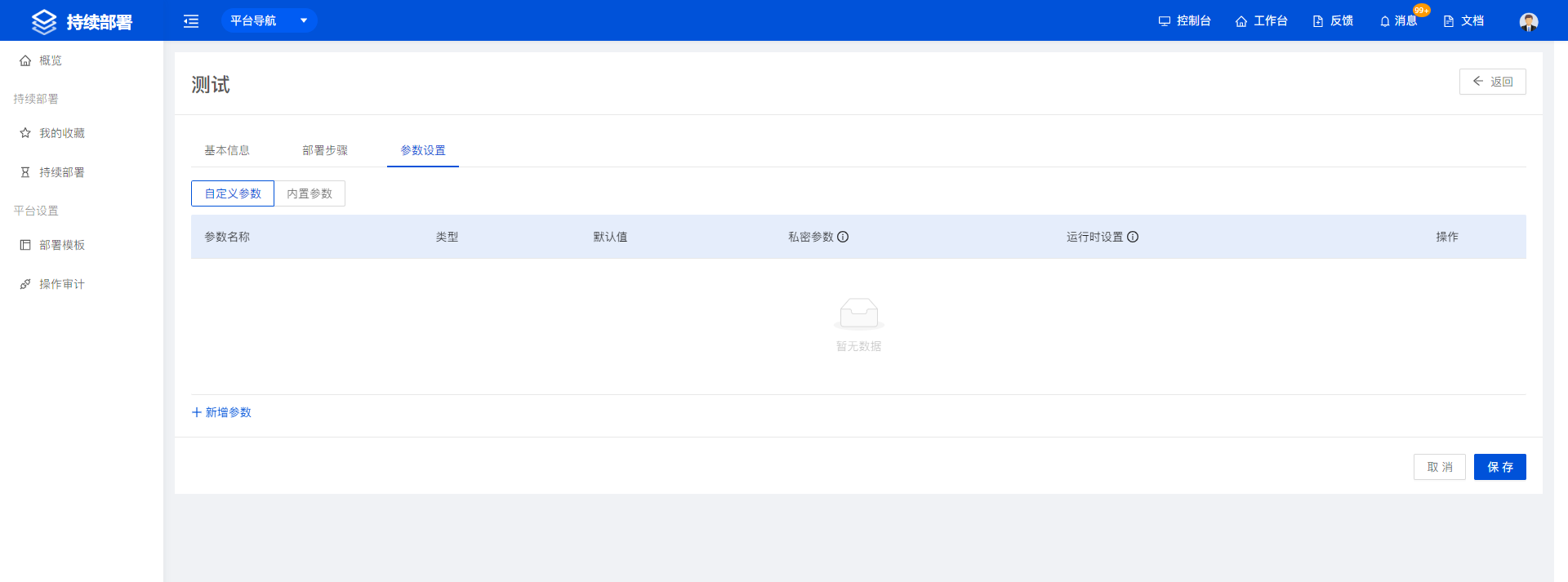
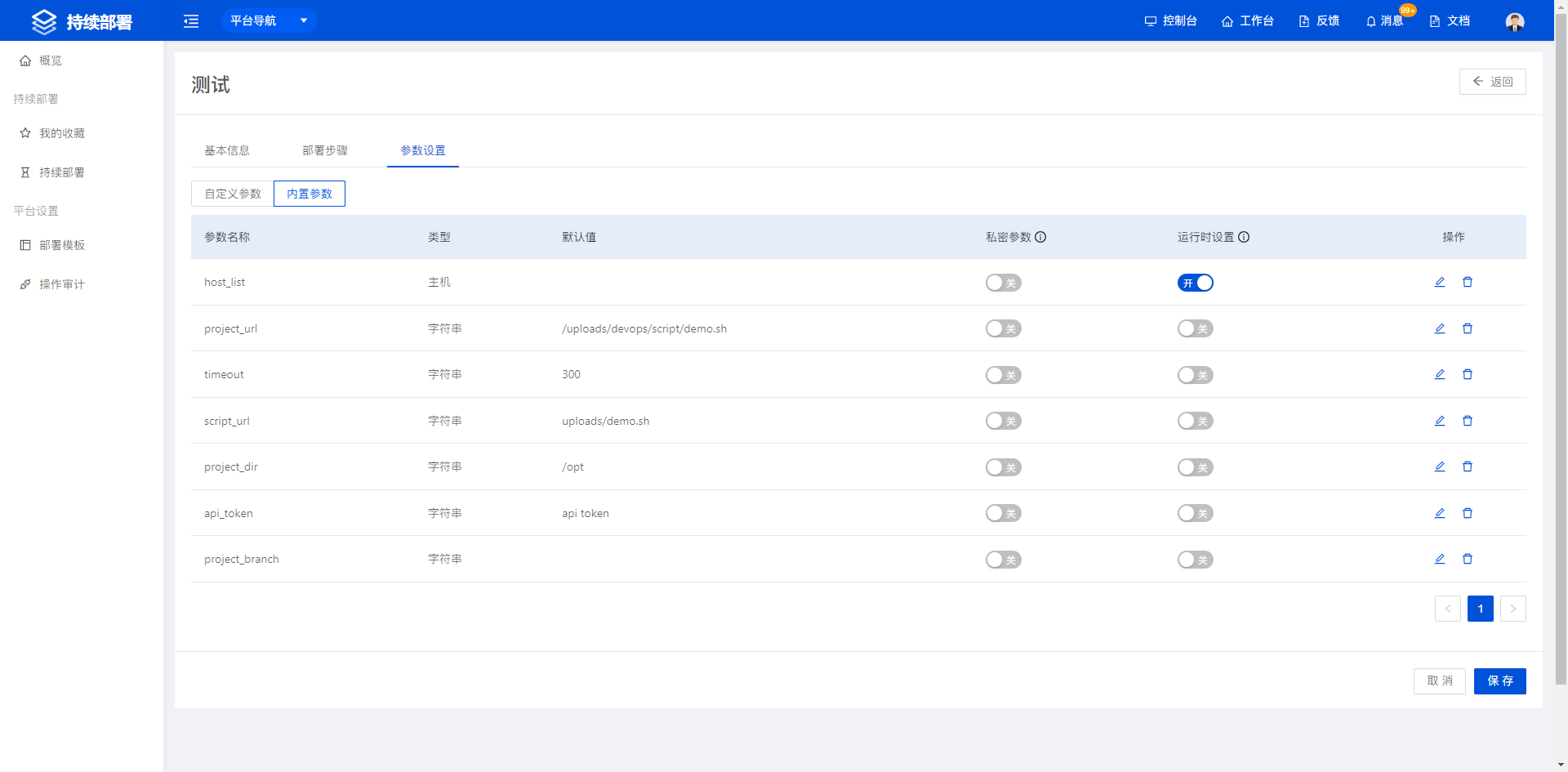
- The Parameter Settings page provides custom parameters and built-in parameters. Custom parameters are created by users, while built-in parameters are pre-initialized general parameters that can be edited and deleted.
 Built-in parameters support editing their default values.
Example
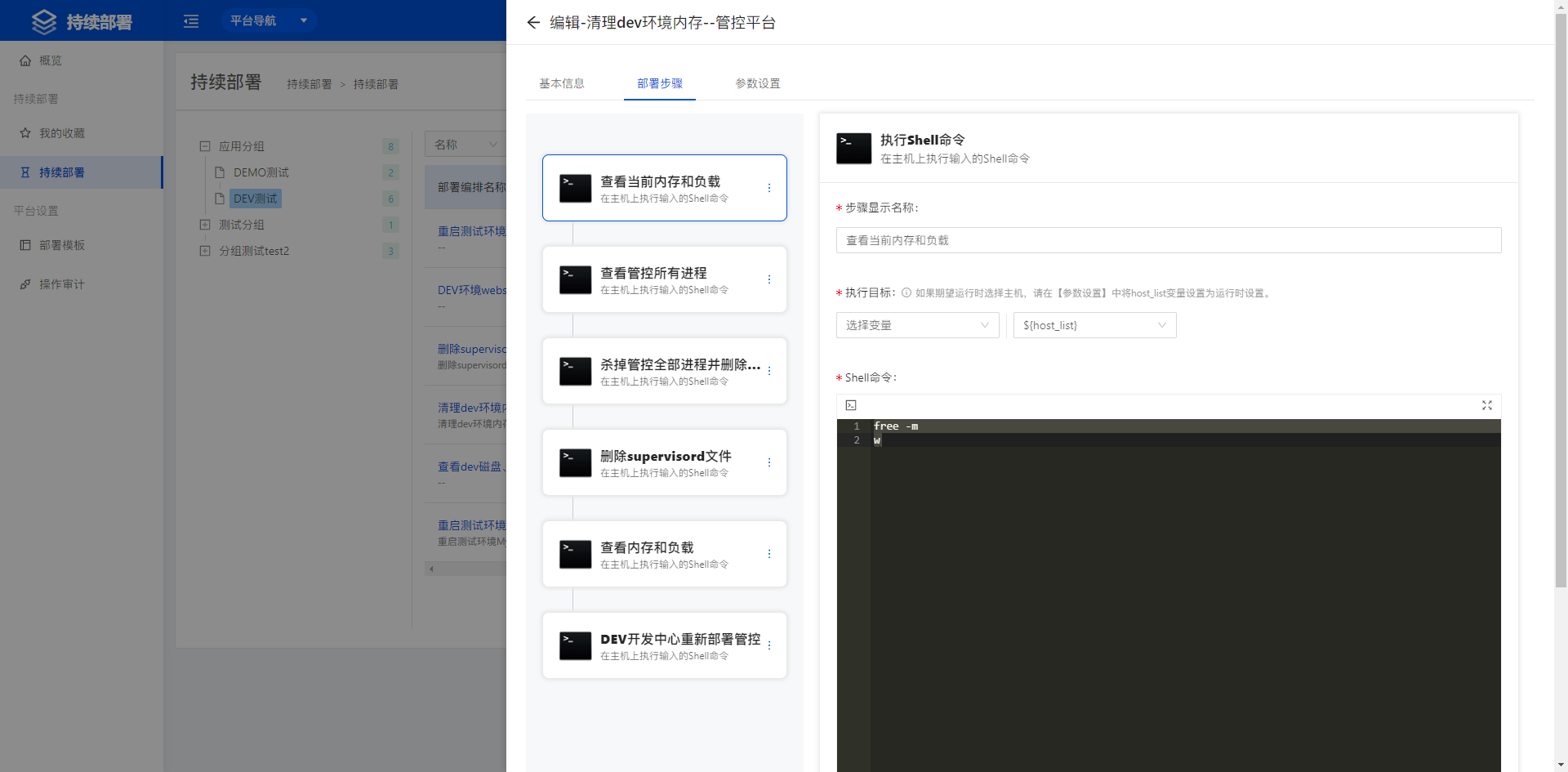
Parameter configuration includes private parameters and runtime settings. Specifically: 1. Private parameters are encrypted when stored. 2. Runtime settings display an input box when the user clicks Run Now, and the user must enter the corresponding value. For example, for the project branch of the GitLab component, enter ${project_branch} in the step, and when running the deployment task you only need to enter the corresponding branch or tag to execute the deployment.
2. Platform Settings
Platform Settings lets administrators configure custom deployment templates and view routine operation audits.
2.1 Deployment Templates
Deployment templates are divided into built-in templates and custom templates. Built-in templates include common general templates, while custom templates support user-defined operations. Deployment templates can be created, edited, deleted, and copied.
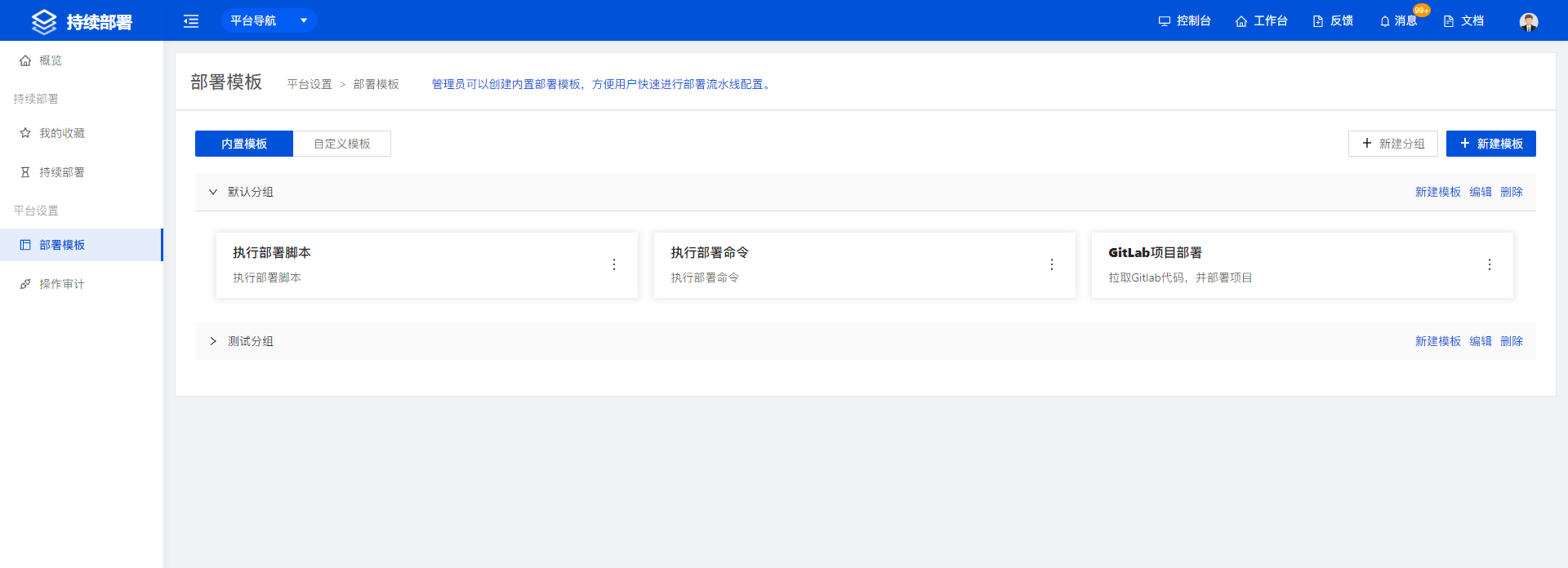
- Click New Template in the upper-right corner to open the basic information page, the first step of template configuration.
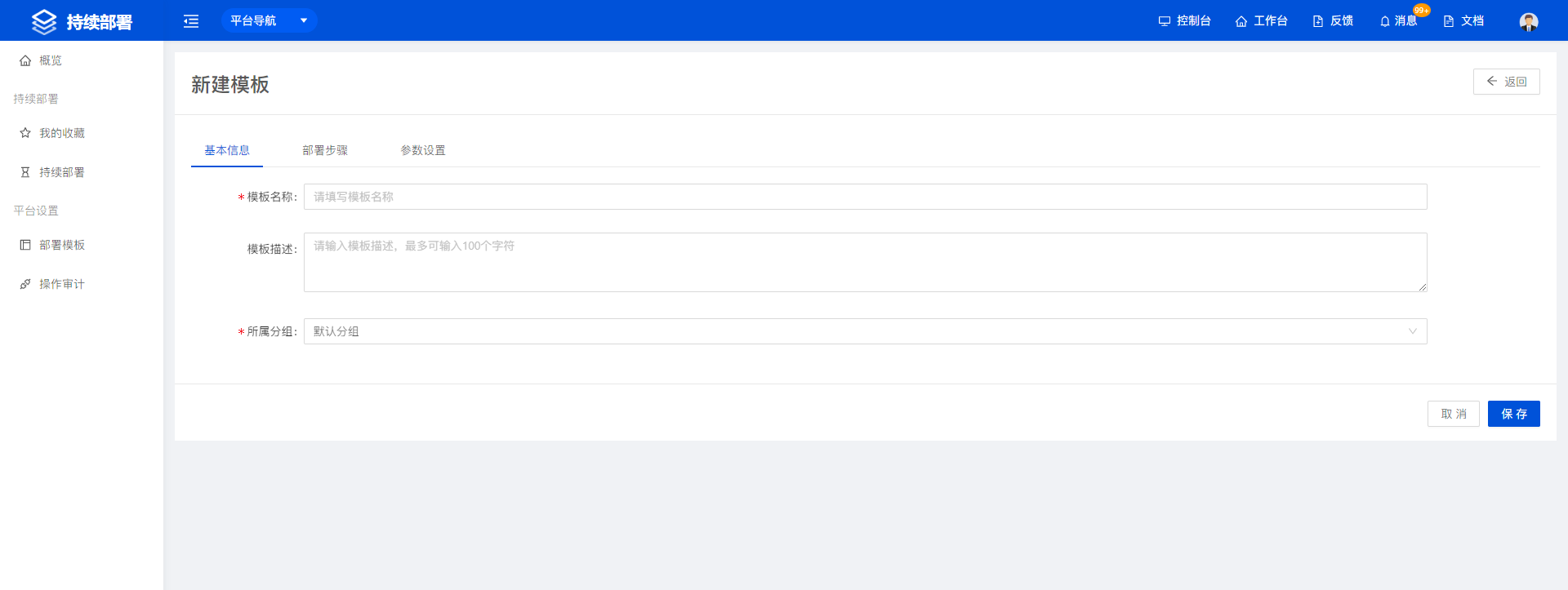 Enter the template name and description, select the group the template belongs to, and complete the basic information configuration.
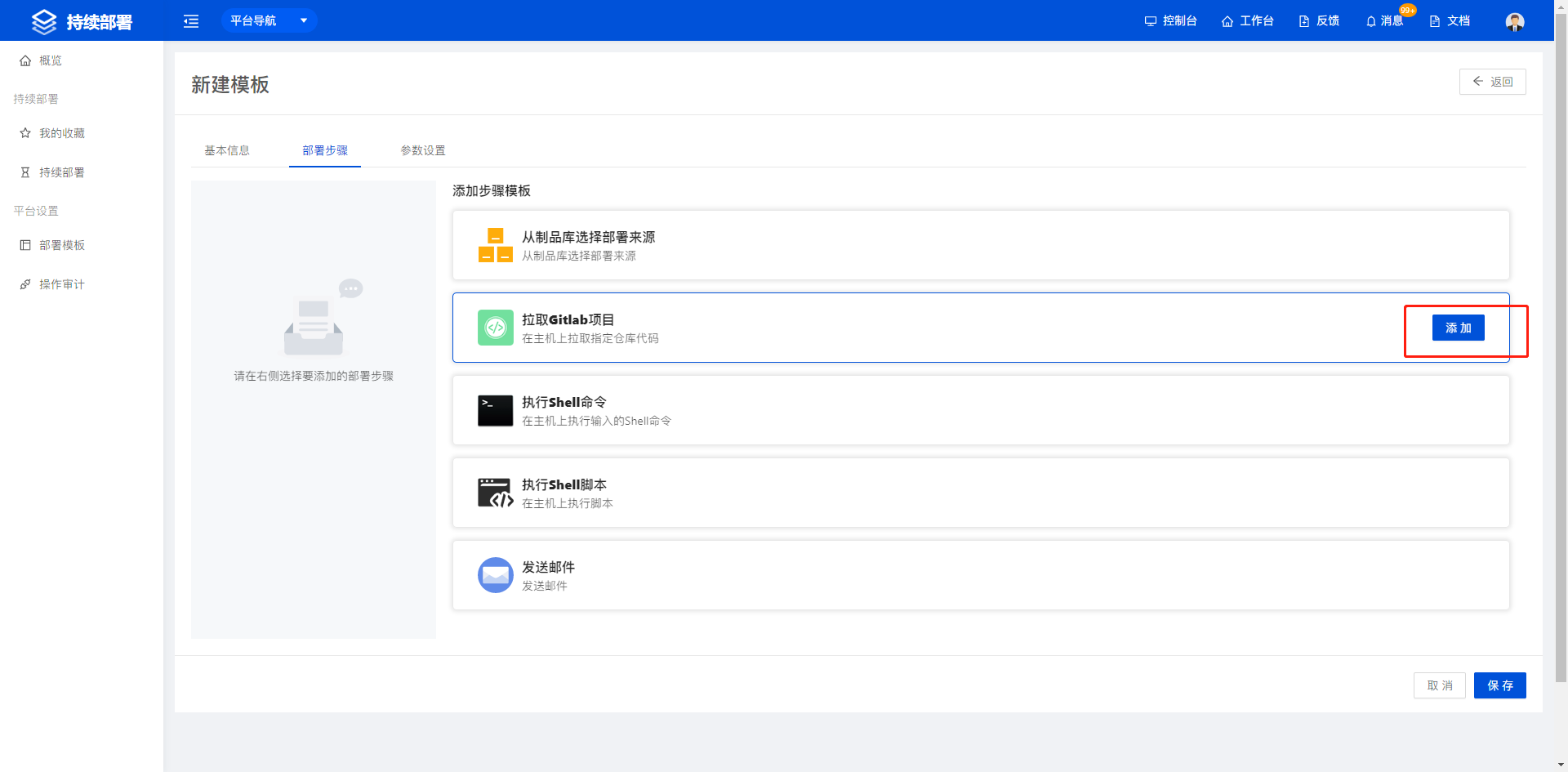
- After filling in the basic information, open the deployment step configuration page, where you can configure custom deployment steps for the template. When configuration is complete, click Save.
2.2 Operation Audit
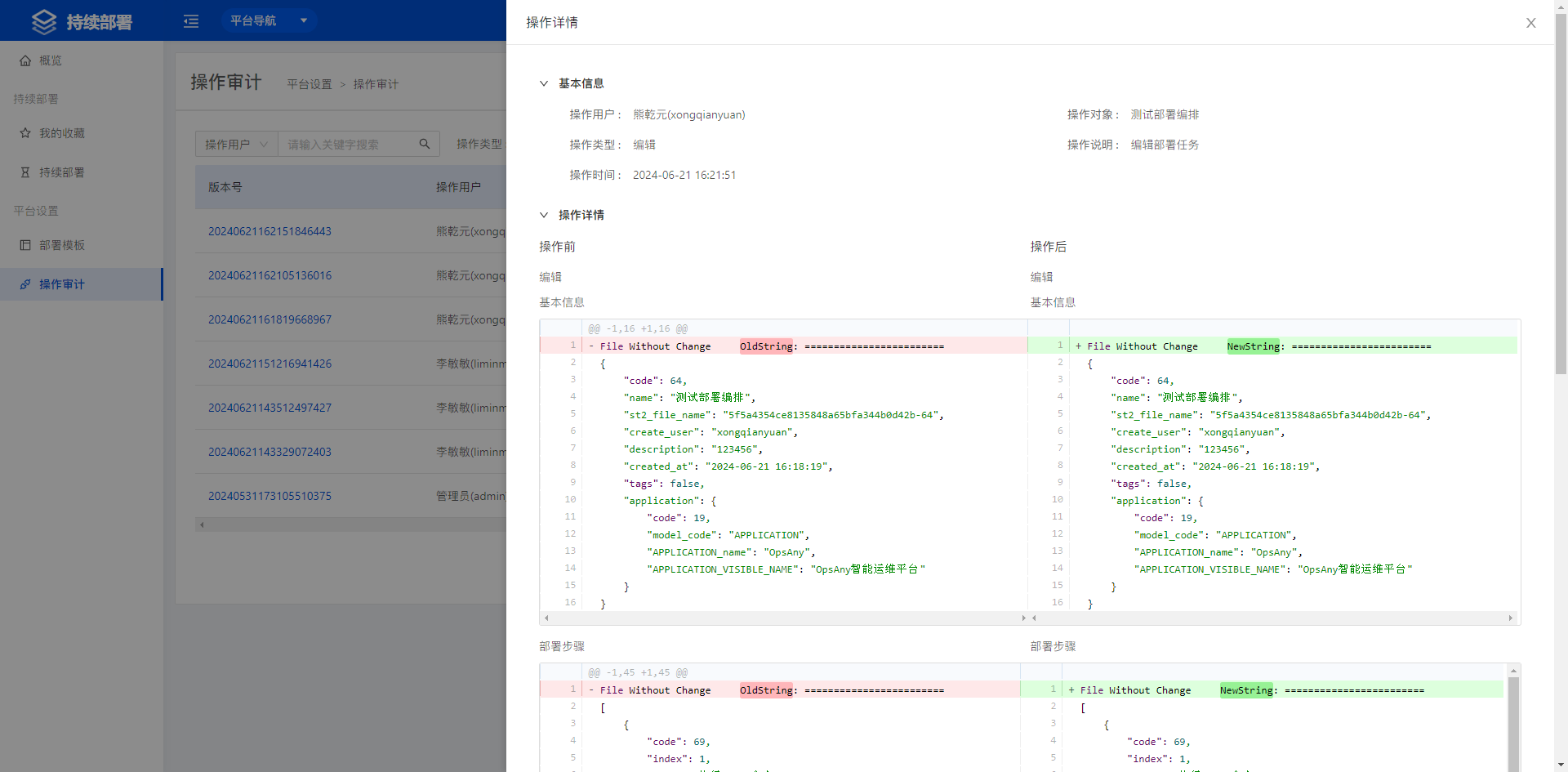
The Operation Audit page records which users performed which operations on the Continuous Deployment platform, making it easy to trace back.
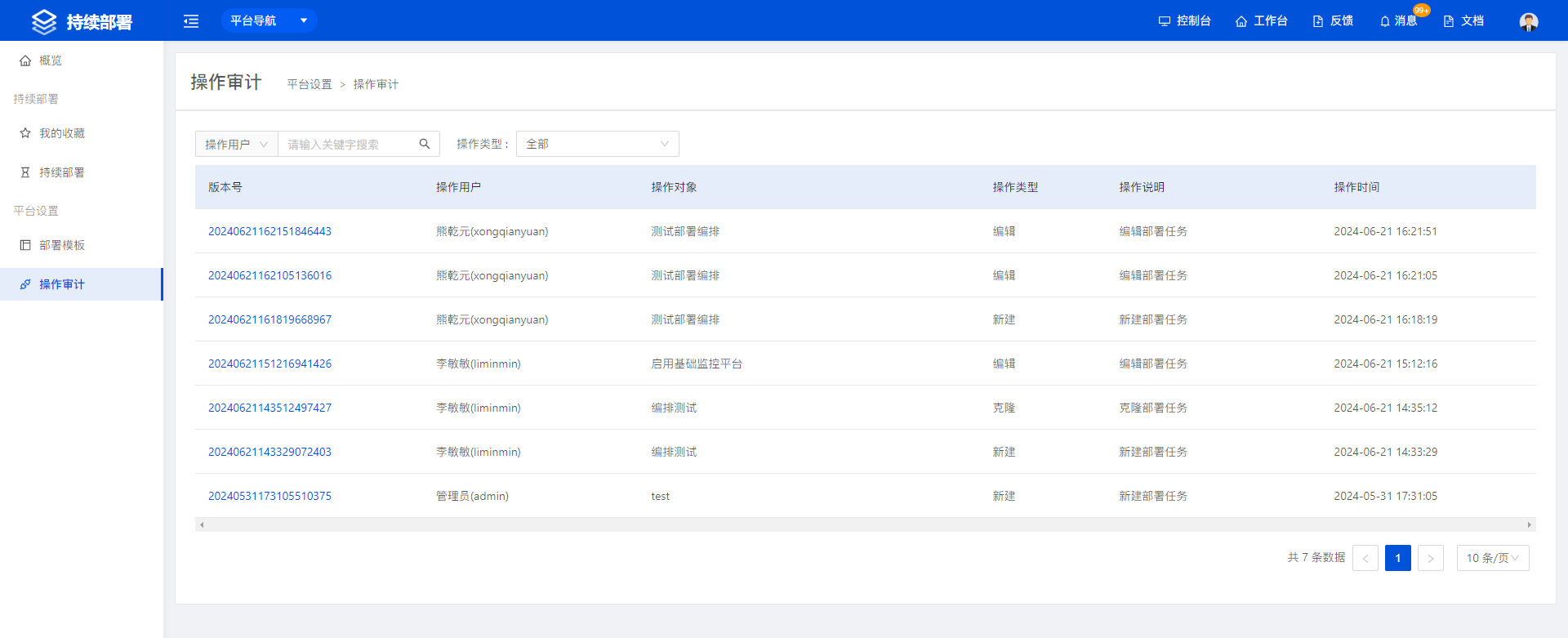
- Click a version number to view the specific operation details.