











Resource Platform
The Resource Platform is OpsAny's CMDB. It stores all operations objects and manages the models and instances of those objects.
In the cloud-native era, the first challenge is multi-cloud management across public, private, and hybrid cloud scenarios. Enterprises need a management platform that unifies the management of multi-cloud IT assets, and the OpsAny Resource Platform is built for exactly that. The Resource Platform can import cloud assets directly through the APIs of public clouds such as Alibaba Cloud, Tencent Cloud, and Huawei Cloud, and can also rapidly import and manage assets from private clouds such as OpenStack and VMware. By mapping a resource repository to resource models, the Resource Platform brings all enterprise assets under management and realizes the full value of consolidation.
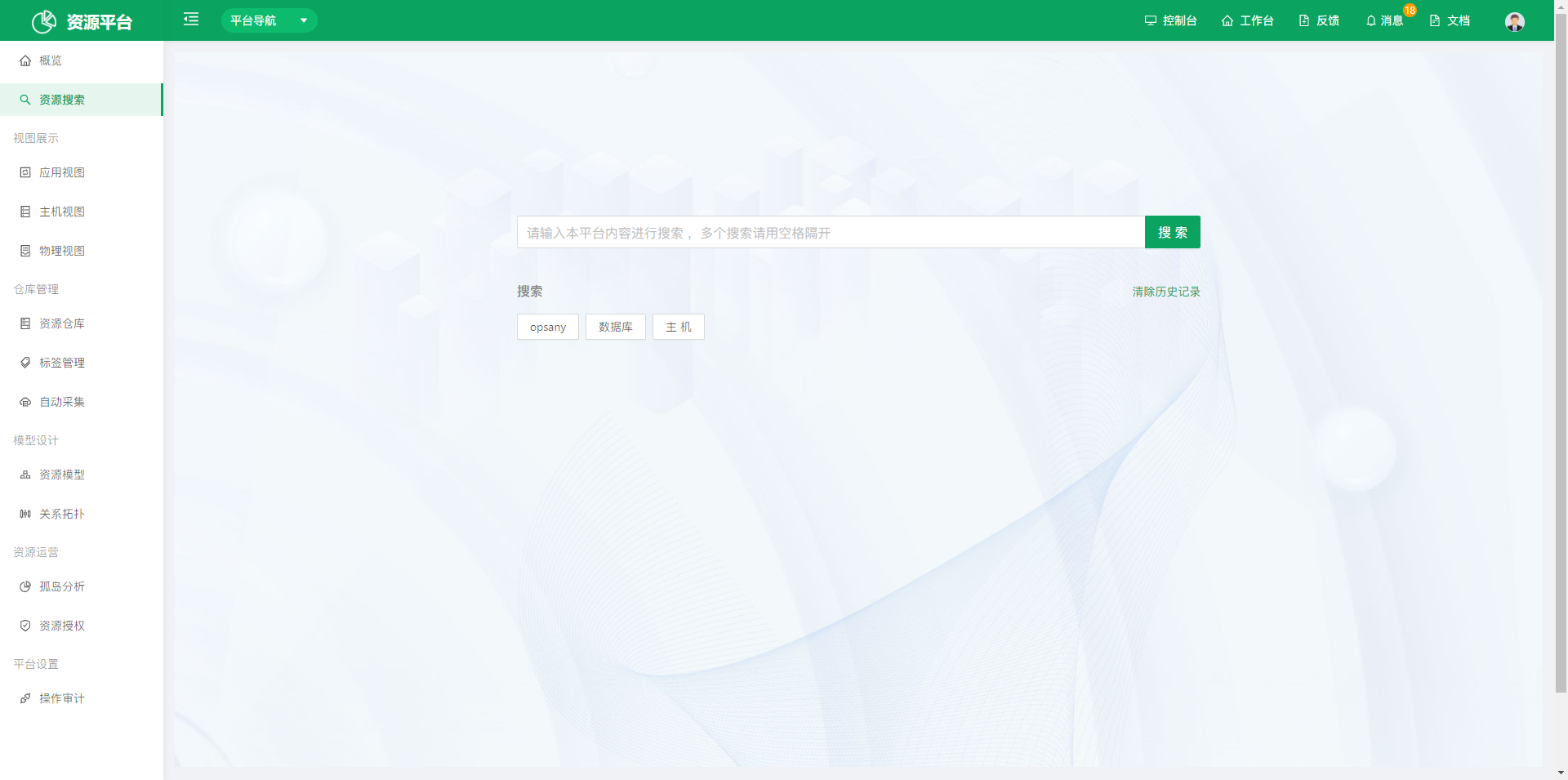
The home page supports full-text search, helping users find existing CMDB resources by keyword.
1. Views
Views are the core of host viewing and management in the Resource Platform. As business application architectures and types become increasingly complex, only well-designed models allow you to manage hosts in a more structured way.
1.1 Application View
Displays the resources associated with each application.
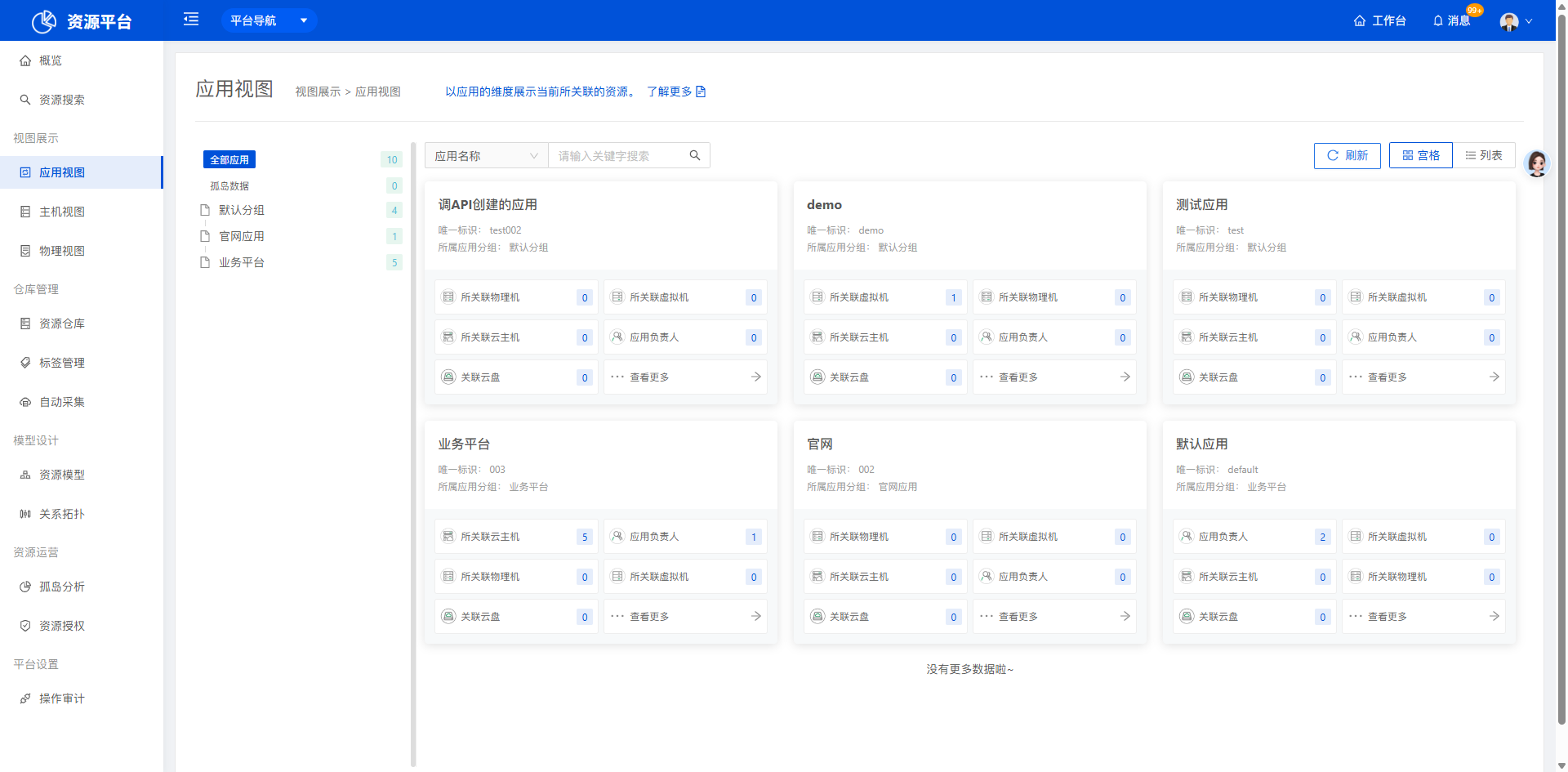 Click an application to open its details page, where you can associate different resources with that application.
1.2 Host View
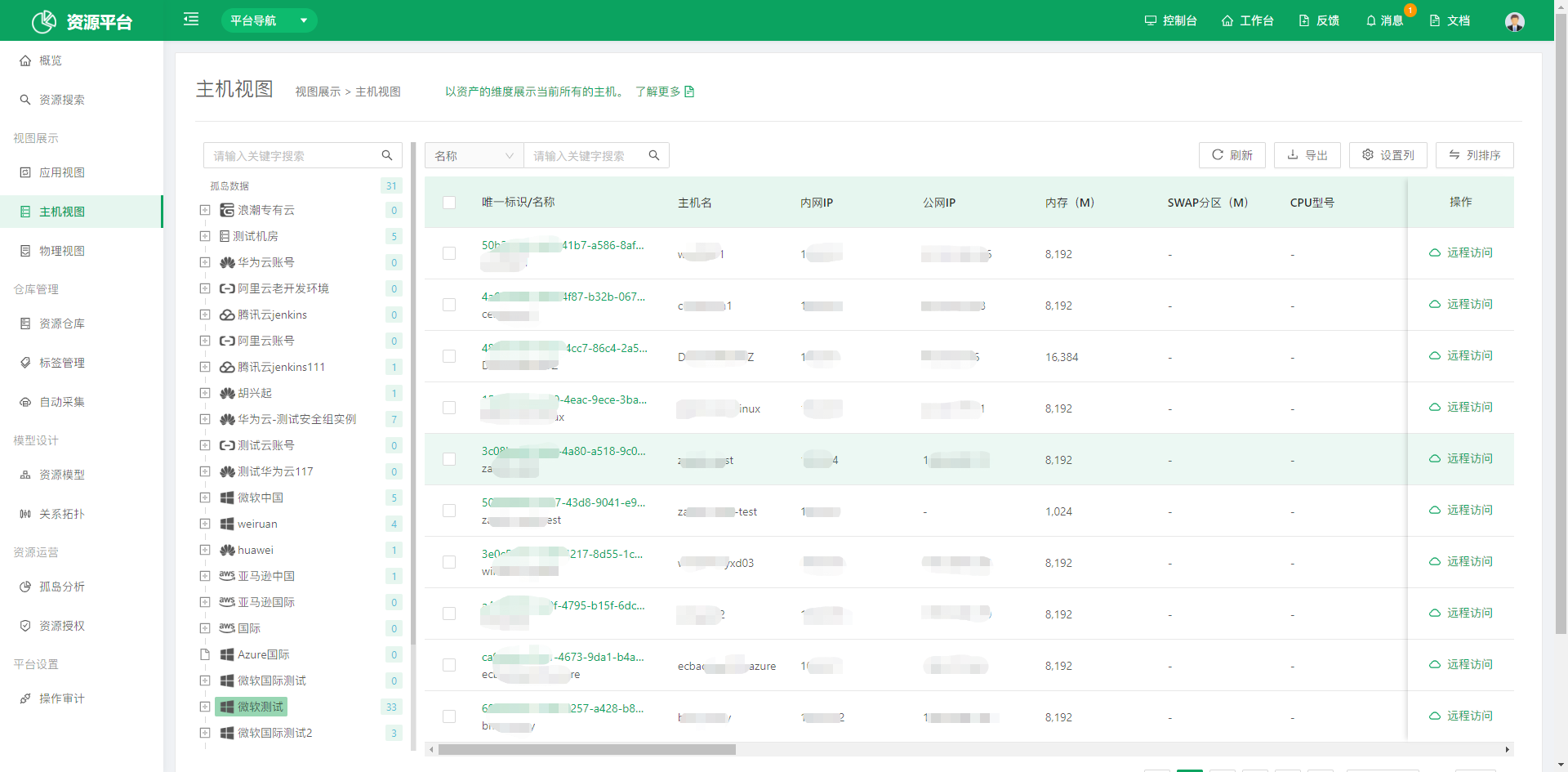
Displays all current host resources from an asset perspective. The Host View covers common host types and lists and manages resources from resource groups down to individual hosts.
-
Click an instance name to view all details of a host, including basic attributes, open ports, associated resource information, process information, and more.
-
Click Remote Access to log in to the Bastion Host of the target host.
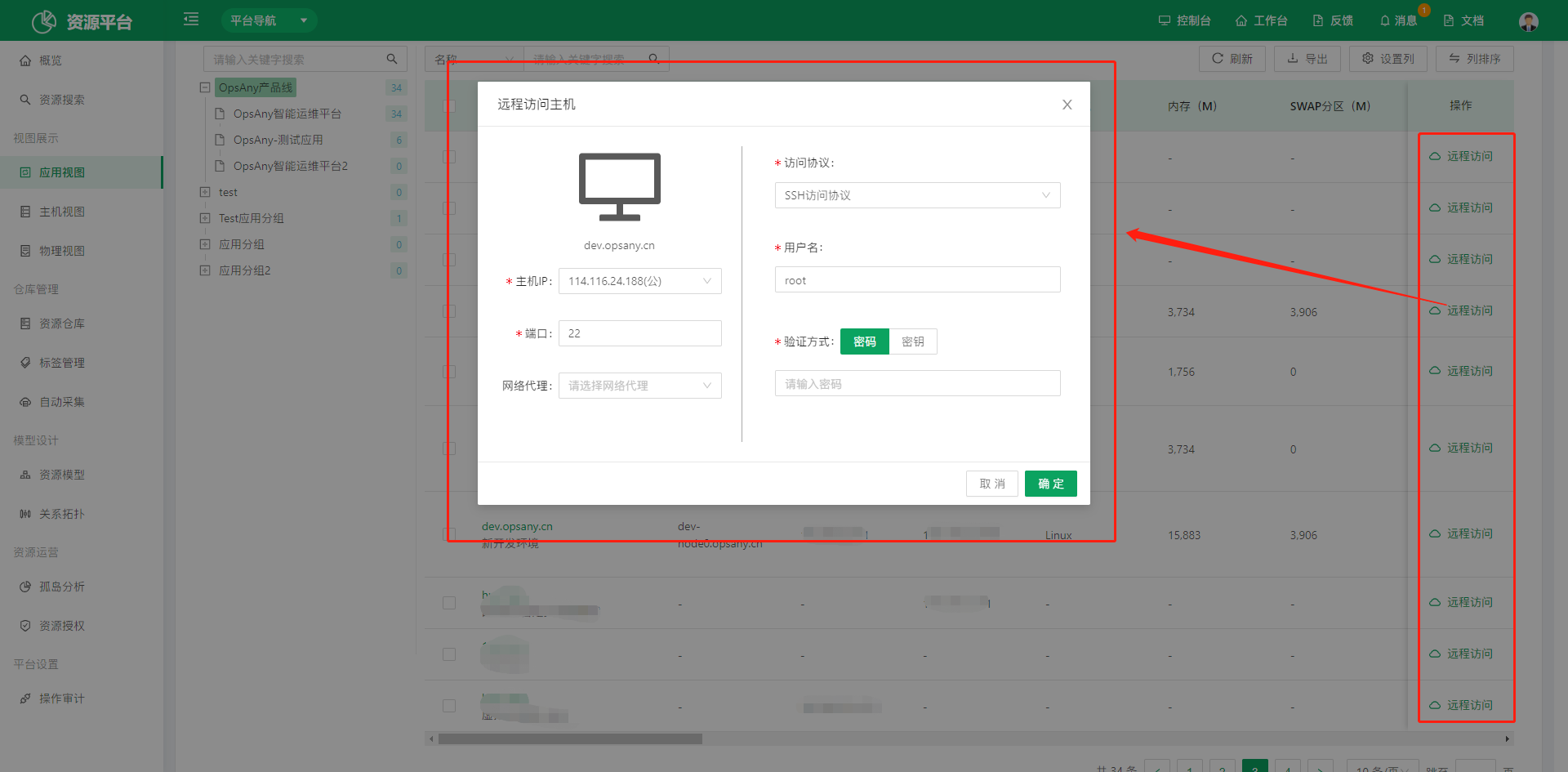
- Host IP: Select the network IP that matches the current network.
- Port: The default port for Linux is 22, and the default port for Windows hosts is 3389.
- Access protocol: The default protocol for Linux is SSH, and the default protocol for Windows is RDP.
- Username: The default username for Linux is root, and the default username for Windows is Administrator.
-
Authentication method:
Password: Enter the password that matches the target host.
Key: Select the key that matches the target host. -
Physical machines and virtual machines: CMDB ships with built-in models for data center, region, cabinet, physical machine, and virtual machine. Add data for these private cloud models through the resource repository.
- Cloud hosts: CMDB ships with three built-in resource models: public cloud, cloud region, and availability zone. The public cloud model stores cloud account information, and the cloud management platform provides the data source.
Hosts in the Host View support batch export to Excel for management.
1.3 Physical View
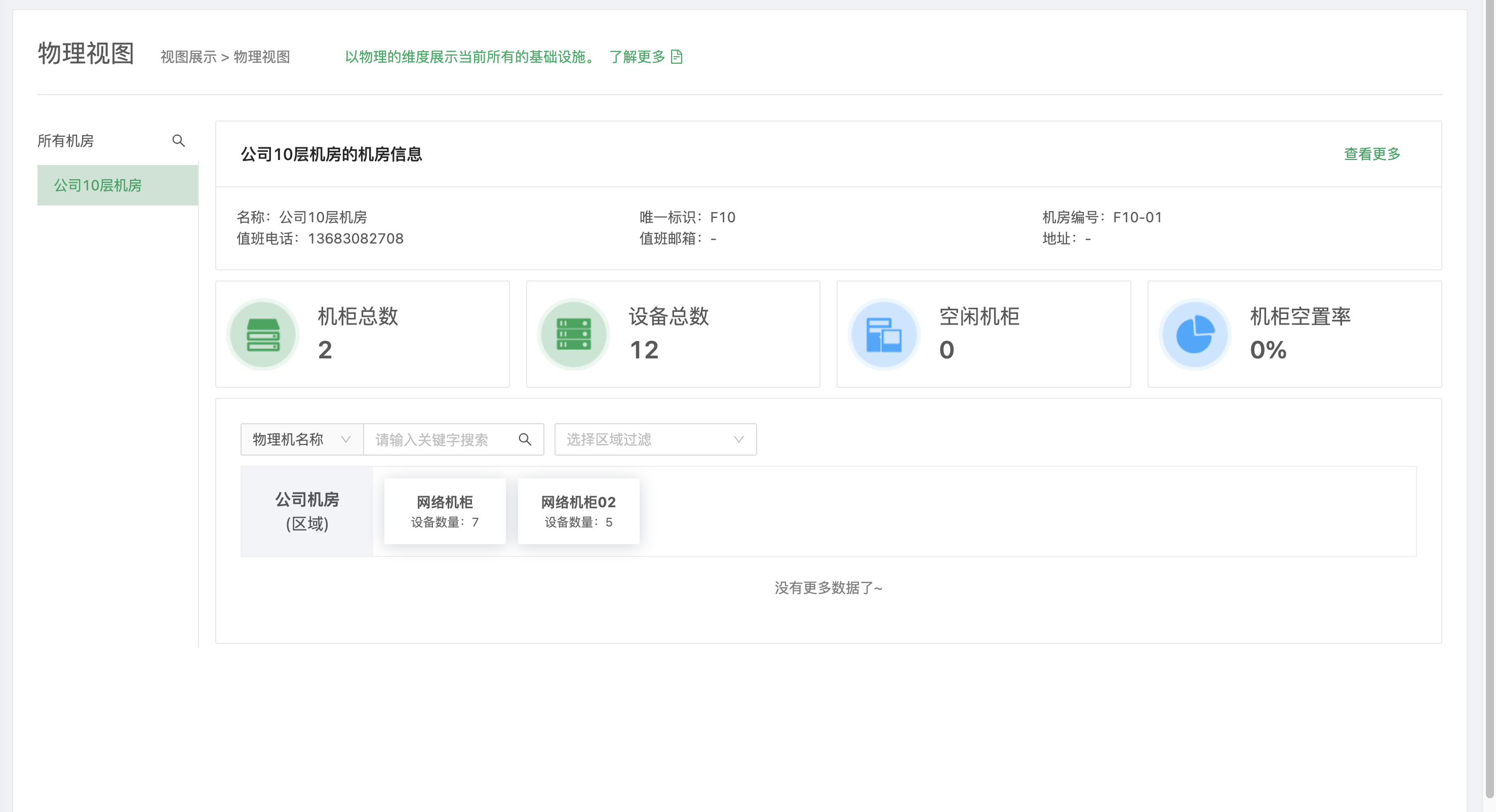
The Physical View focuses on the physical machine and virtual machine host types, along with the supporting physical equipment. Physical equipment generally relies on the integrated management of cabinets and data centers. The Physical View therefore treats the data center as the outermost dimension and expands inward, showing users the details of each physical device, including location and usage.
-
The Physical View has three built-in models: data center, region, and cabinet. These are common base models built into the system; you can customize their usage scenarios to meet your enterprise's resource management needs.
-
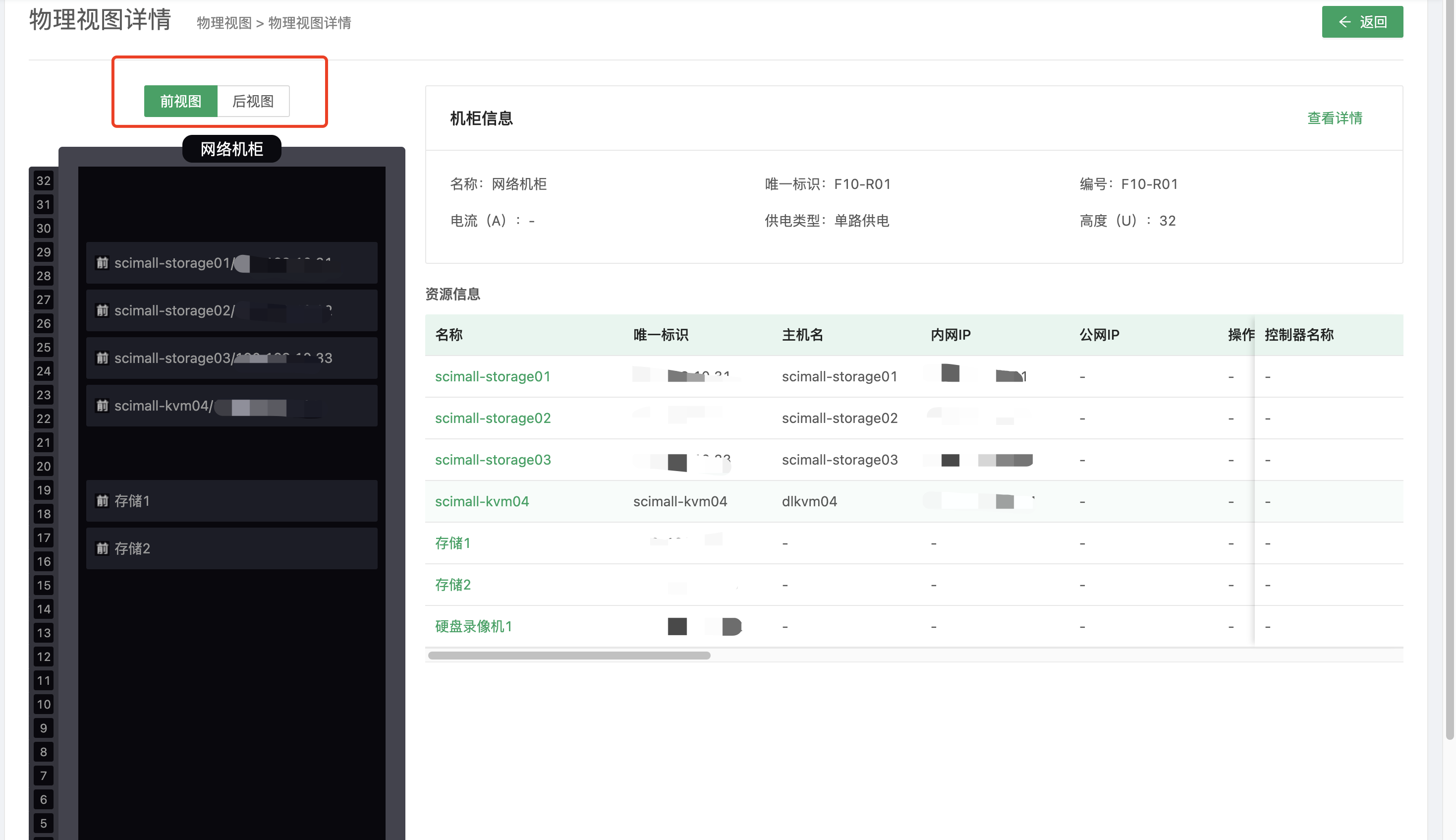
Click a specific cabinet to view its details
-
You can manage resources inside a cabinet according to the placement of each physical device, and use connection relations to view related resources and understand actual usage.
The cabinet view includes a front view and a rear view, which can be configured according to the actual conditions of the data center.
2. Repository Management
Repository Management stores all asset data in CMDB. Data is categorized by the asset models you define, and each repository name matches the name of its resource model, making it easy to view and report on the corresponding data.
2.1 Resource Repository
This is where resource data is entered. Hosts that are entered are added to the host resource pool by default.
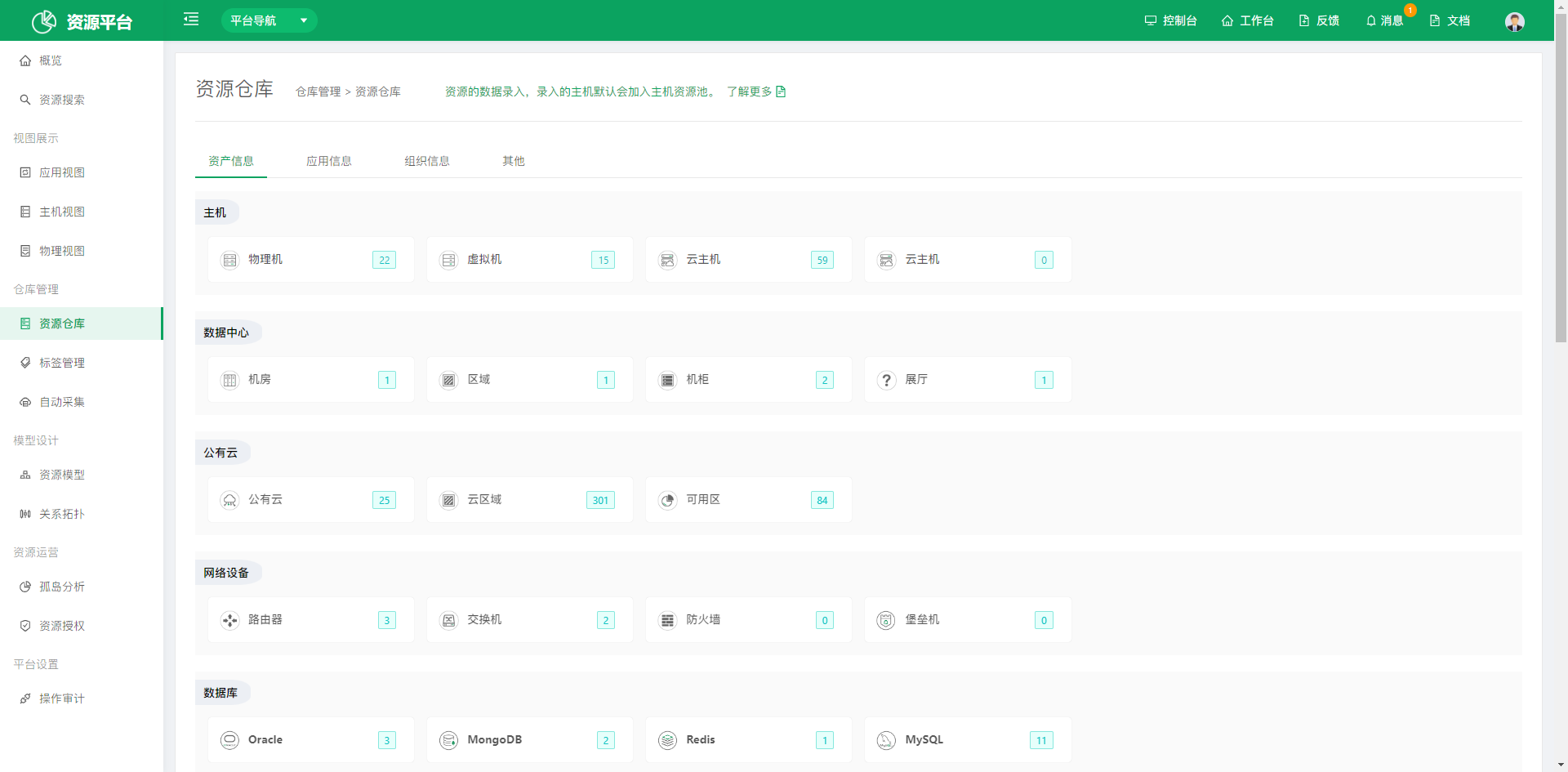
CMDB ships with three resource categories: asset information, business information, and organization information. - Asset information: mainly contains repositories for enterprise IT assets and common office supplies data. - Business information: mainly contains predefined common business, application, and service data. - Organization information: the personnel hierarchy commonly used by enterprises: company, department, team, and employee.
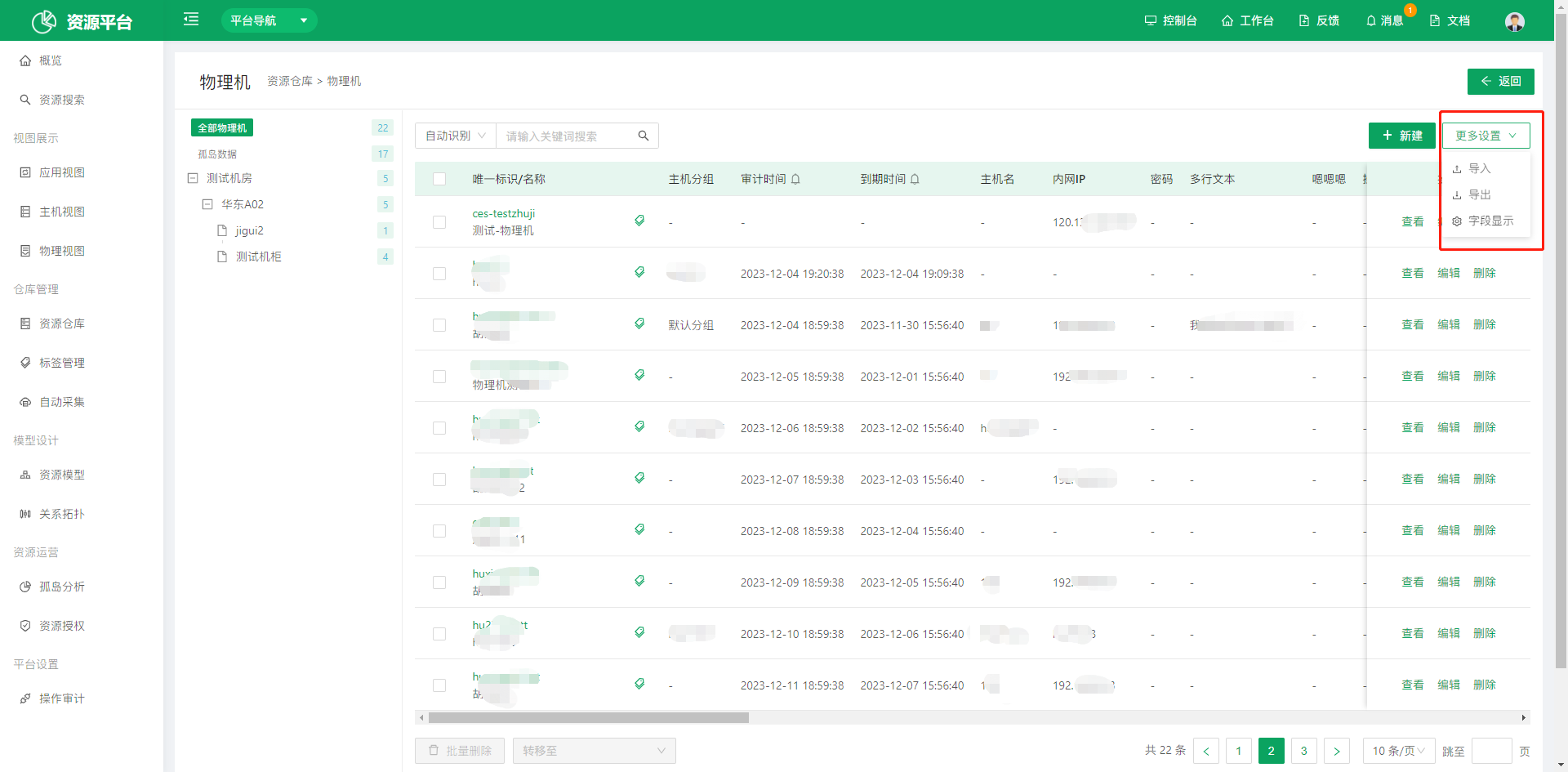
Using the physical machine repository as an example
- Click the "Physical Machine" repository to open the resource instance list of physical machines.
-
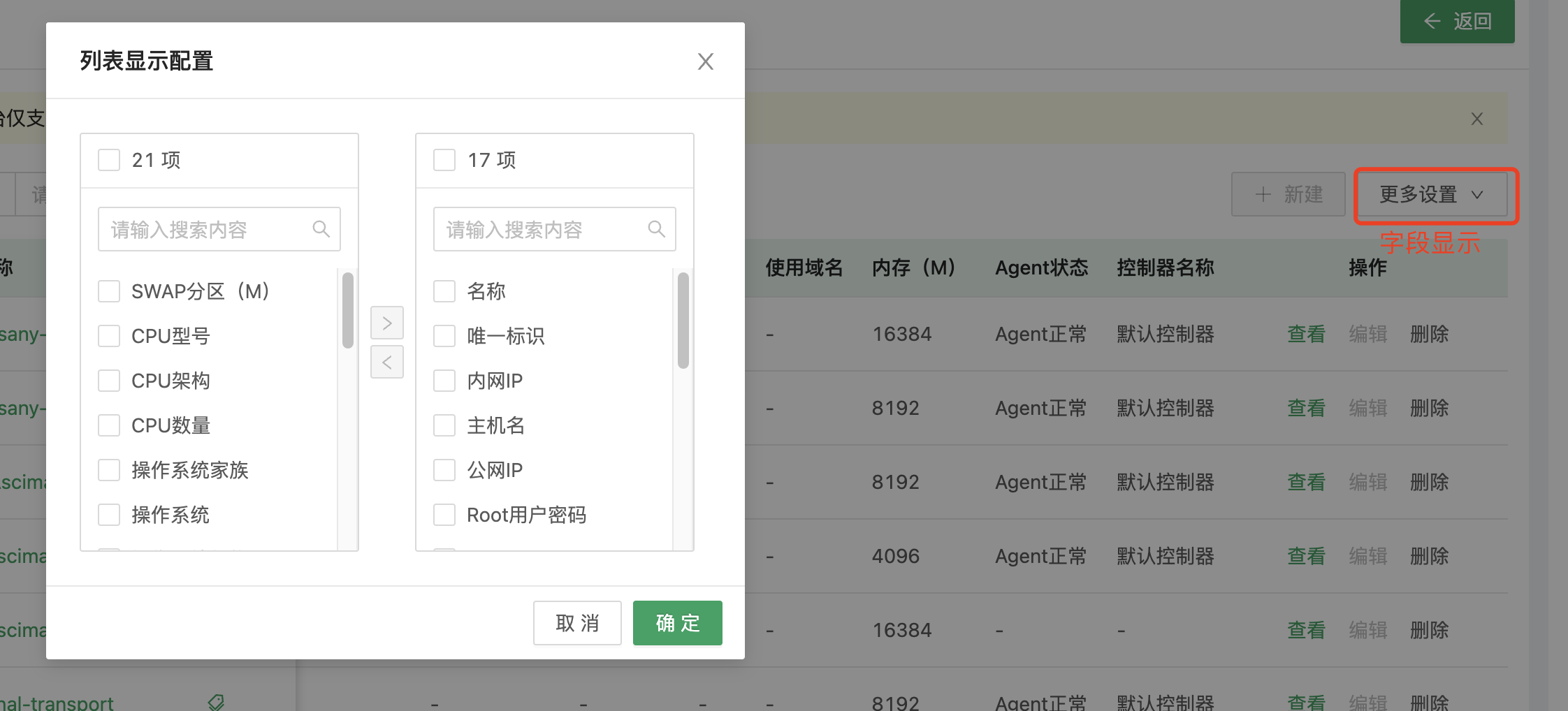
More Settings supports importing and exporting host resources. Display Fields lets you customize the columns shown in the list for your scenario. Fields are ordered from top to bottom in the panel on the right and displayed from left to right in the list.
-
Click Create to create a host instance manually.
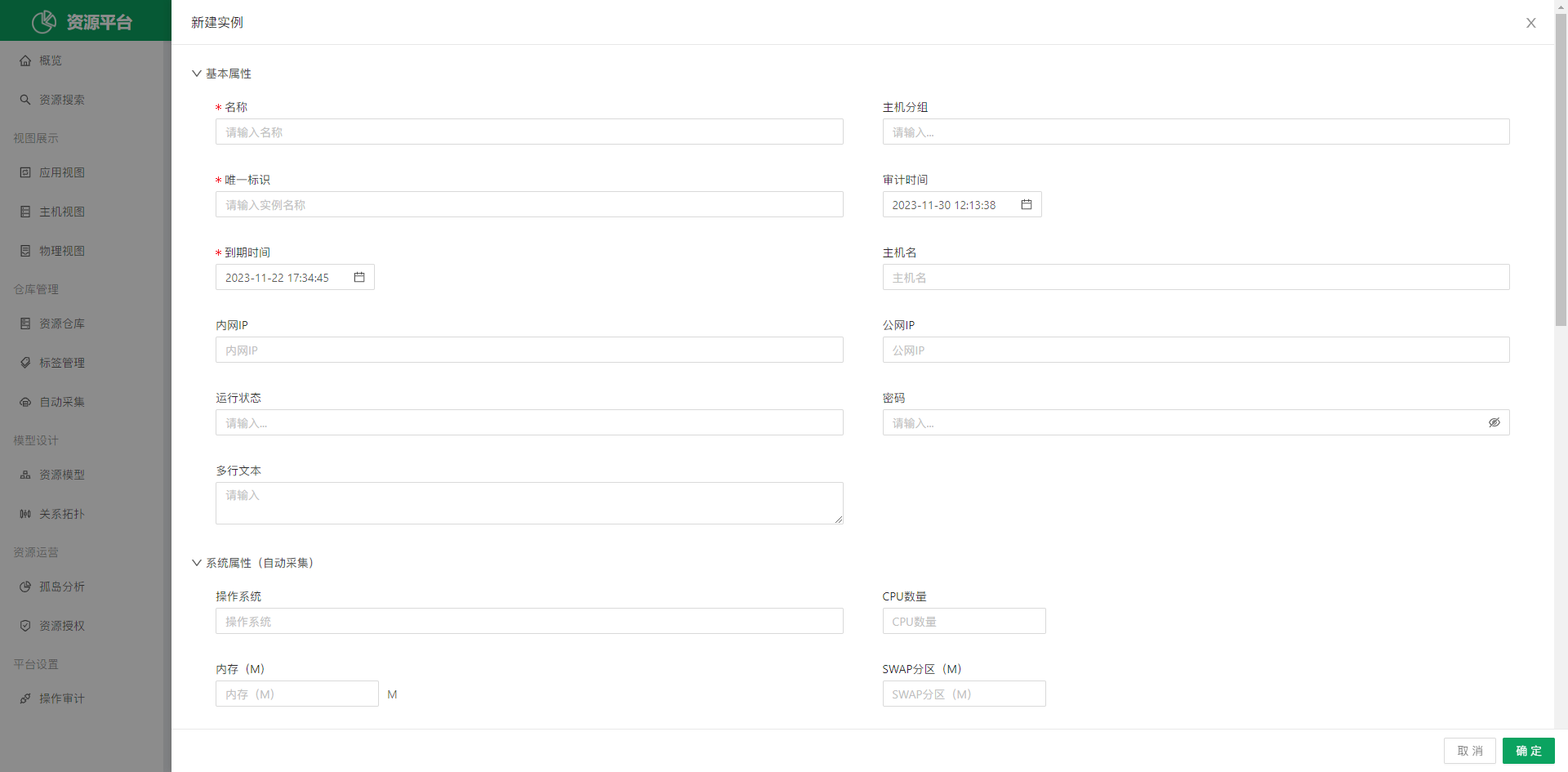
- Click View in the list operations, or click the unique identifier, to open the details page and view the details of each record.
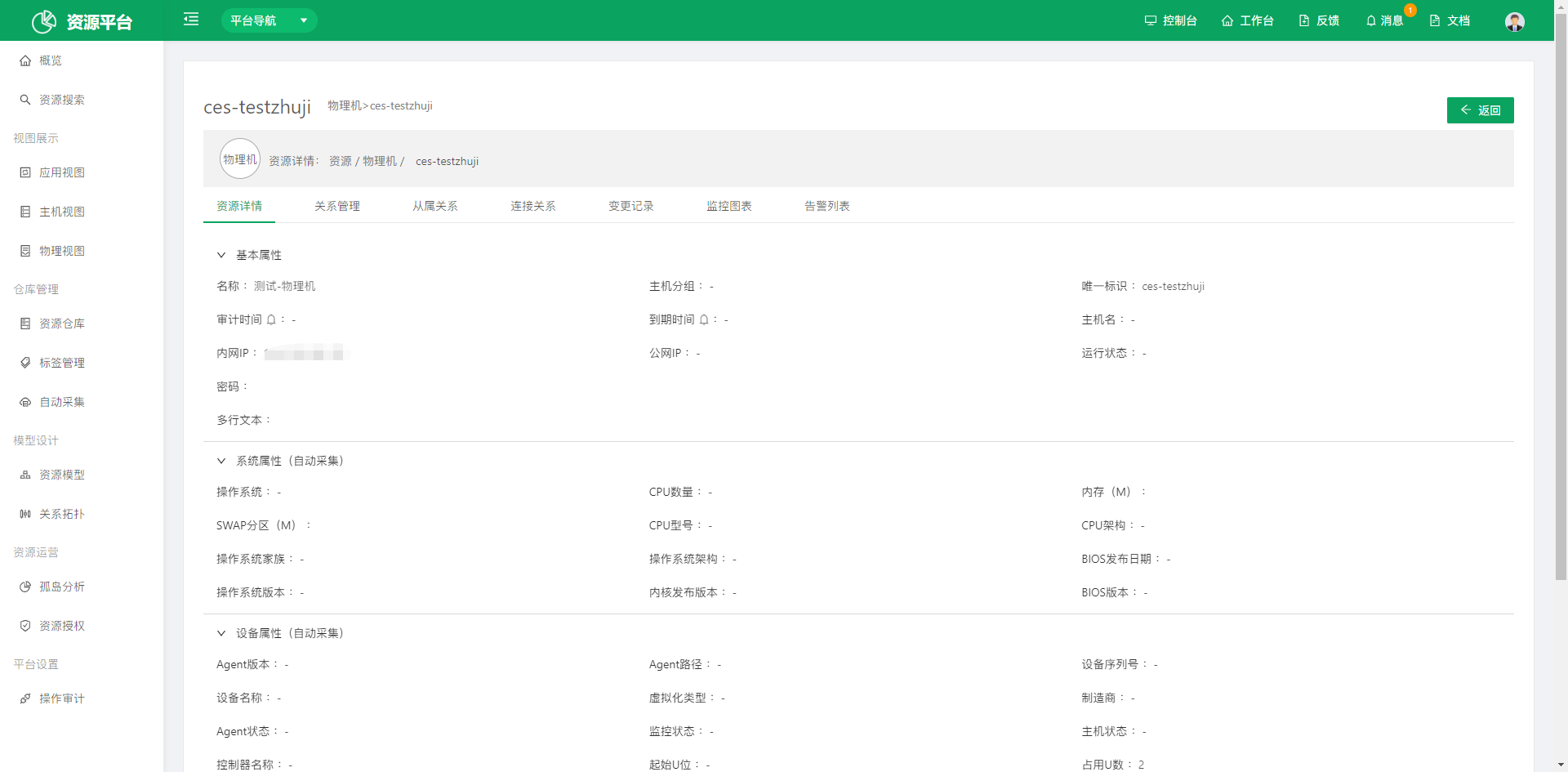 Resource details: View the associated data configured for model fields; the fields here come from the model field configuration.
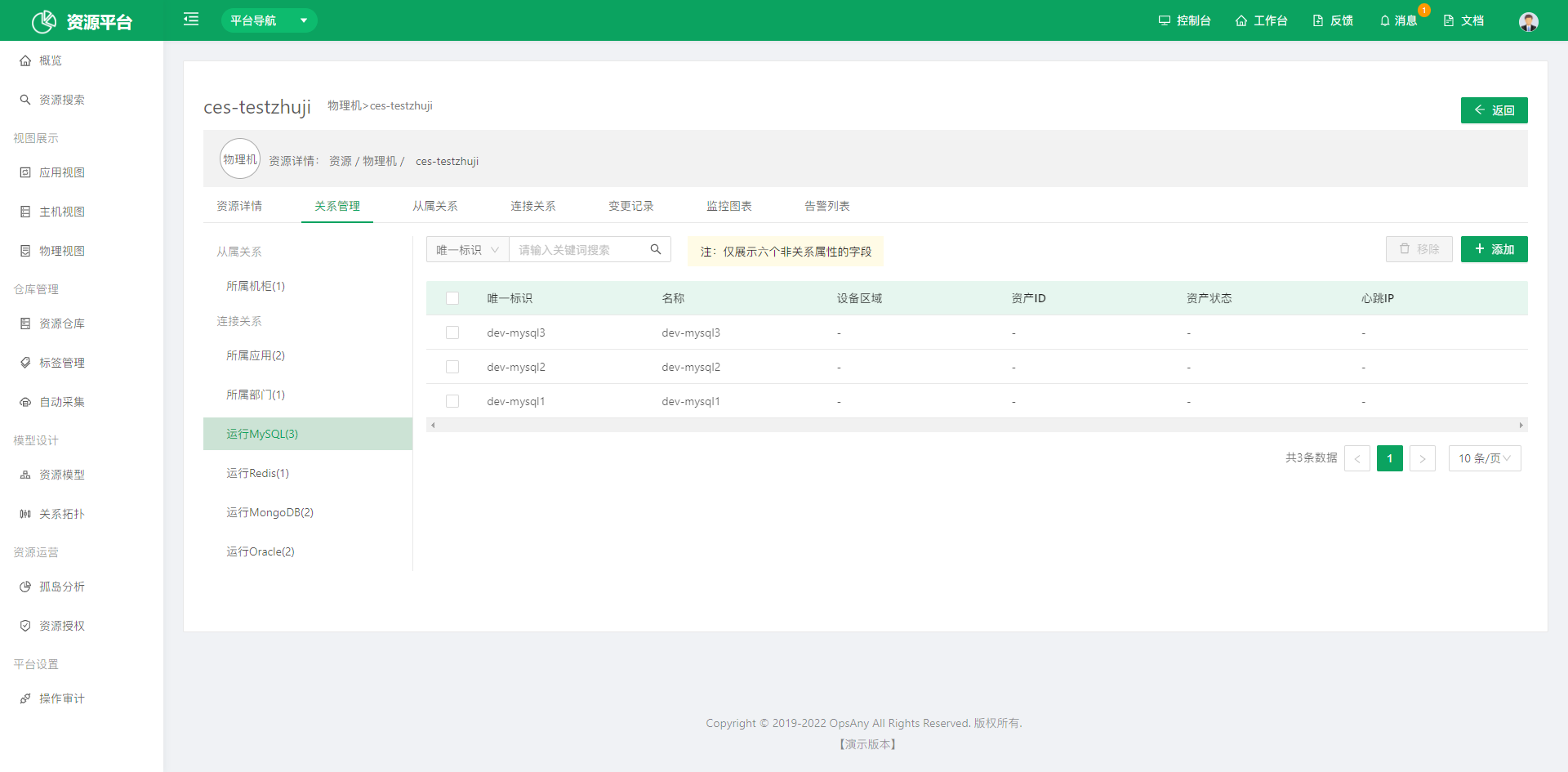 Relation management: Includes subordinate relations and connection relations. You can view related data in both relation fields and add or remove related instance data.
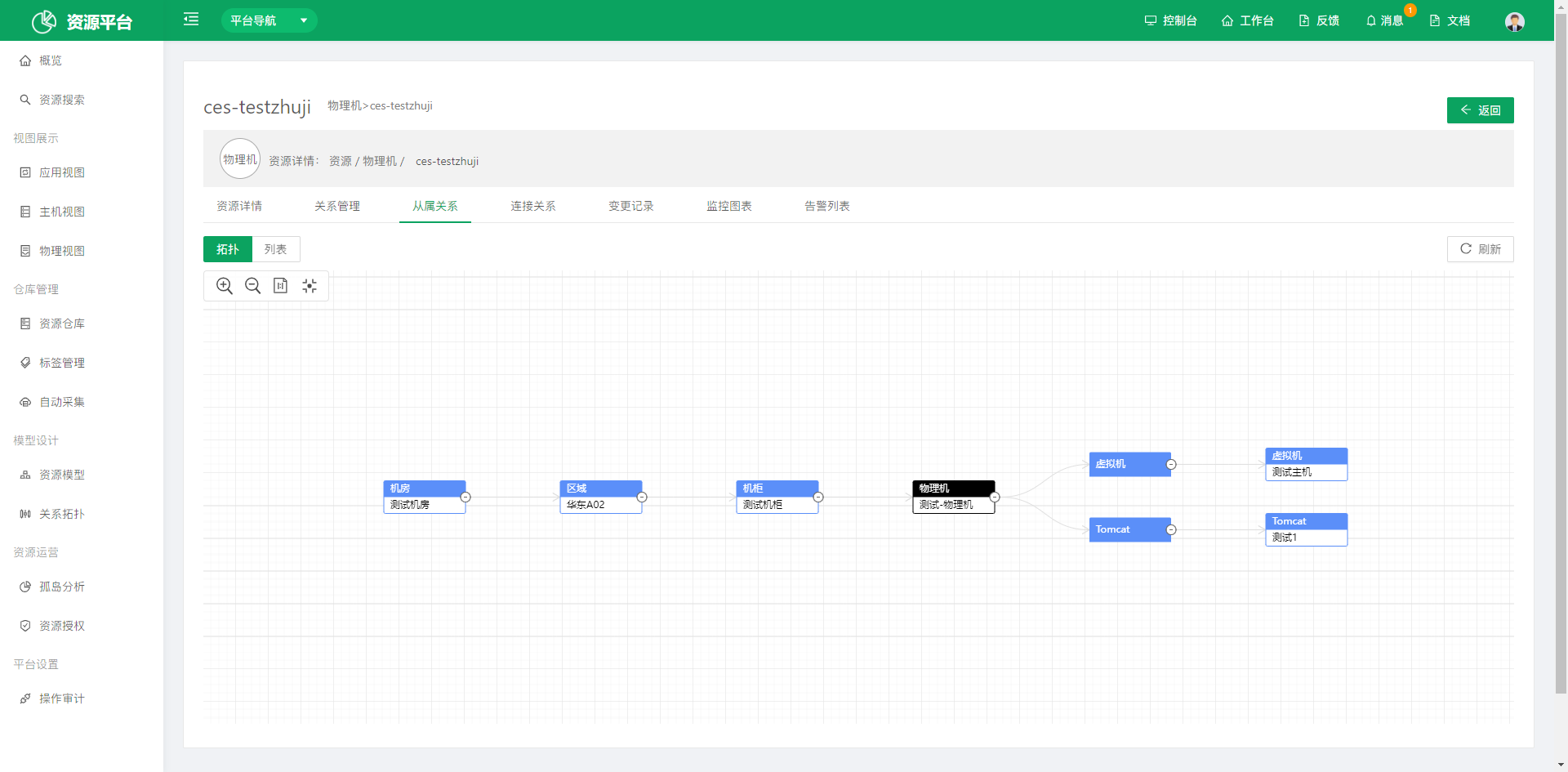 Subordinate relations: Displays the topology and list data of subordinate relations for the current instance.
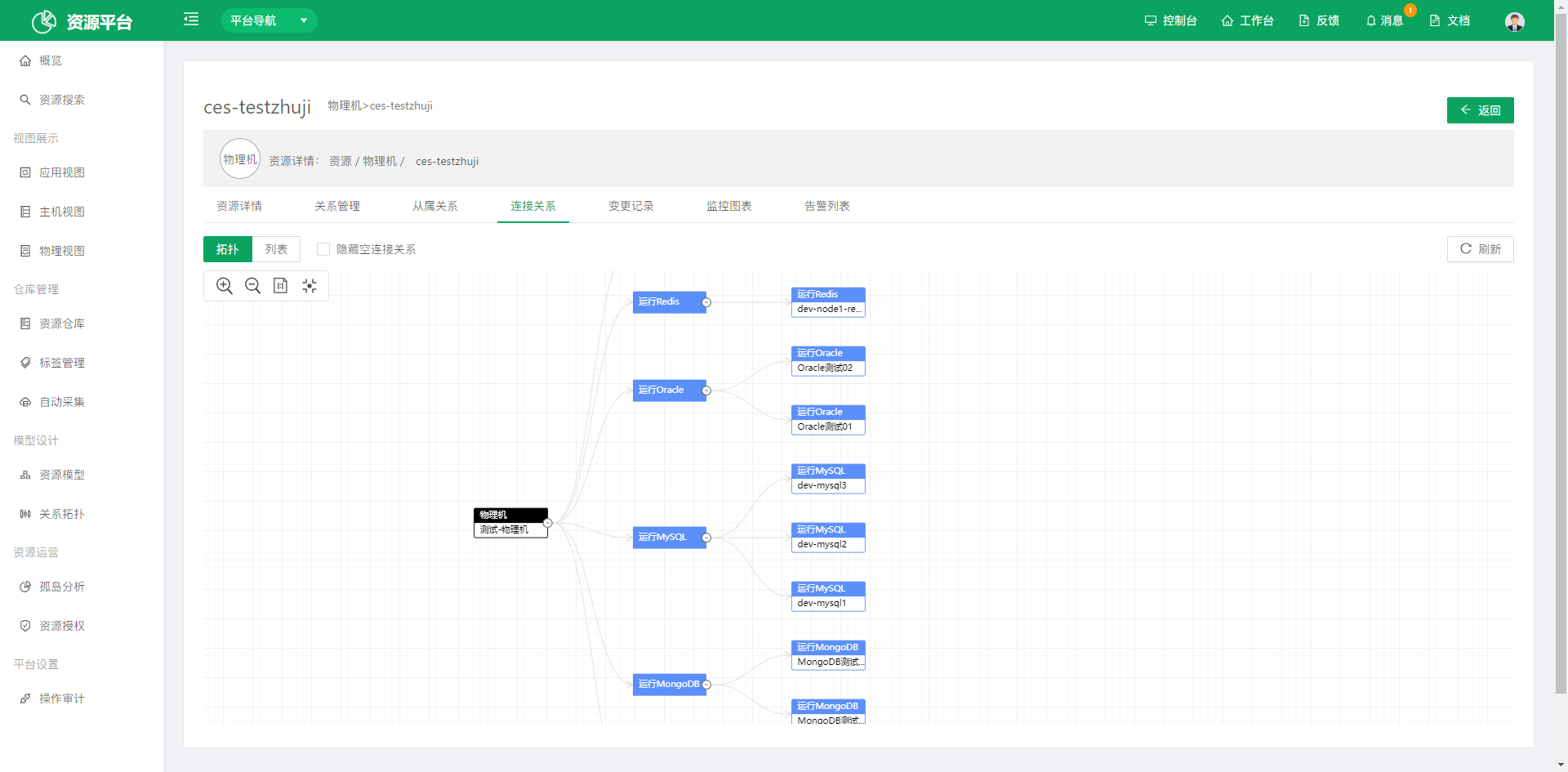 Connection relations: Displays the topology and list data of connection relations for the current instance, and supports hiding empty connection relations.
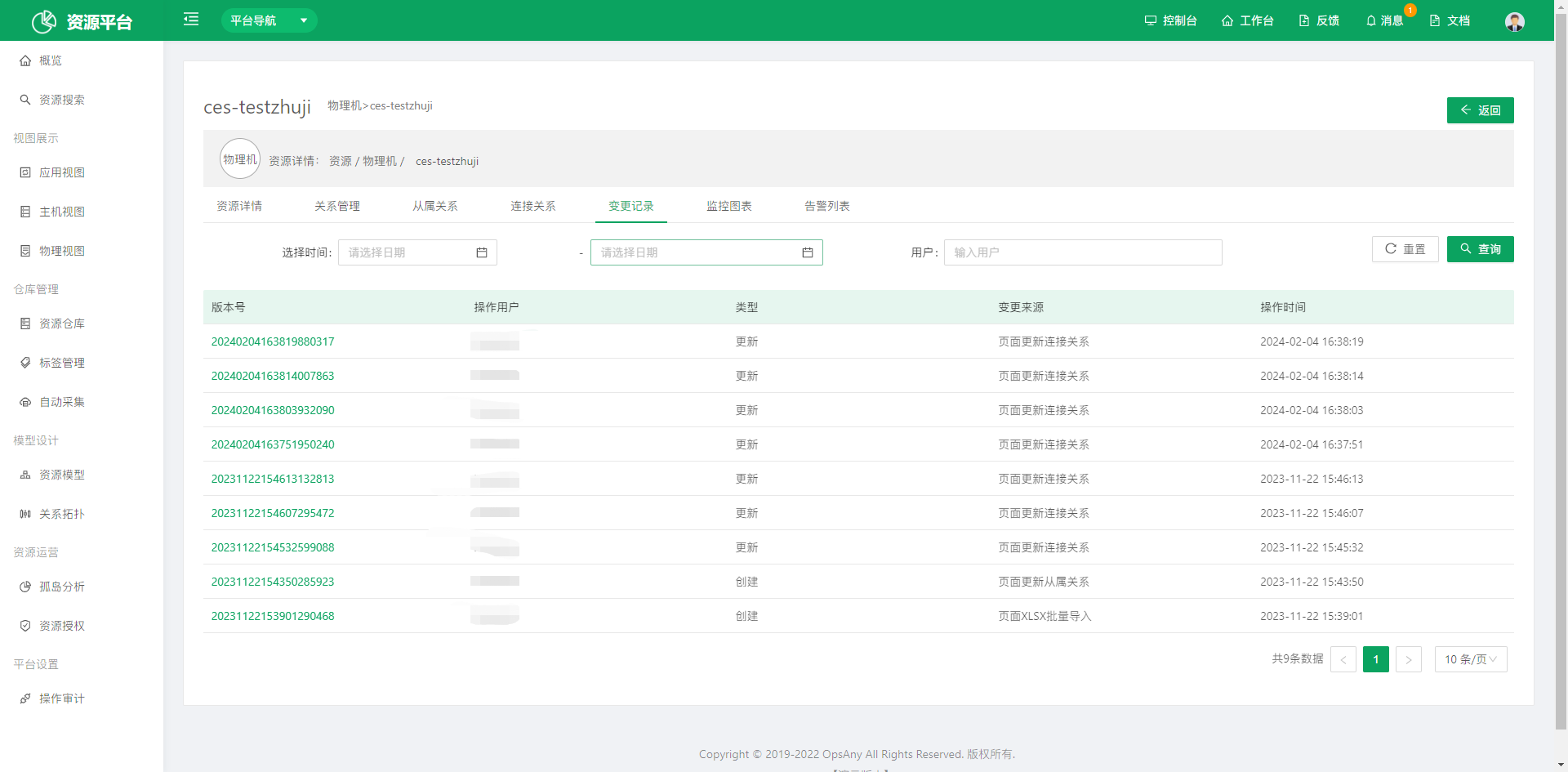 Change history: Records the user operation log of the current instance.
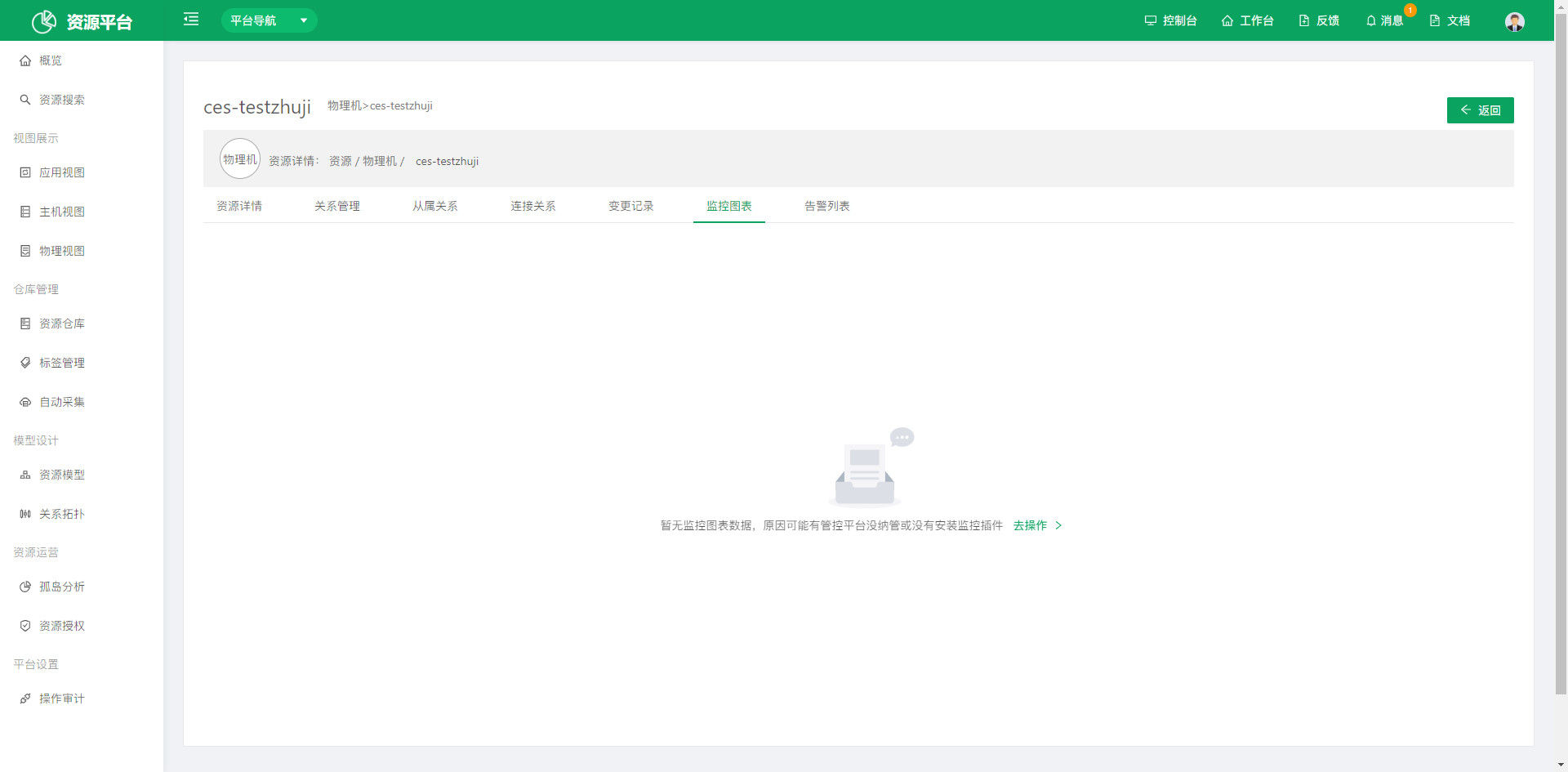 Monitoring charts: Displays monitoring status information for the current instance.
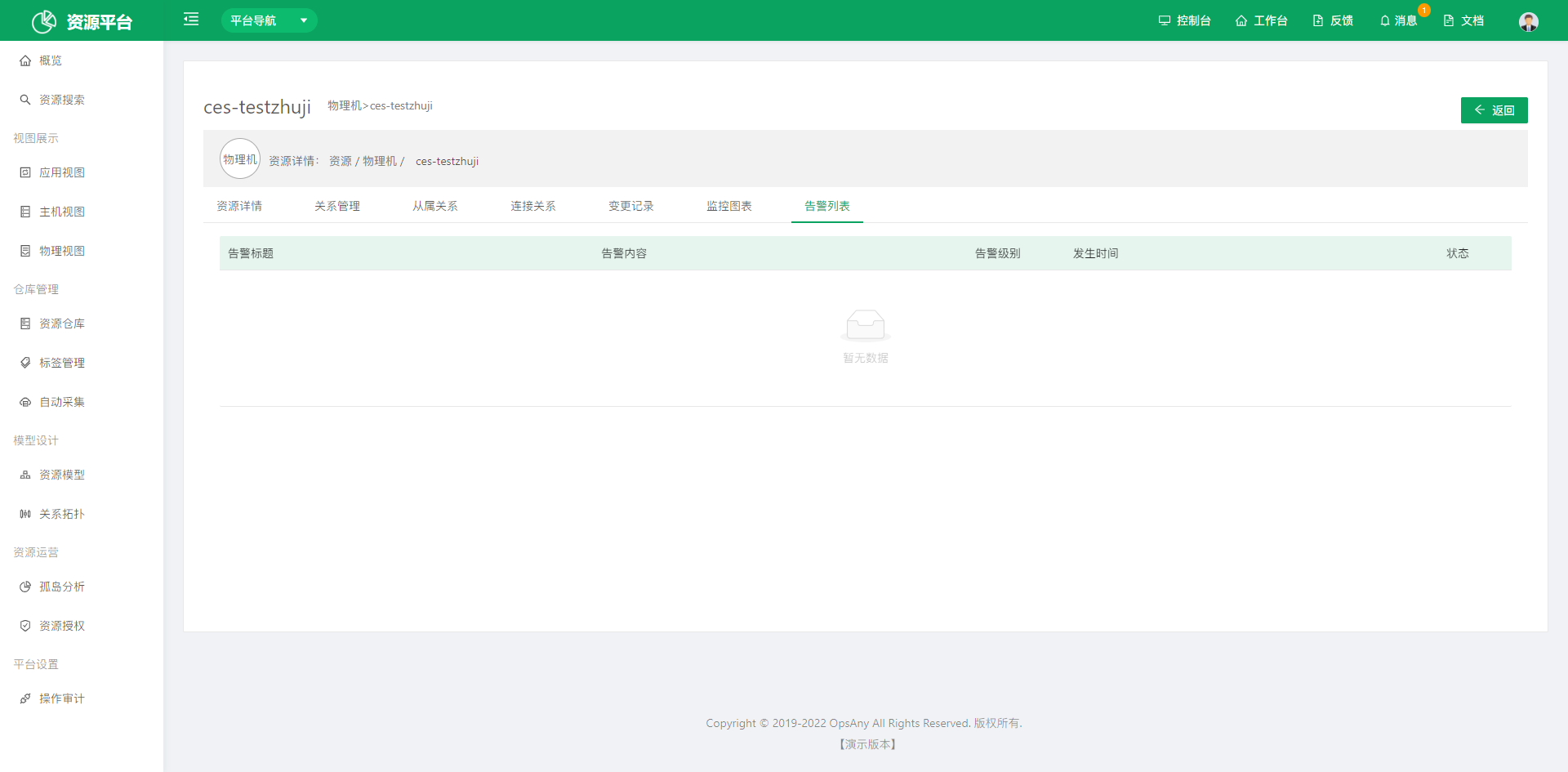 Alert list: Displays alert information for the current instance.
2.2 Tag Management
Tag Management helps users find specific data more quickly.
A tag consists of a tag key and a tag value; searching by tag requires a key-value pair.
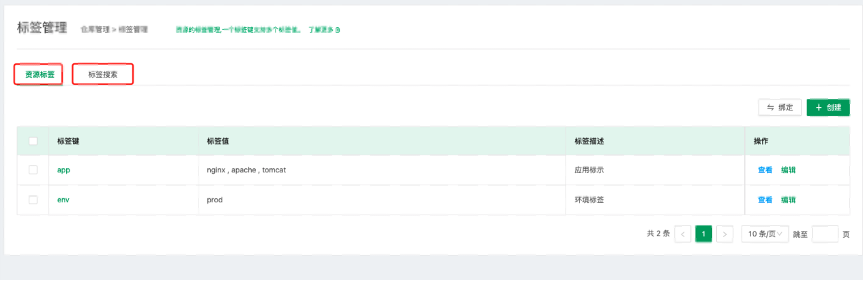
Main features include resource tags and tag search.
- Resource tags: Create tags and bind them to resources.
- Tag search: Search for resources bound to tags by tag.
Create a tag
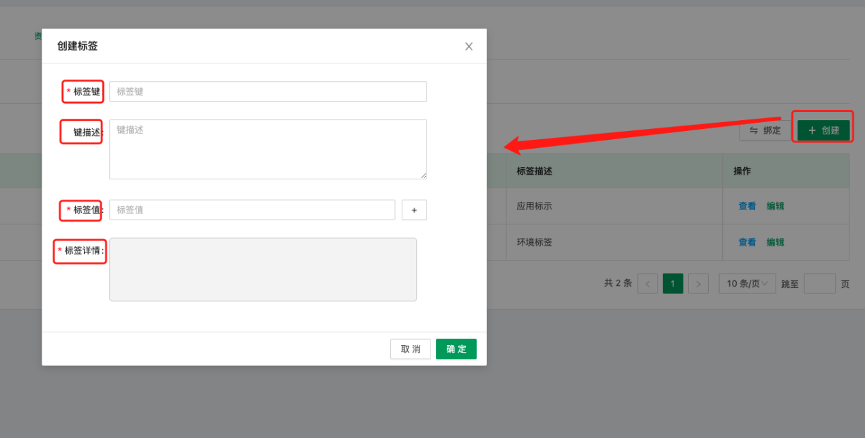
- Tag key and tag value: Chinese and English input are both supported.
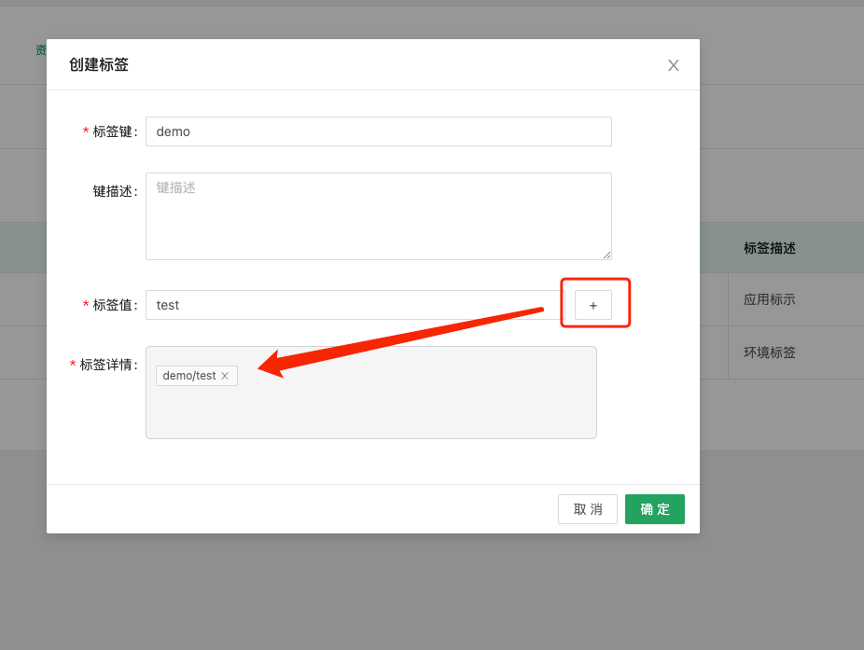
- After entering the tag value and tag key, click the plus sign, and the generated tag appears in the tag details area.
Bind a tag to resources
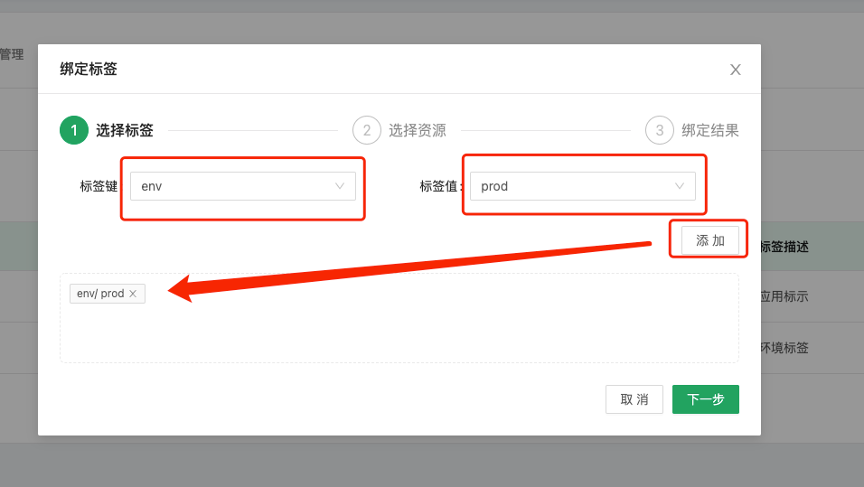
Step 1: Select a tag key and tag value to generate a tag.
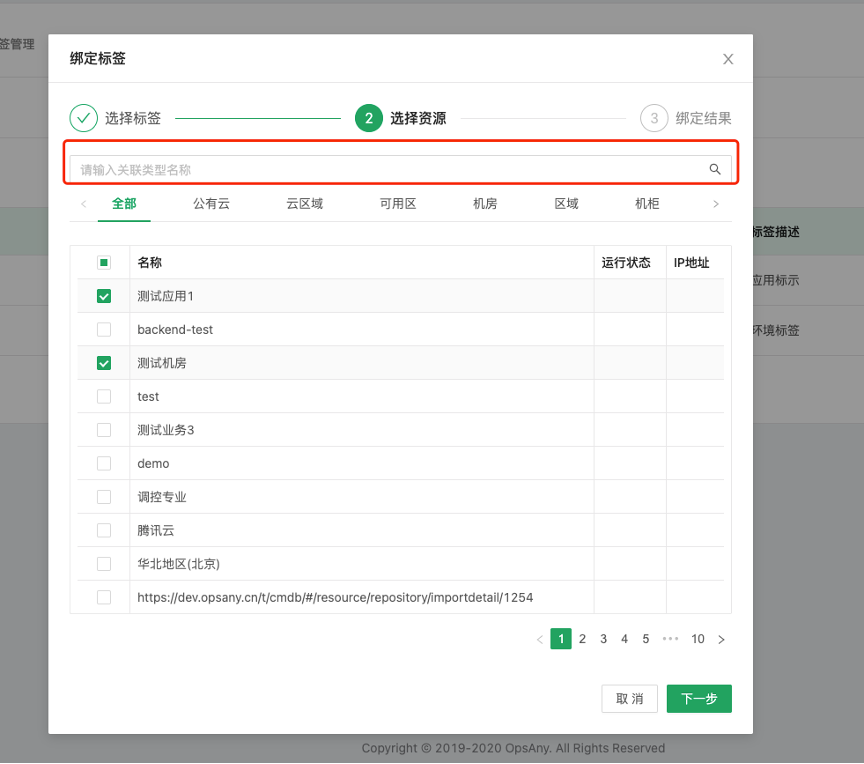
Step 2: Select the resources to bind. You can search for resource data by keyword.
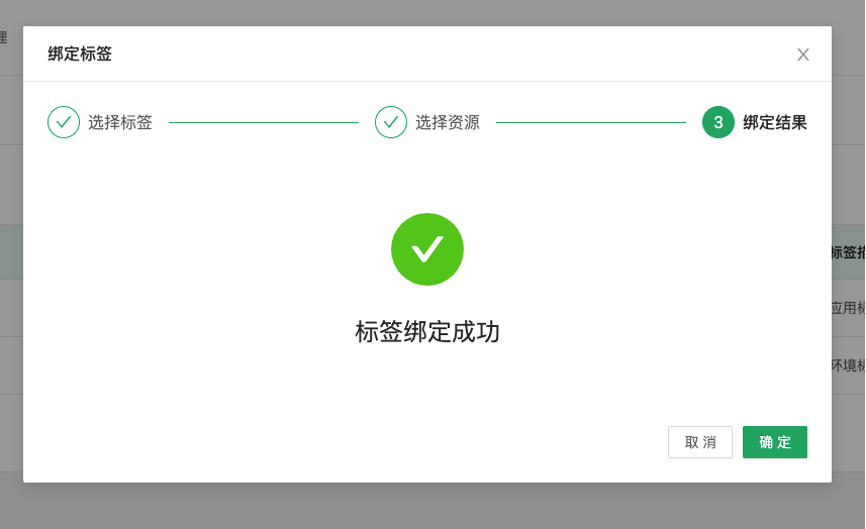
Step 3: The tag is bound to the resources successfully.
Example tag usage scenarios
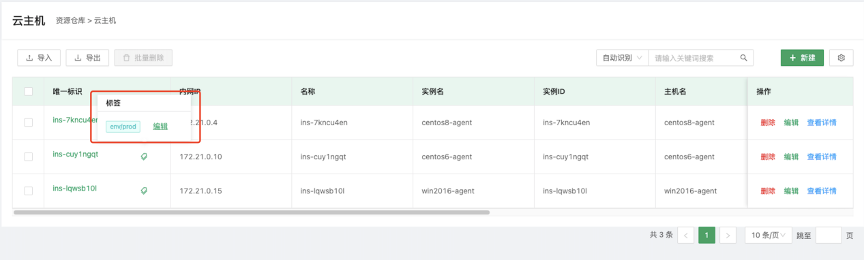
- Using tags on cloud host model data in the resource repository; the tags currently bound to the resource are displayed here.
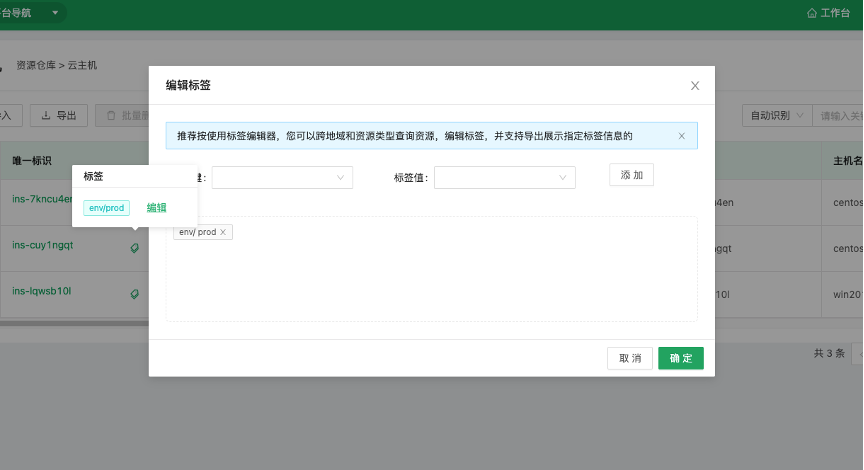
- Click Edit here, and the dialog that opens lets you quickly add or modify tags on existing resources.
- Search resource content by tag, so users can find specific resource information more quickly.
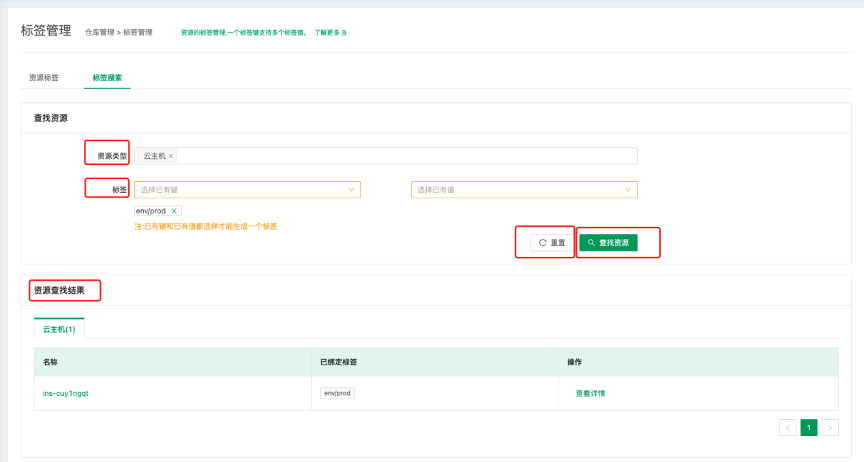
- Resource type: Sets the search scope according to the models configured for resource models.
- Tag: You must select both a tag key and a tag value; the tag is generated automatically.
- Reset: Deletes the generated tag above, and you can then continue selecting tag keys and values.
- Find Resources: Click Find Resources, and the resources matching the selected tags appear in the resource search results below.
2.3 Automatic Collection
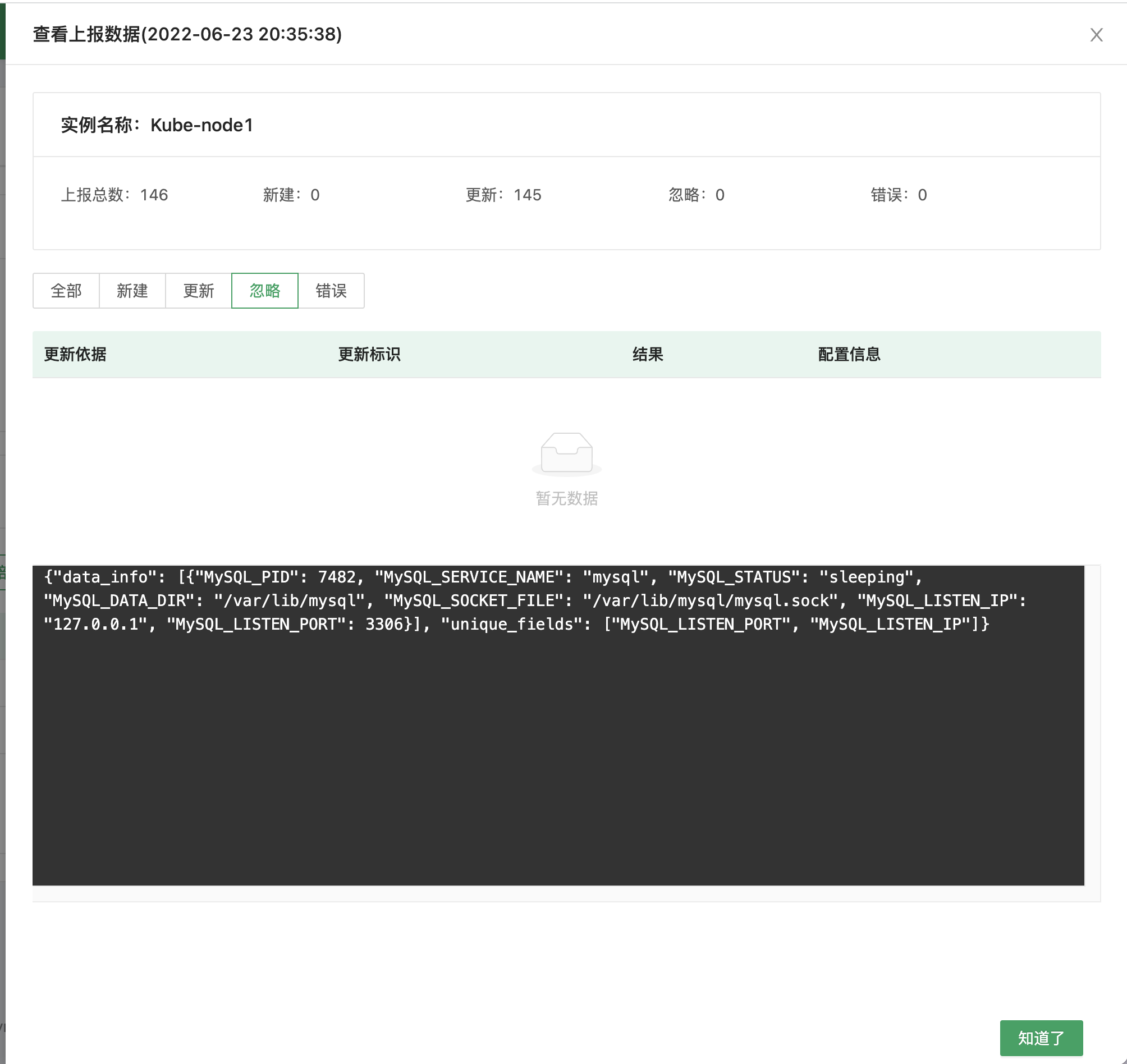
By creating automatic collection jobs, you can use the asset collection plugins of the Control Platform to collect assets automatically. Automatic collection is mainly used to automatically collect virtual assets from target hosts, such as MySQL services, ZooKeeper services, RabbitMQ services, and so on. After collection completes, the assets are imported into the CMDB repository automatically, making them easier to manage.
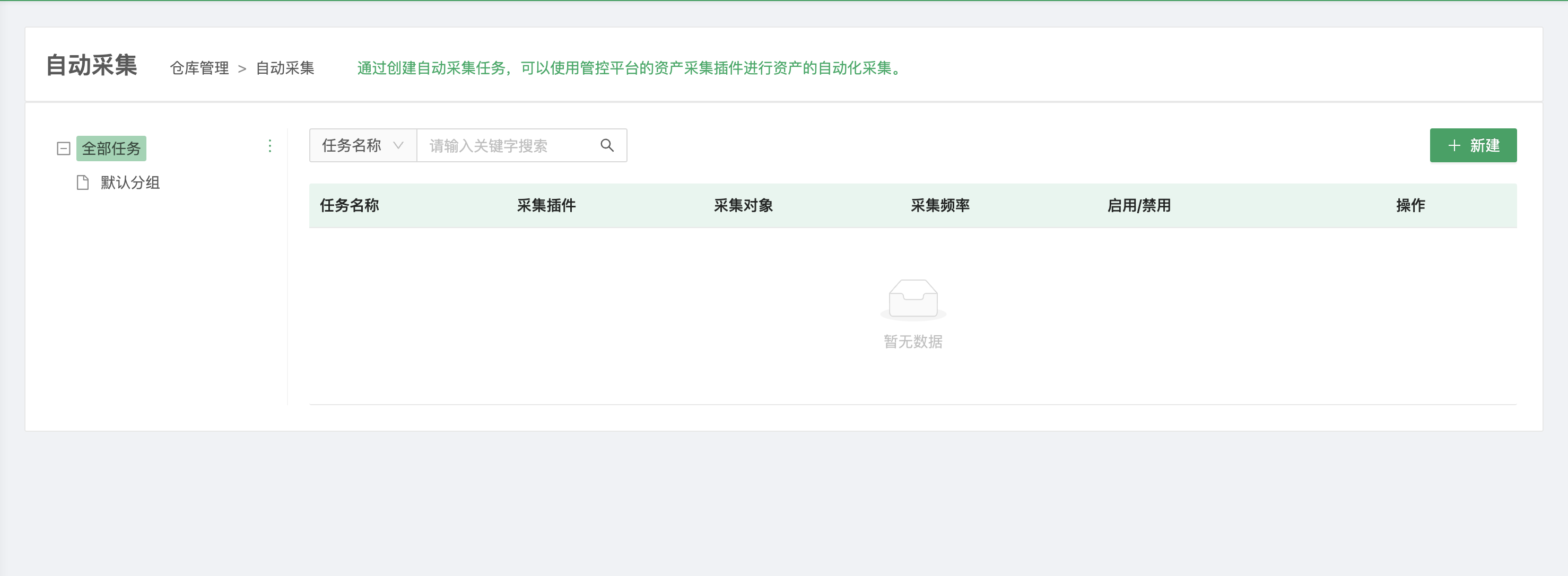
- Step 1: Collection configuration
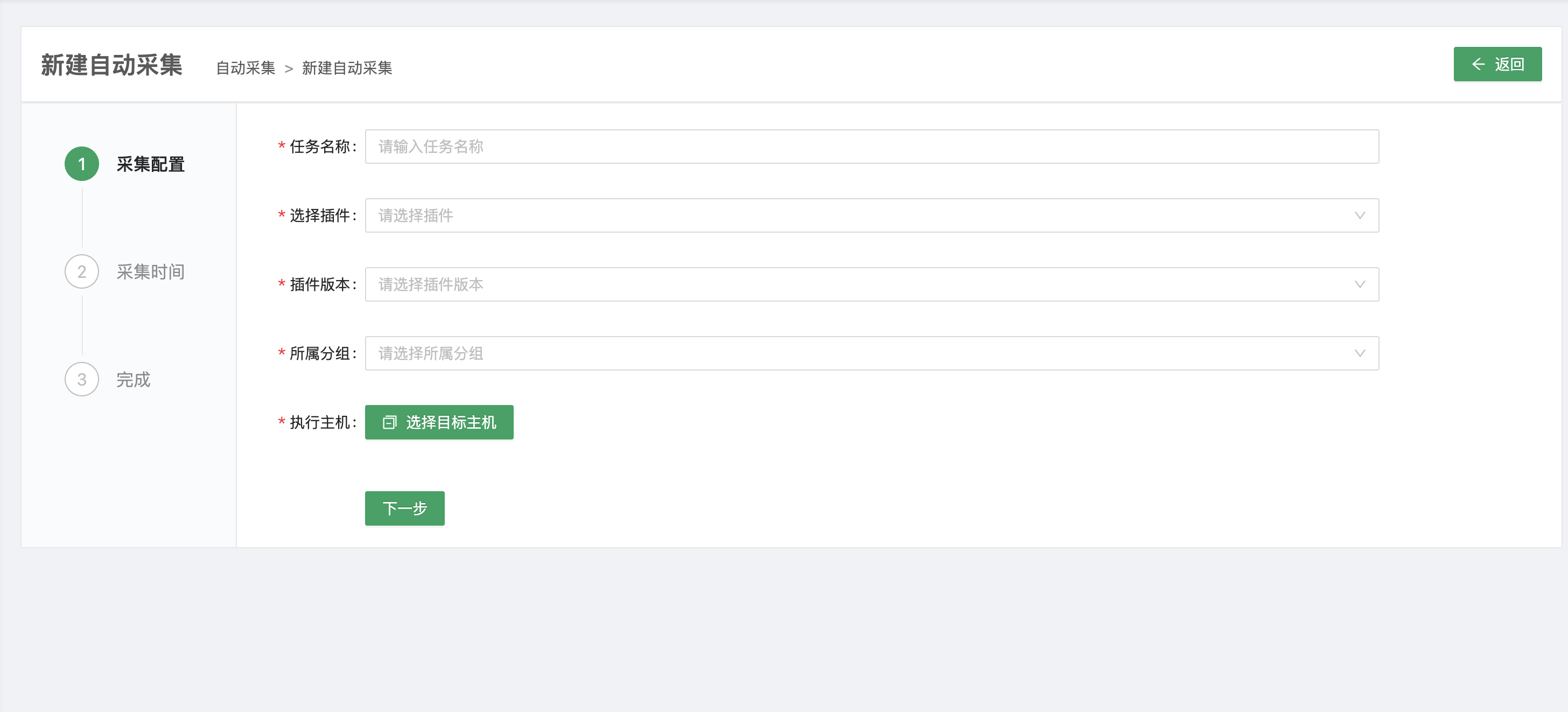
Plugins come from the Control Platform. Before use, configure collection plugins in the Control Platform in advance. For details, see the Control Platform User Guide.
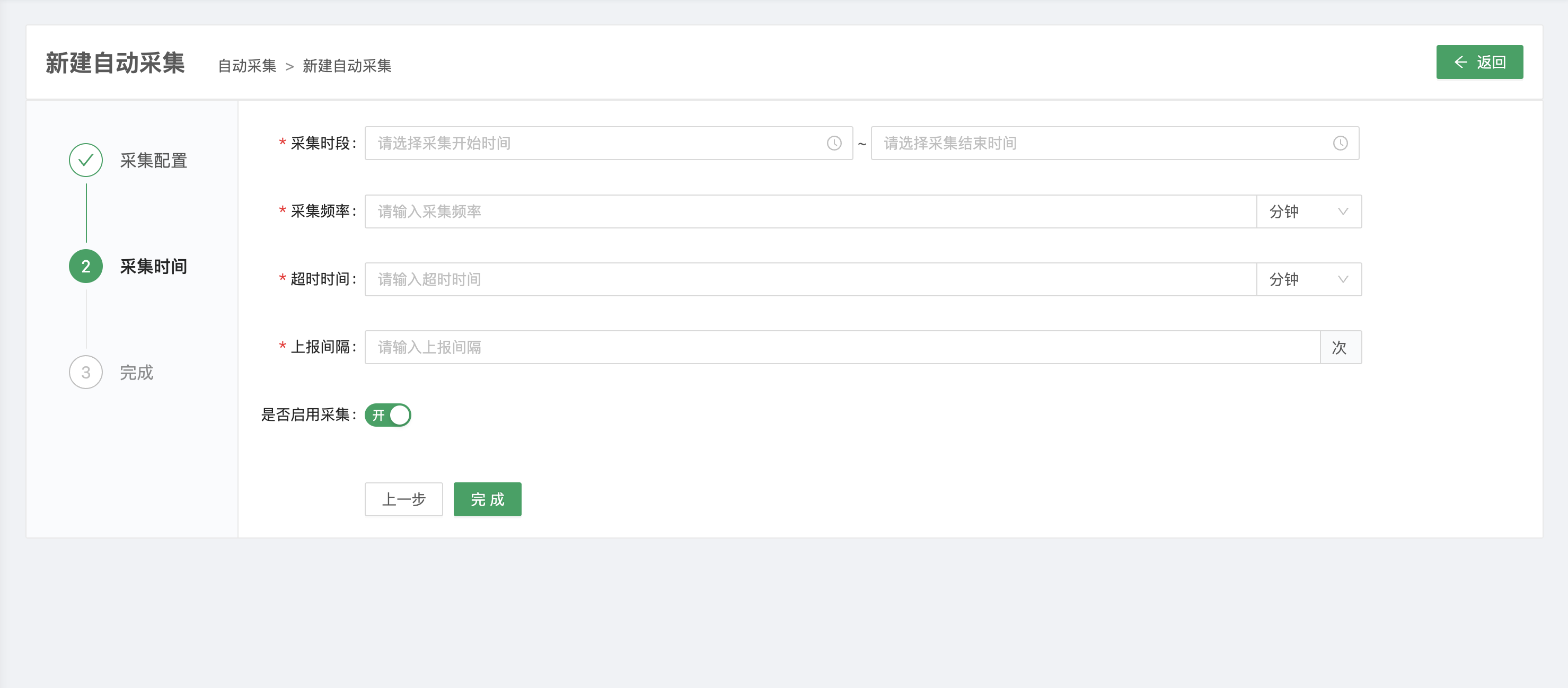
- Step 2: Collection time
- Viewing collection details
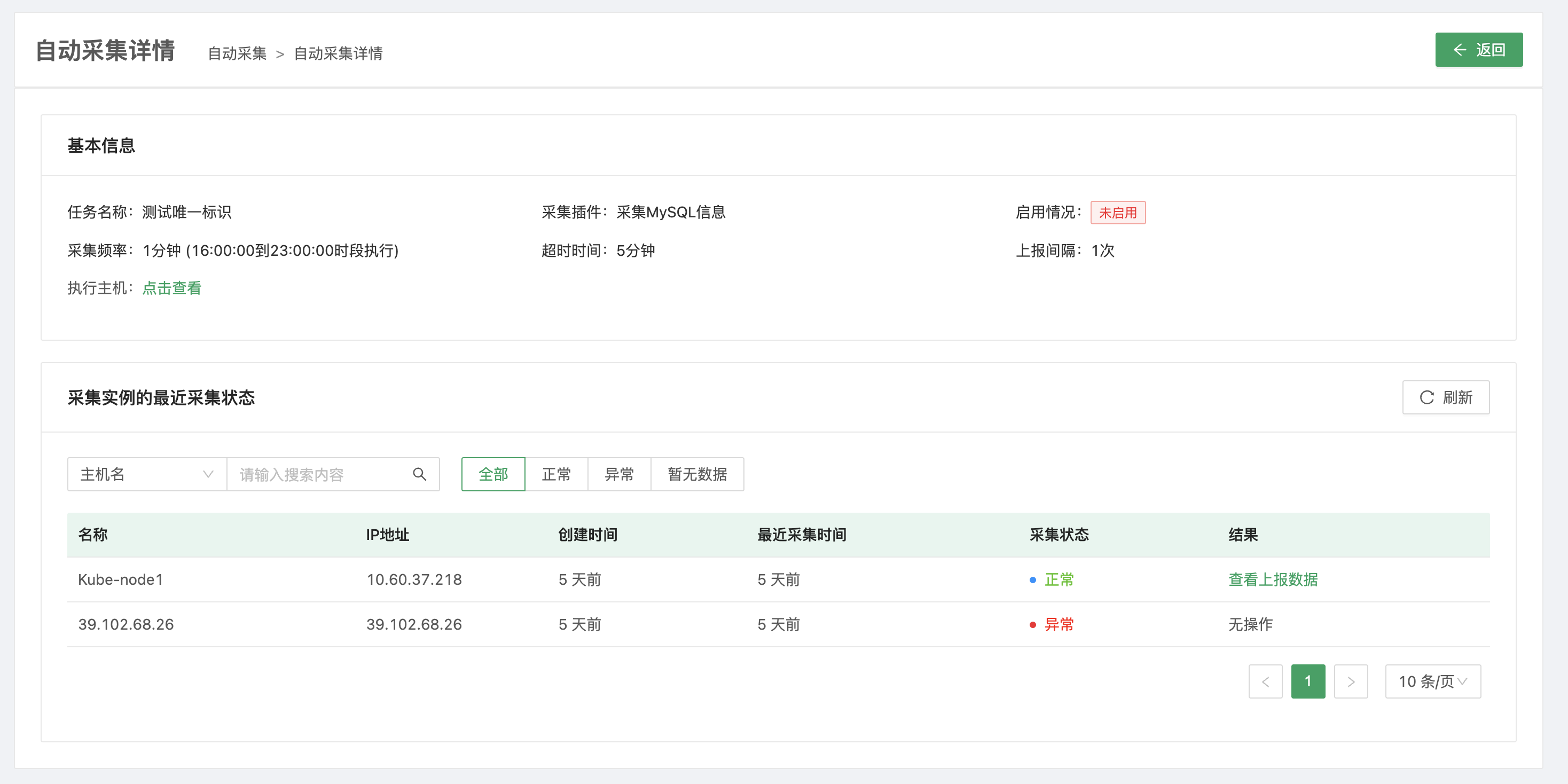
When using automatic collection, pay attention to how the collection script is written, and test the script's results in advance. Collected assets may be added, modified, or deleted, so review the quantity and details of the current assets to avoid data inconsistency.
3. Model Design
CMDB is built on models. It currently ships with three common resource model categories: application, resource, and organization, and each category lists its own sub-models. If the built-in models do not meet your needs, you can build a CMDB platform specific to your enterprise through custom models.
Asset models: Mainly cover all enterprise assets. Each asset can be managed through a model, and the system ships with common models such as physical machine, virtual machine, cloud host, data center, region, cabinet, public cloud, cloud region, availability zone, router, and switch.
Application models: Based on the scale of business commonly used by enterprises, these are divided into three layers: business, application, and service. Enterprises can manage their business lines by creating the corresponding model data.
Organization models: Usually used to build the corresponding human resources model, storing personnel and organizational structure data for easier management.
3.1 Resource Model
View existing resource models
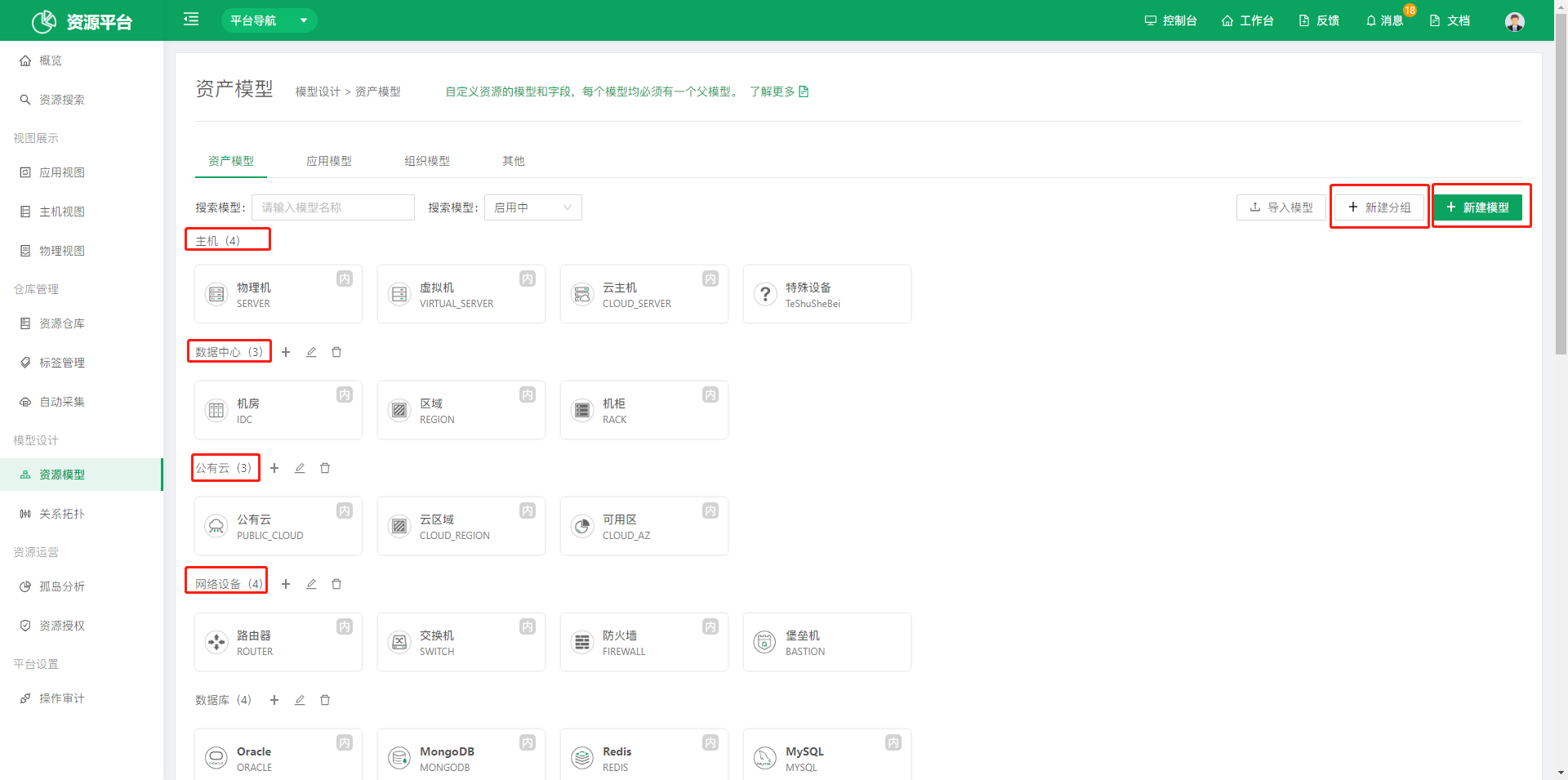
"Host", "Data Center", "Public Cloud", and "Network Device" on the left are the groups under the current model category. Groups make models easier to manage. Groups are either built-in or user-defined; built-in groups cannot be modified or deleted.
Create a group
Click Create Group to define your own model group.
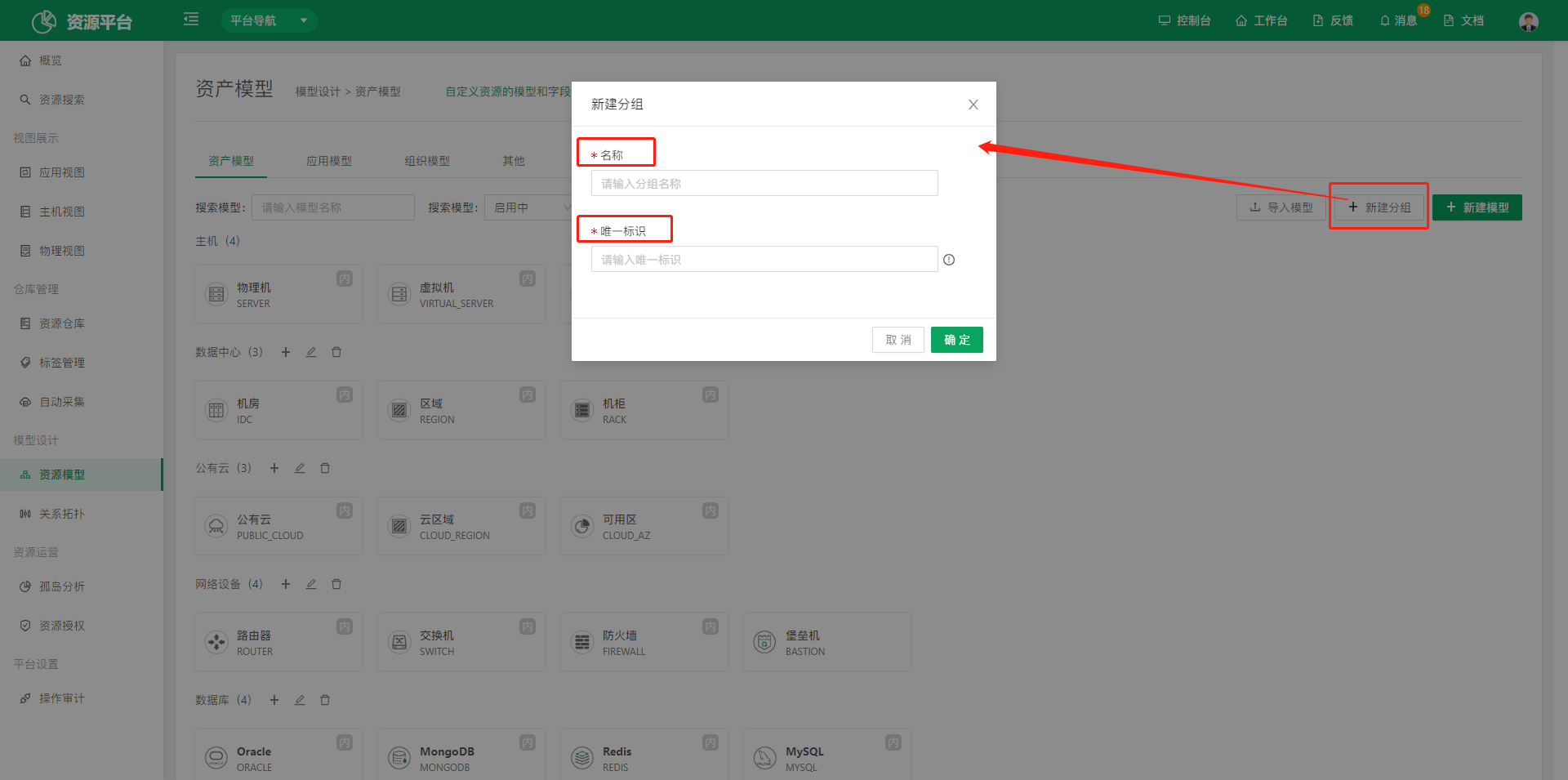
- Unique identifier: You can enter a custom unique identifier. The value must be unique within the current model category.
- Name: You can enter a custom name to help identify the item.
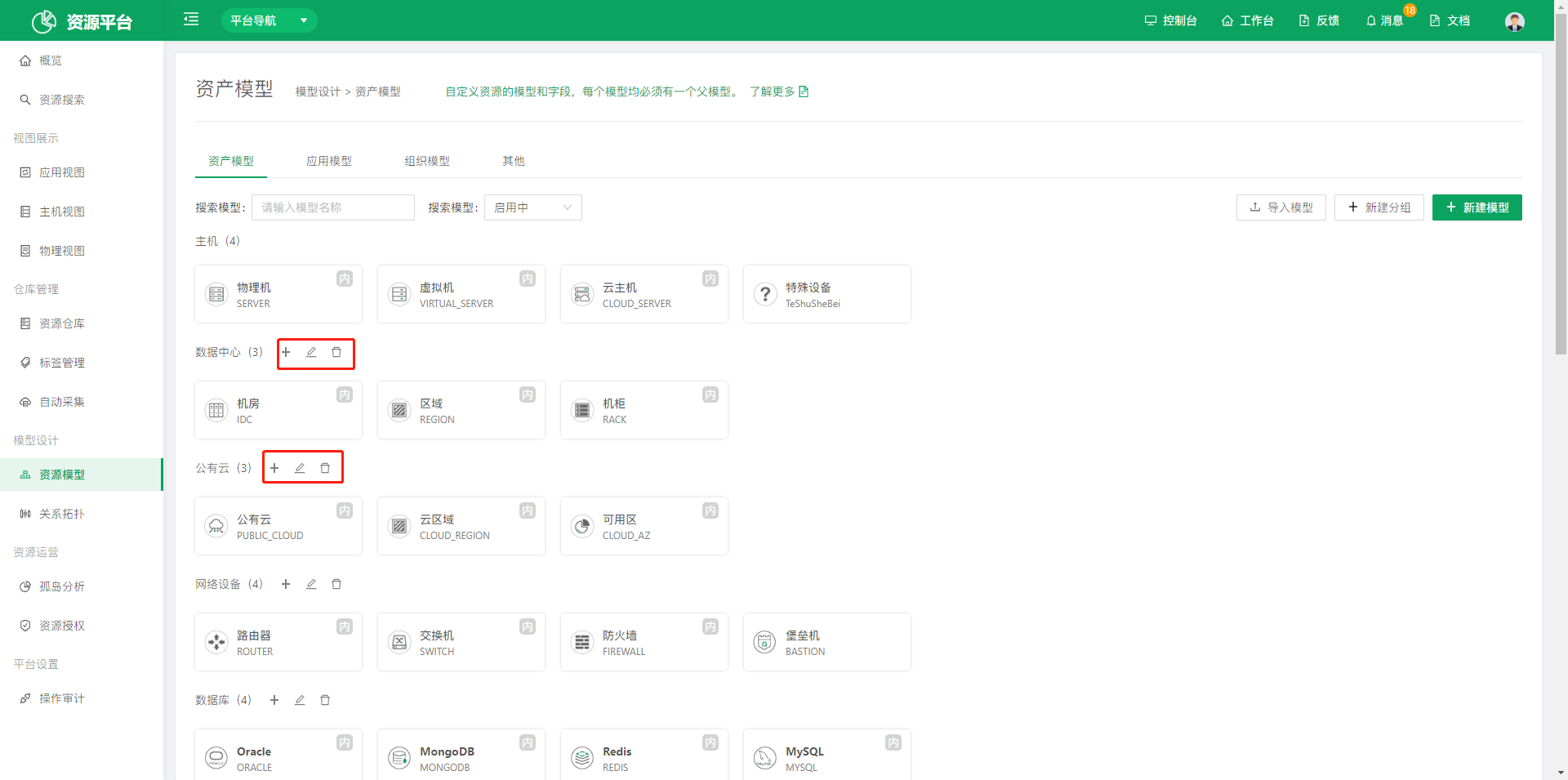
- You can click the add, edit, and delete icons to manage groups.
Create a model
Click Create Model to define your own model.
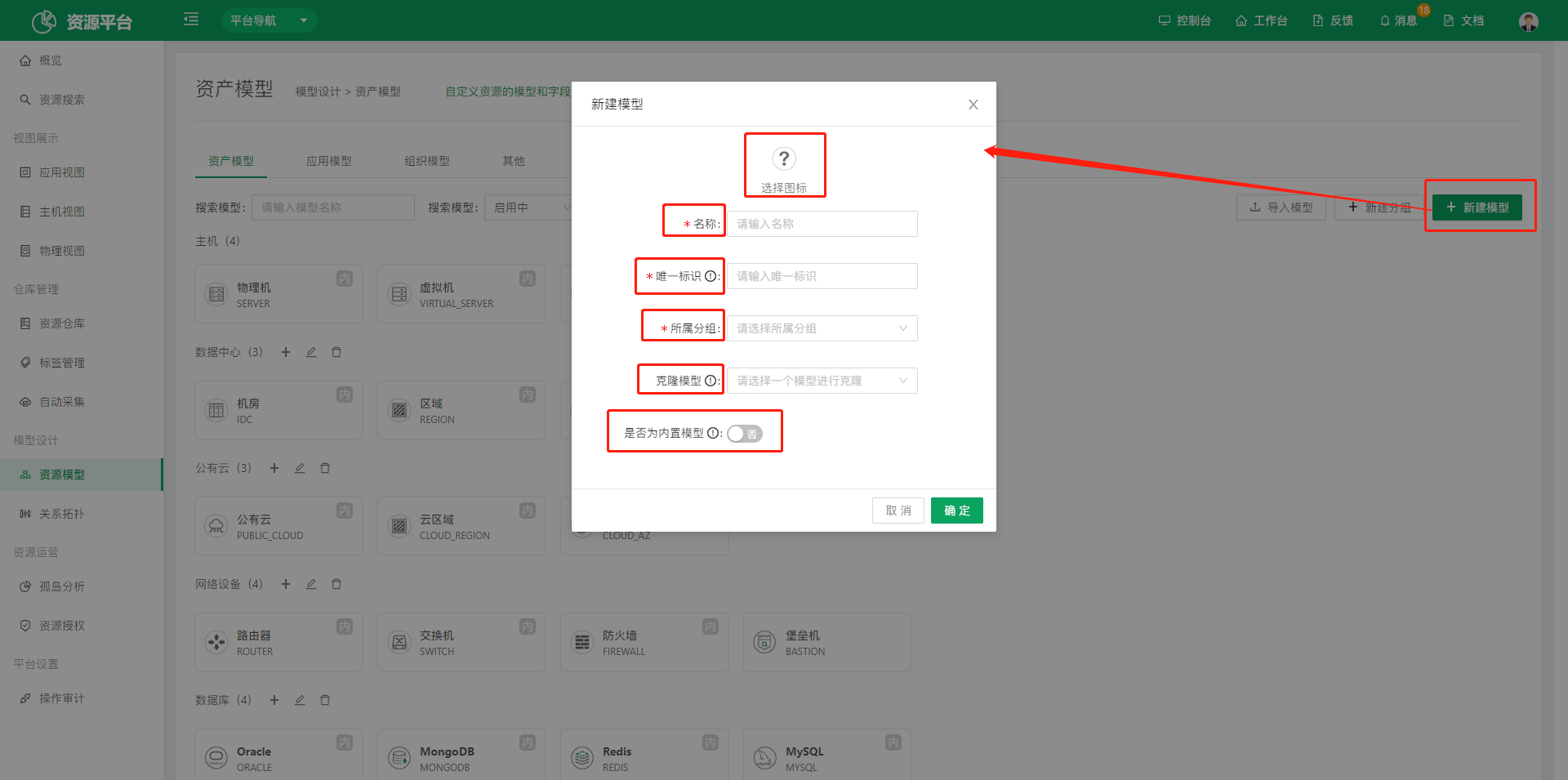
- Select icon: You can choose an icon for the model.
- Name: You can enter a custom name.
- Unique identifier: Generated automatically from the name by default; you can also define it yourself.
- Group: Select a model group to make the model easier to manage.
- Clone model: You can select a model to clone. Only basic fields are cloned.
- Built-in model: You can choose whether to make the model built-in. Once enabled, only administrators can delete the model.
After the model is created, you can view the details of the model you created.
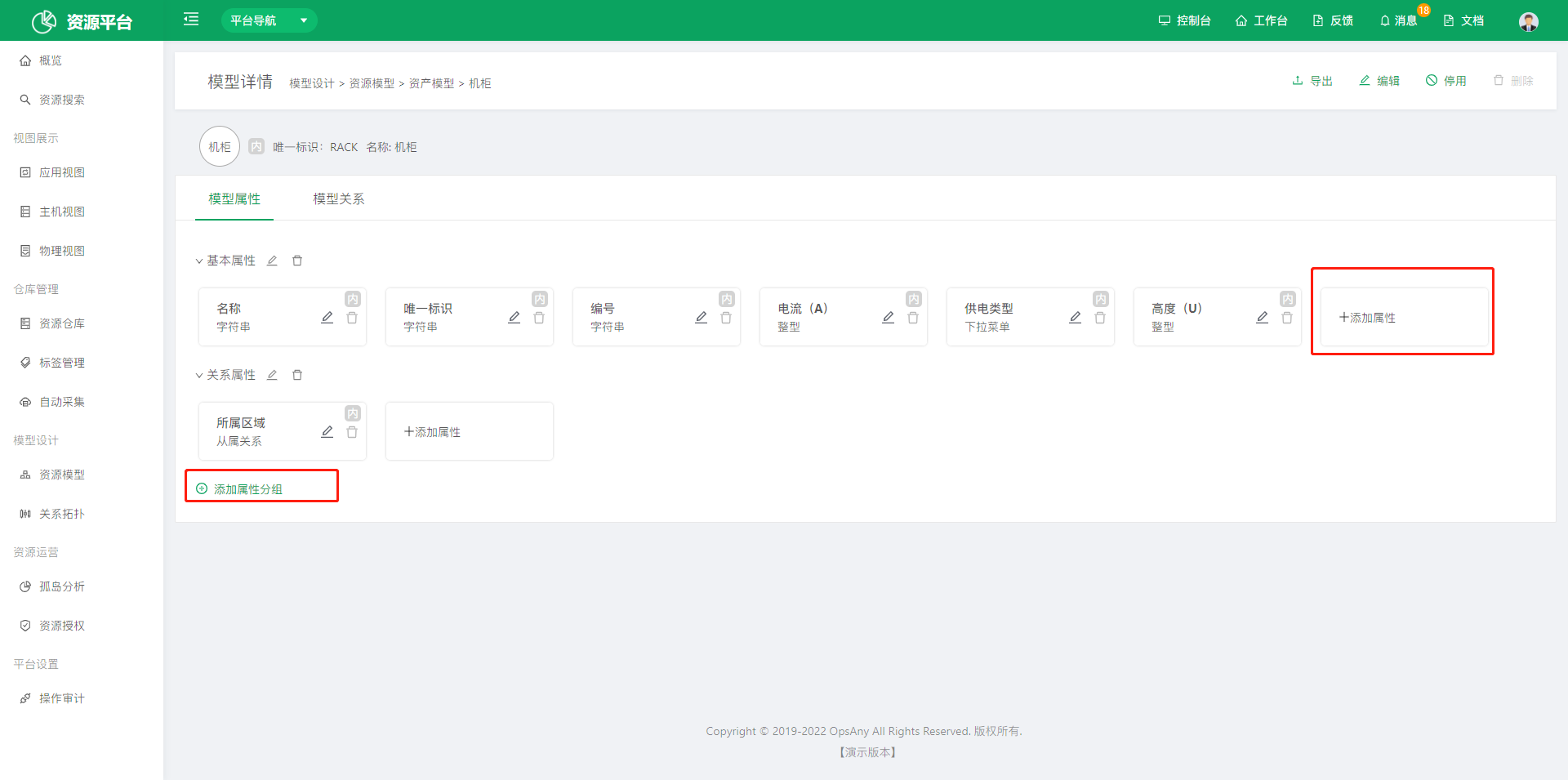
Models support export, edit, disable, and delete operations.
- Export: Exports all attributes and attribute groups of the current model.
- Edit: Edits the field content of the current model.
- Disable: If the model is not currently in use, use Disable in the upper right corner. Unlike deletion, disabling only hides the model; the data is retained.
- Delete: On the model details page, use Delete in the upper right corner to delete the current model. To minimize accidental deletion, the system first checks whether the corresponding instances have been cleared before deleting the model.
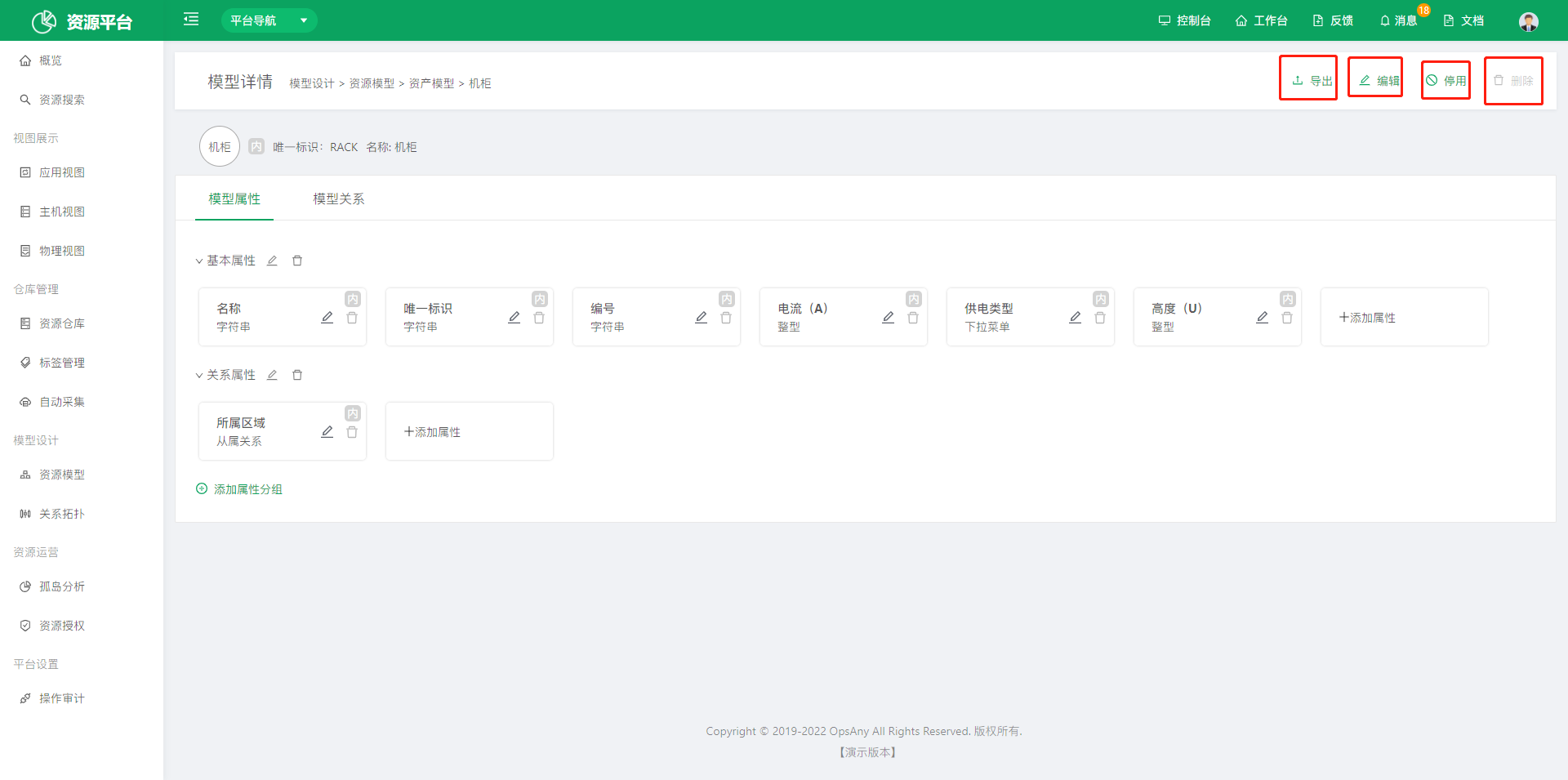
Add an attribute
Click Add Attribute to create attributes under the current attribute group.
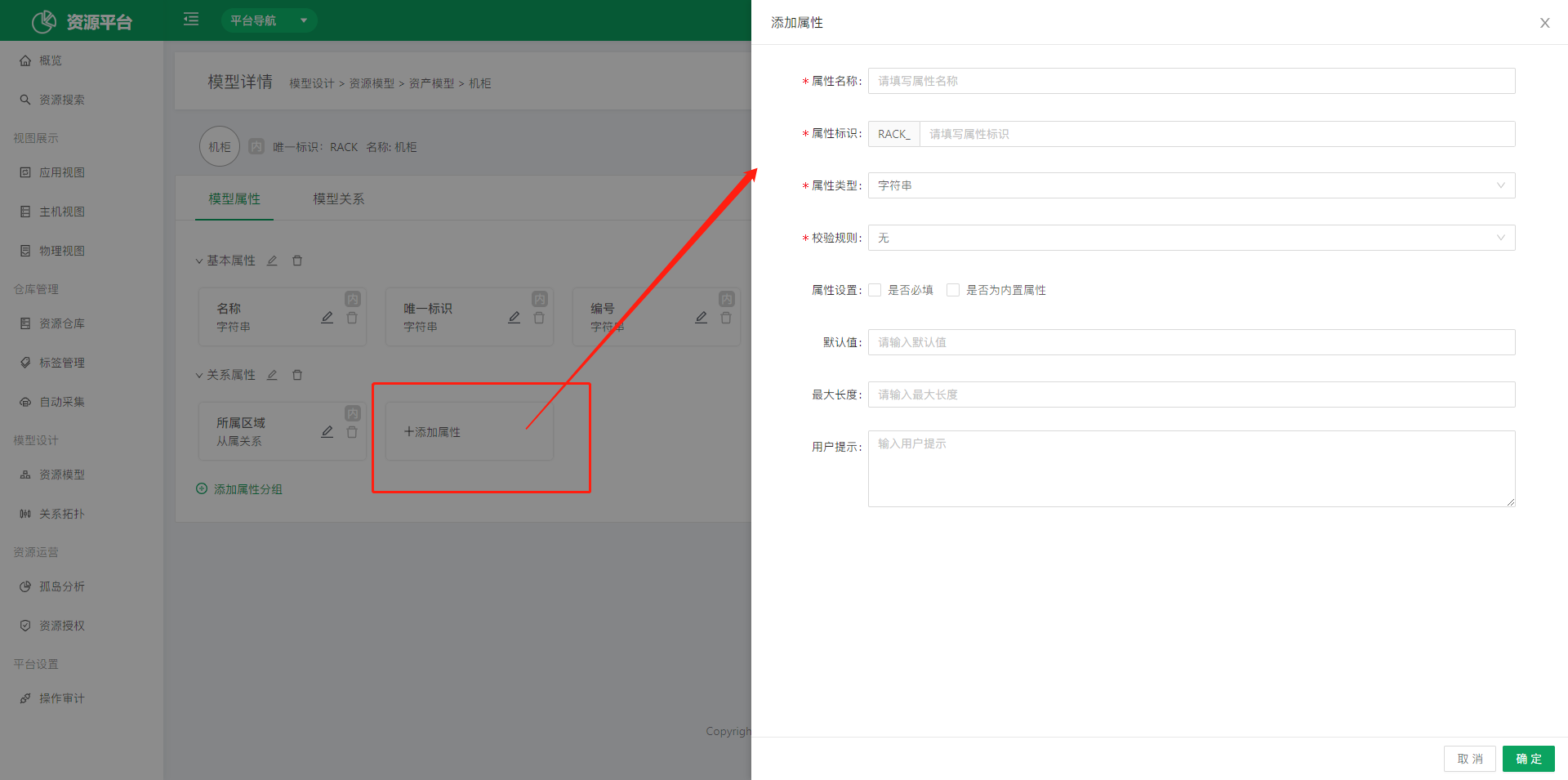
- Attribute name: Name the field according to your actual scenario.
- Attribute identifier: Generated automatically from the name as English characters by default; you can also define it yourself.
- Attribute type: Includes common field types such as string, integer, and date.
- Validation rule: Supports regular expression validation of the current field data, for example for mobile phone numbers and email addresses.
- Attribute settings: Required determines whether the field must be filled in when creating a resource; Built-in attribute determines whether the field is a built-in model field. Built-in fields cannot be deleted, only edited.
- Default value: Sets the default value for the field when resource data is created.
- Max length: Limits the maximum number of bytes that can be entered for the field.
- User hint: Hint text for the field that reminds users when they fill it in.
Add a relation field
Relation fields cover two relation types: subordinate relations (for example, the physical machine model is subordinate to the data center model) and connection relations (for example, between the host model and the application model you can create relation fields on both sides: a "Belongs to Application" field on the host model side and a "Hosts Used" field on the application model side).
-
Subordinate relation field: Each model can have only one parent model, so when you create a subordinate relation the system prompts you to confirm whether to overwrite the previous parent model.
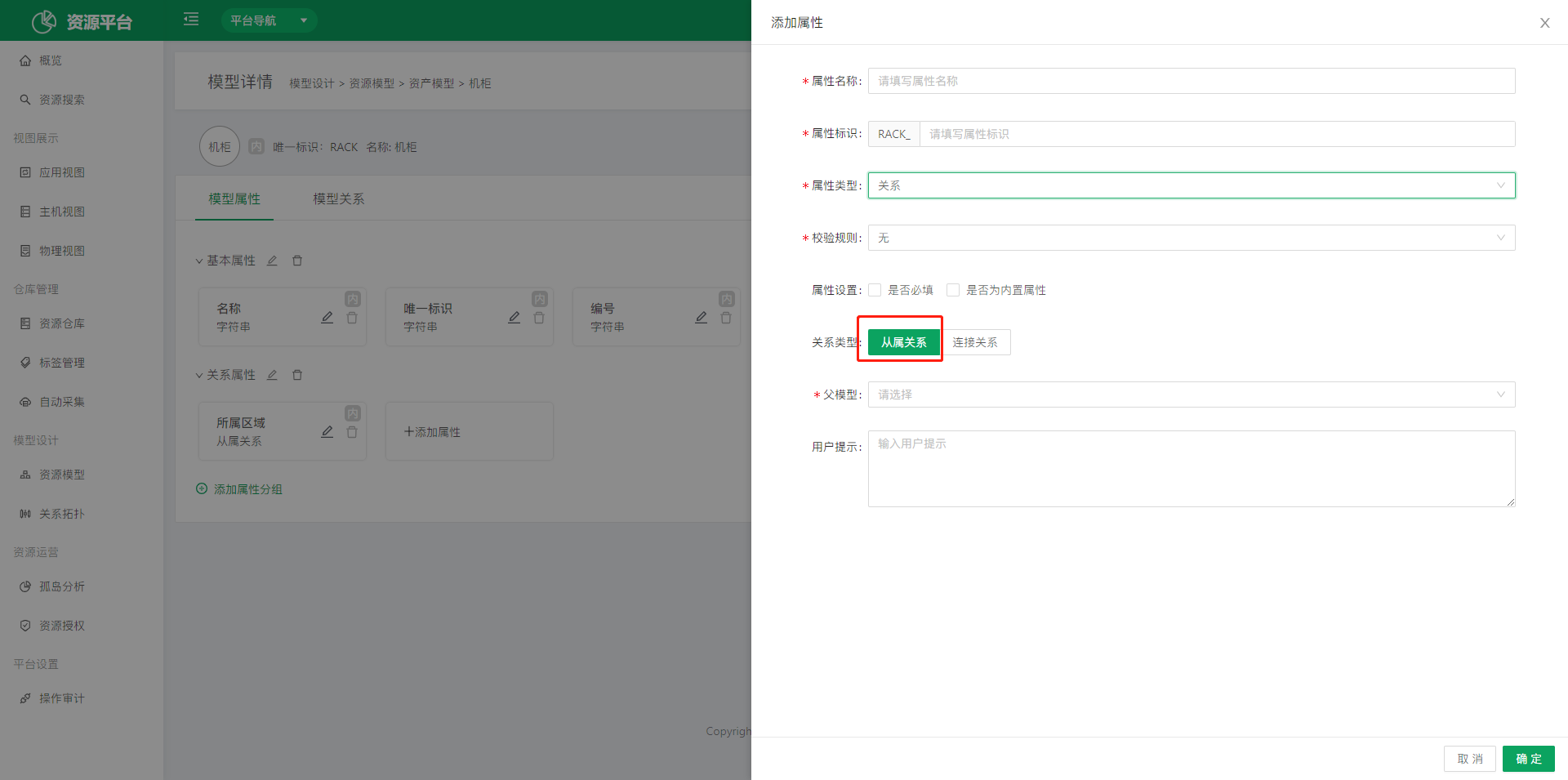 When adding a field, select Relation as the field type. The relation type options then appear; select Subordinate Relation and choose a parent model.
-
Connection relation field: Each model can have N connection relations, and the number of connection relations between two models is also unlimited.
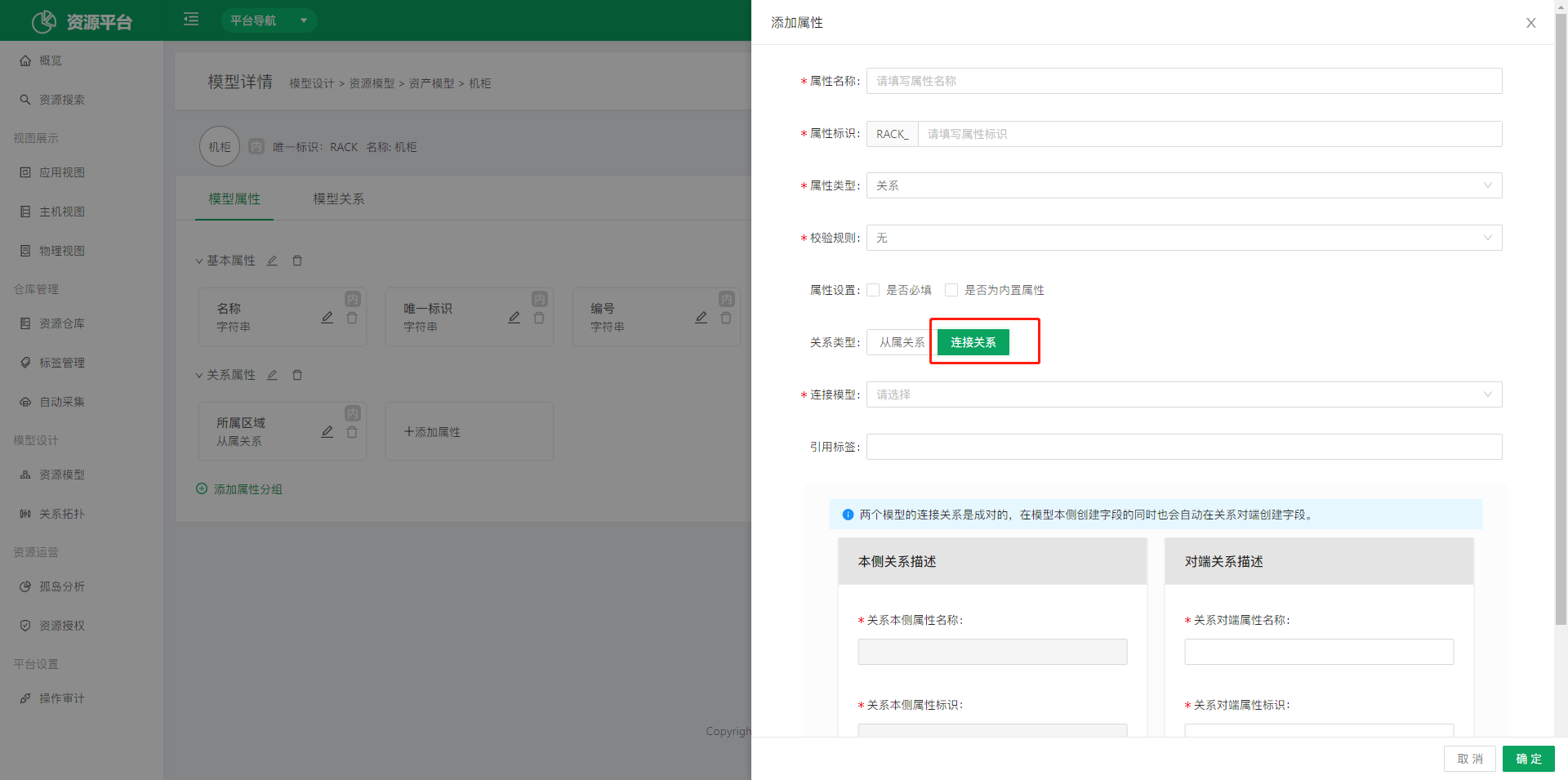 Select Relation as the field type, then select Connection Relation as the relation type and choose the target model.
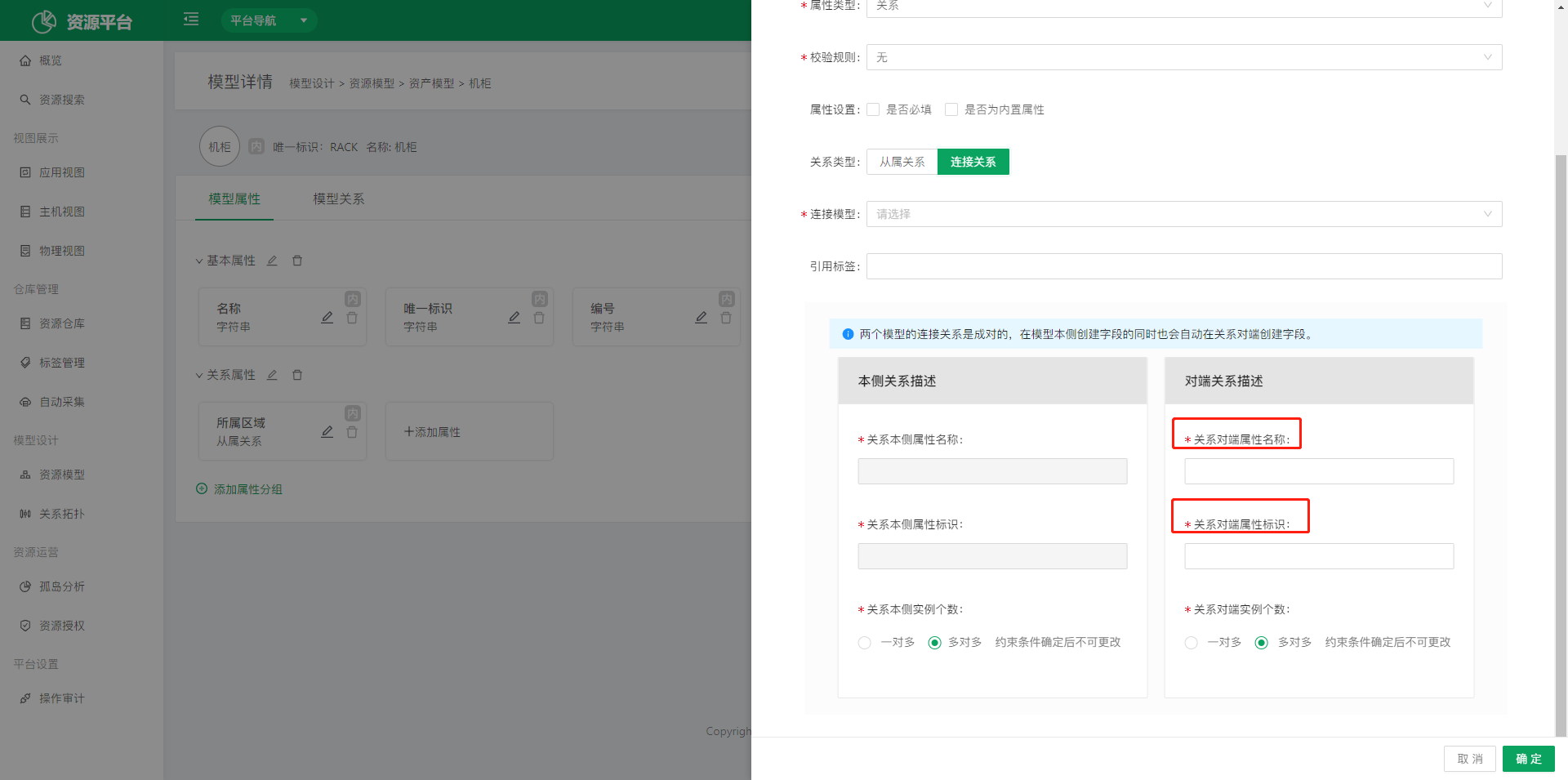
-
Peer attribute name: Creates a corresponding field in the model at the other end of the connection relation. You can name it to suit your scenario.
- Peer attribute identifier: Filled in automatically based on the peer field name.
3.2 Relation Topology
In real-world resource management, data usually has relationships. Models help enterprises categorize data quickly and build a network of relationships between data. Relation Topology shows how data models are associated with each other.
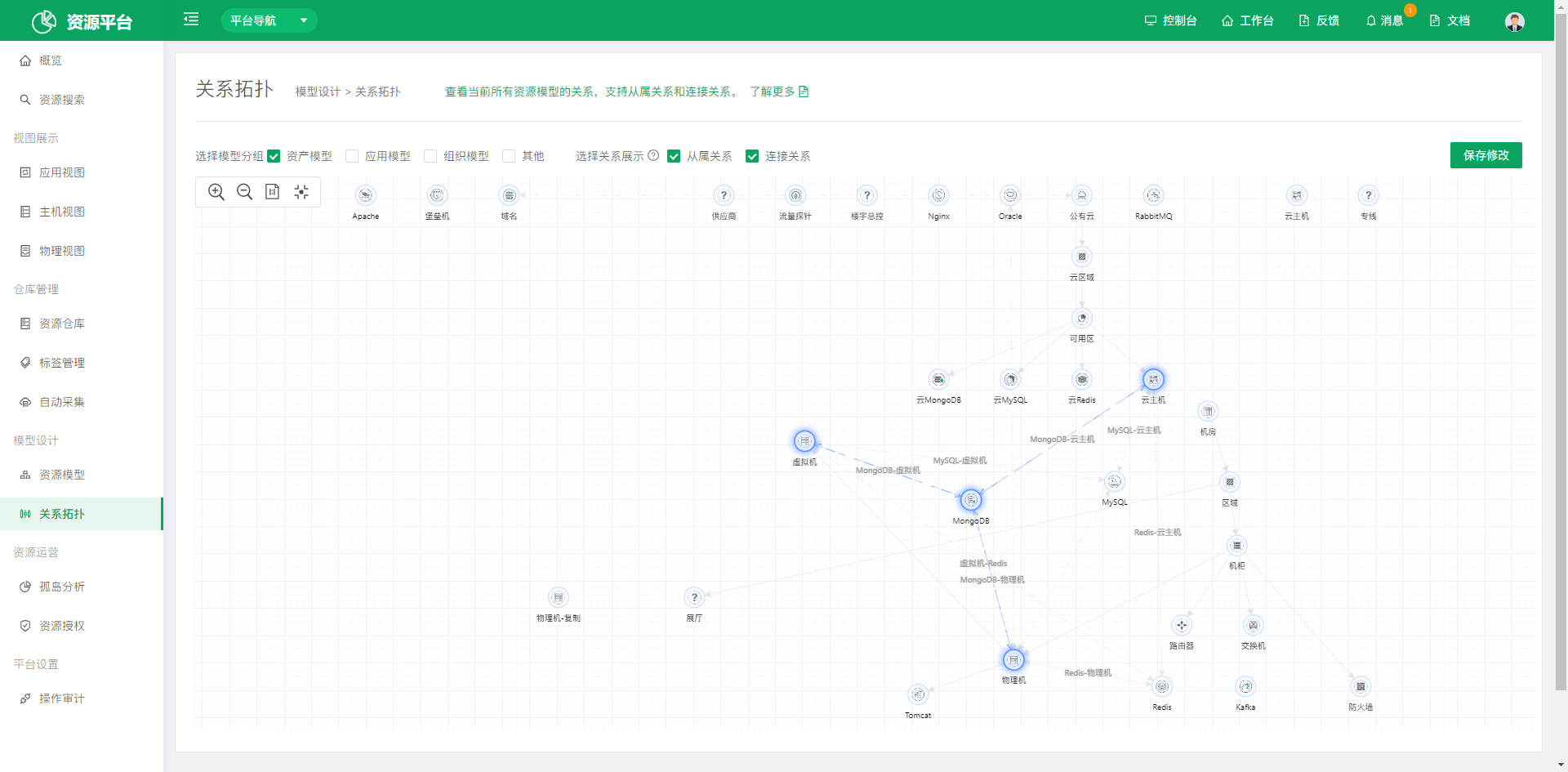
View the relations of all current resource models, covering subordinate relations and connection relations.
4. Resource Operations
4.1 Orphan Analysis
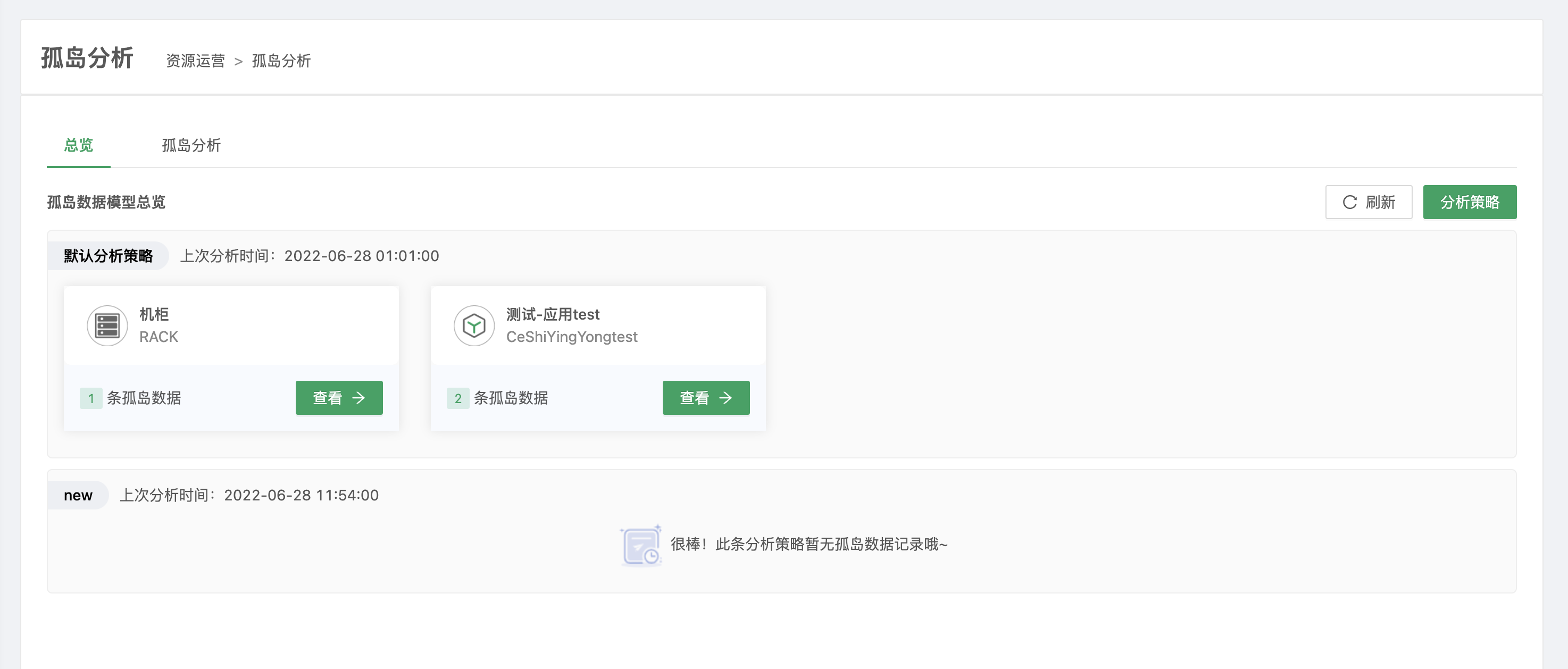
Orphan Analysis comes from analyzing data in the current model for gaps. For example, if a cloud host does not belong to any cloud region, that cloud host is orphan data, and you need to bind a relation for it to prevent data loss or management gaps.
- Create an analysis policy
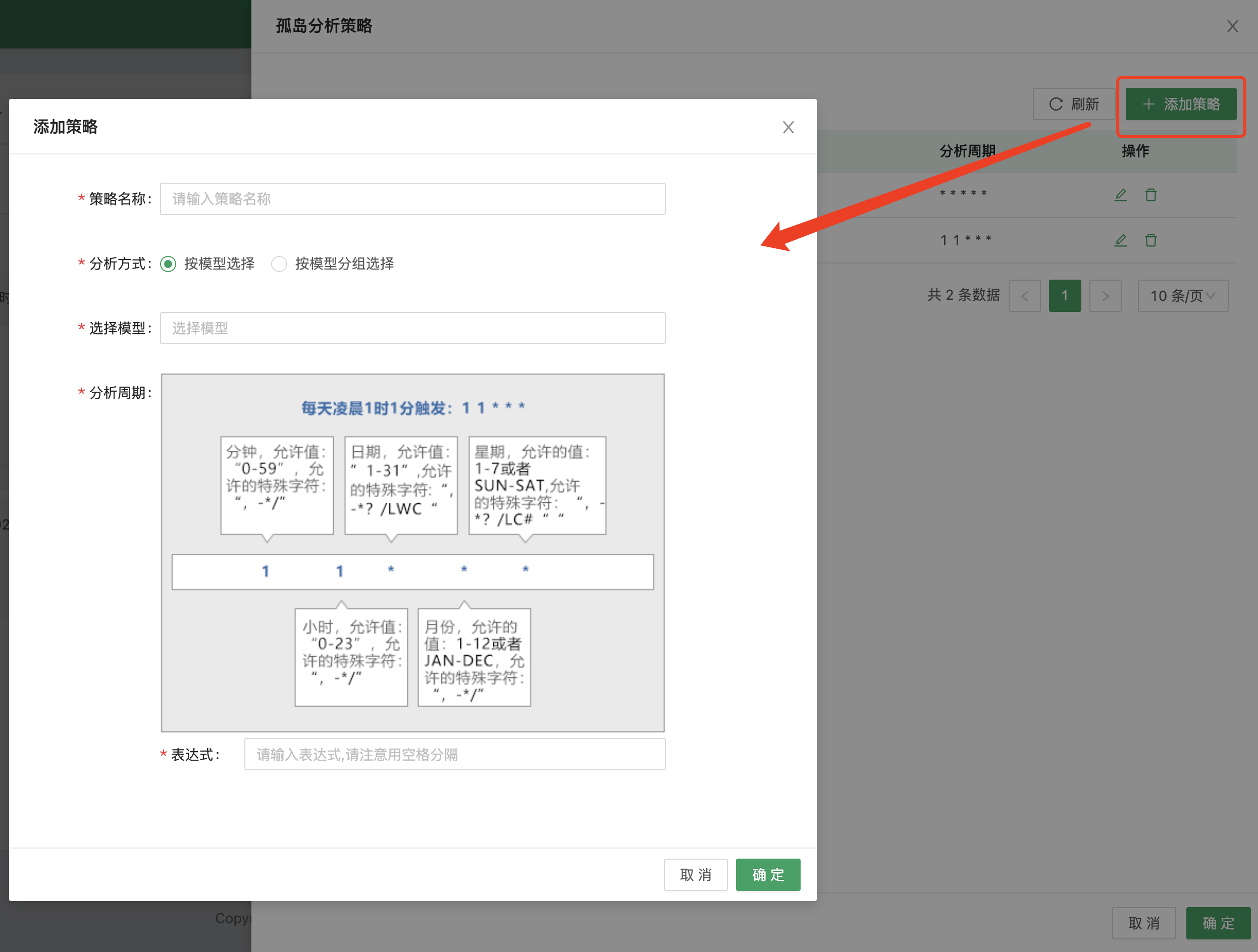 Fill in the fields on the page to complete the creation.
- Execute an analysis policy
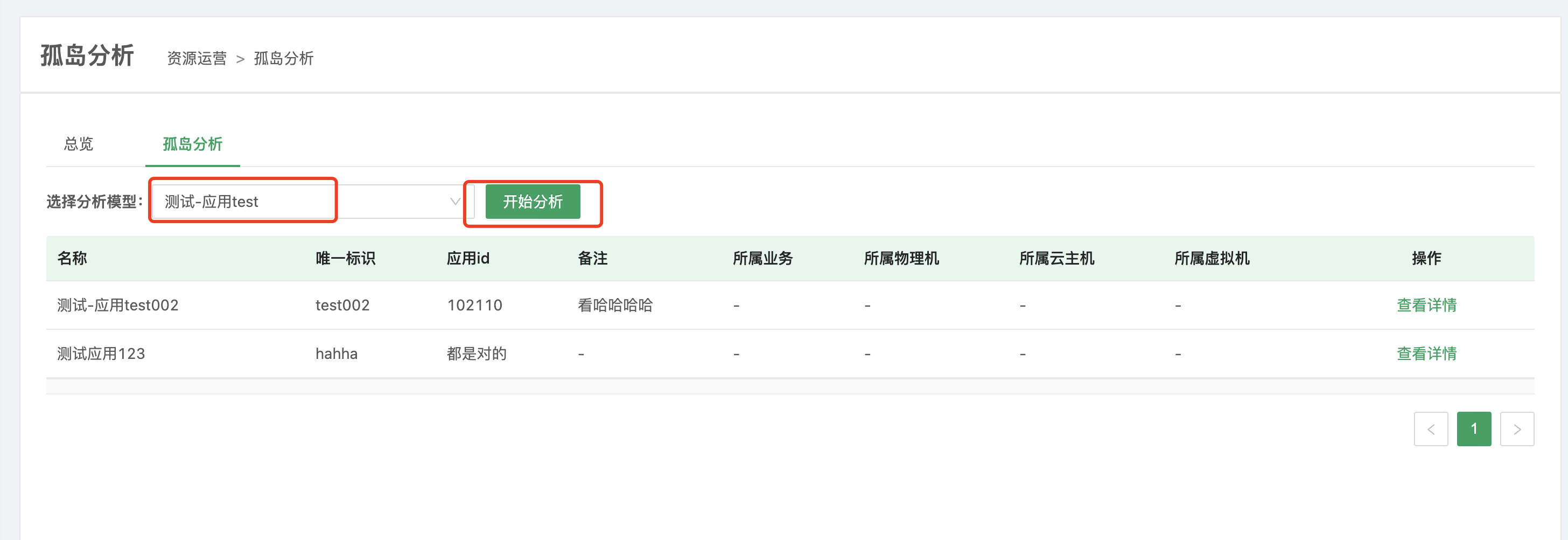 Select a model to run orphan analysis on.
4.2 Resource Authorization
Resource authorization applies only to regular users; administrator roles can see all data without authorization. Resource authorization is also where data permissions are granted for other OpsAny platforms.
4.2.1 Resource Authorization Rules
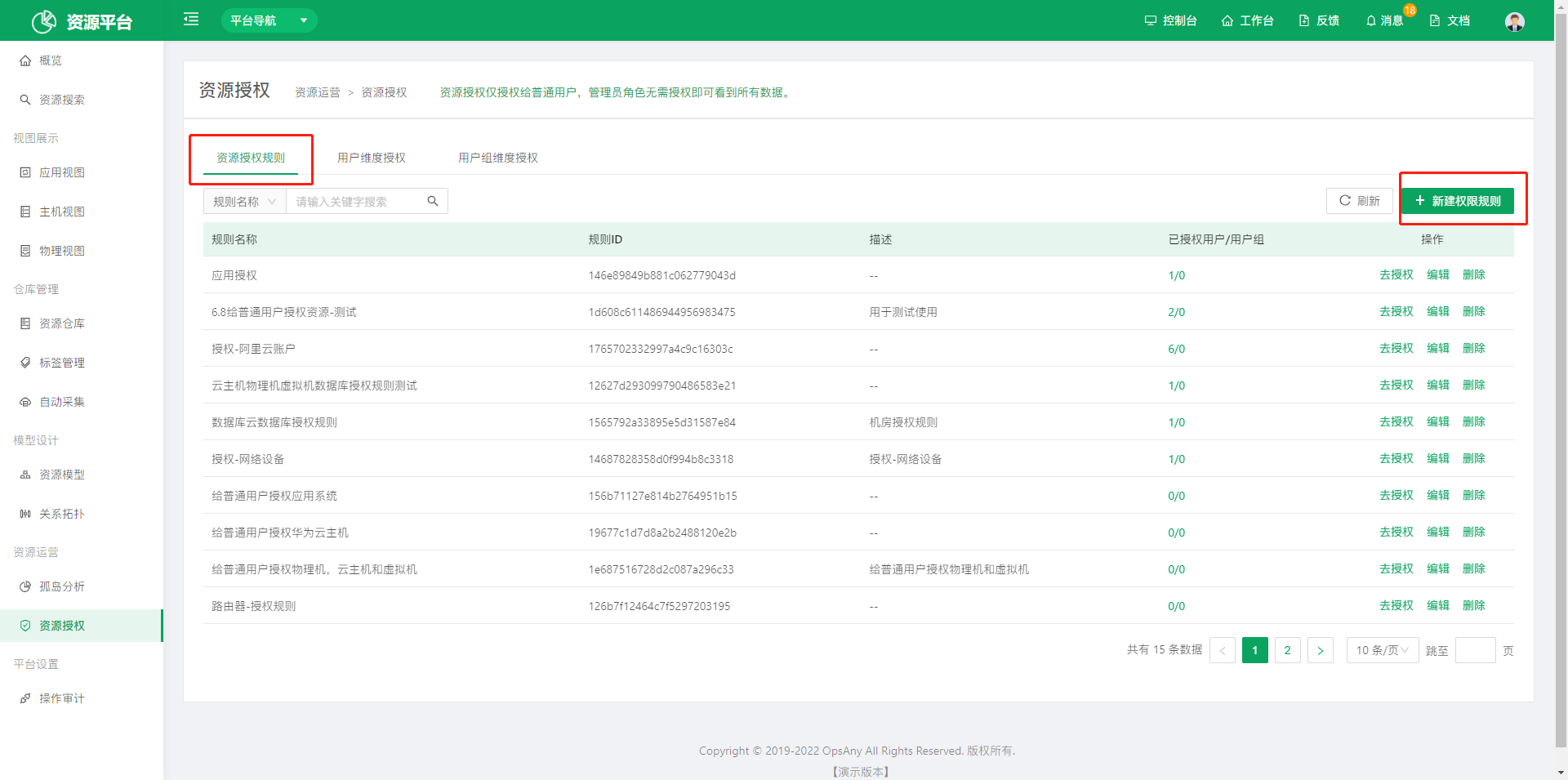
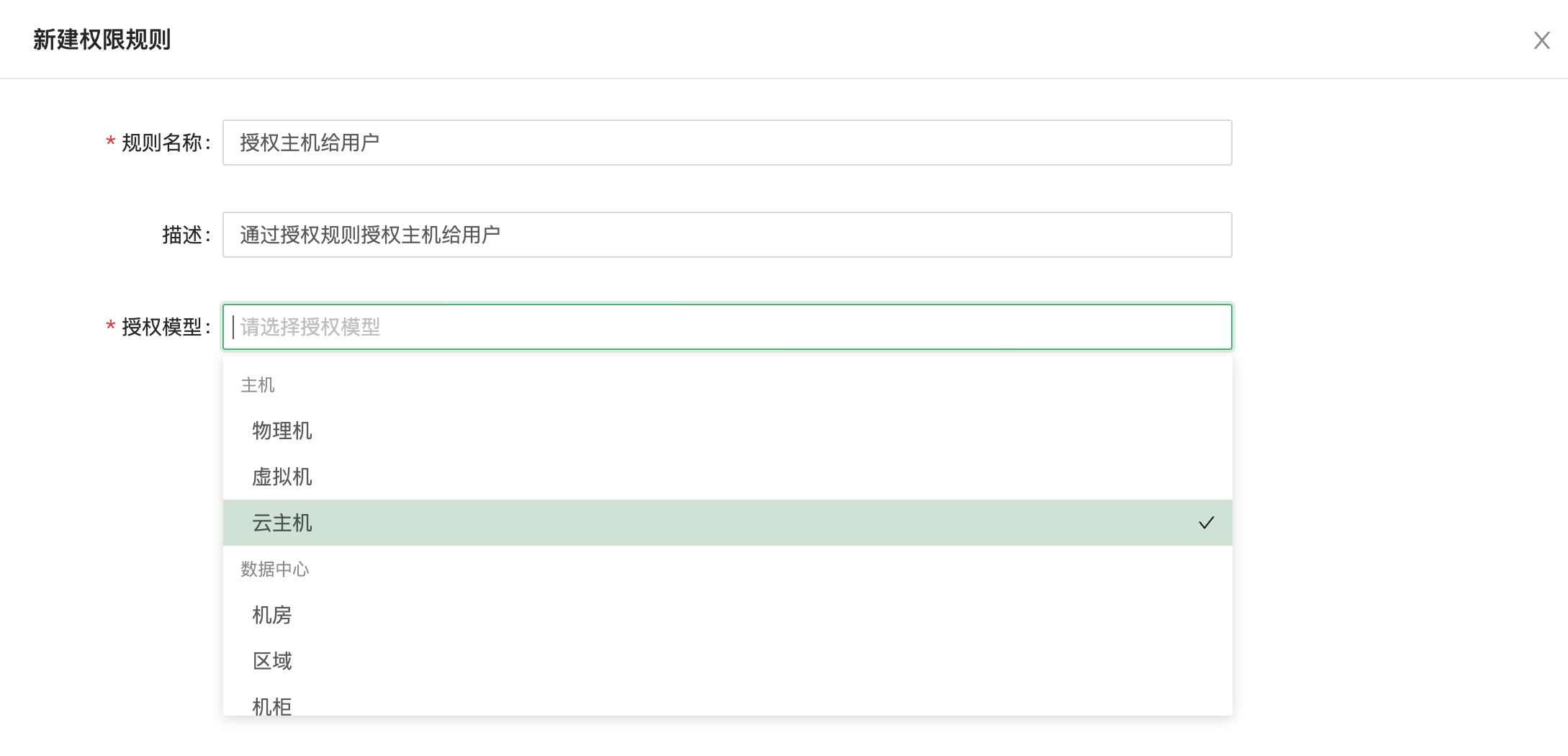
- Create an authorization rule and select the models to authorize. Multiple selection is supported. One authorization rule can be attached to different users; for example, set up one rule for a service provider to grant the resources to all users of that provider.
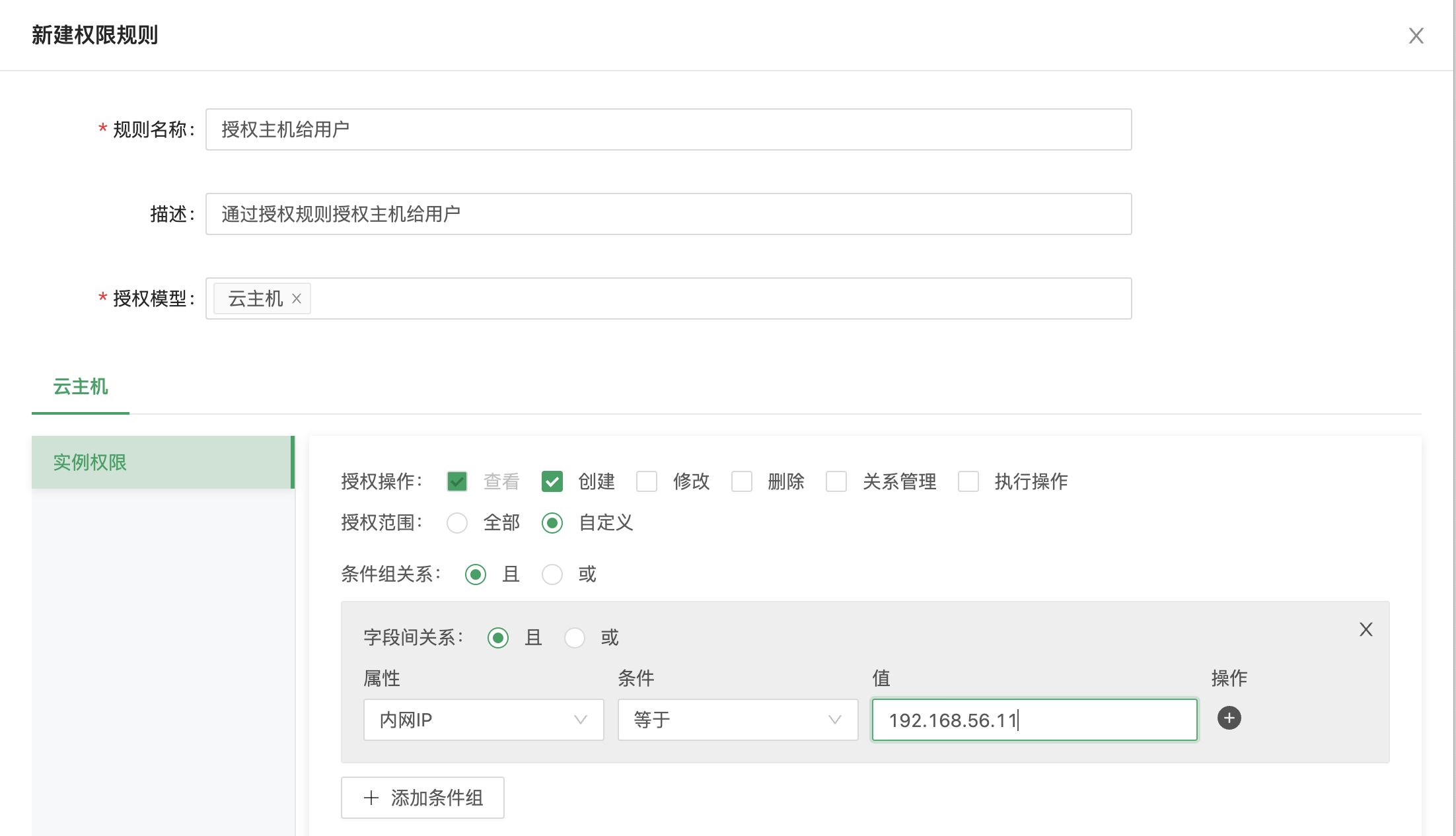
- Authorization can be granted through any attribute of a model, commonly IP address or host group. The most convenient approach is to authorize by application dimension.
4.2.2 User-dimension Authorization
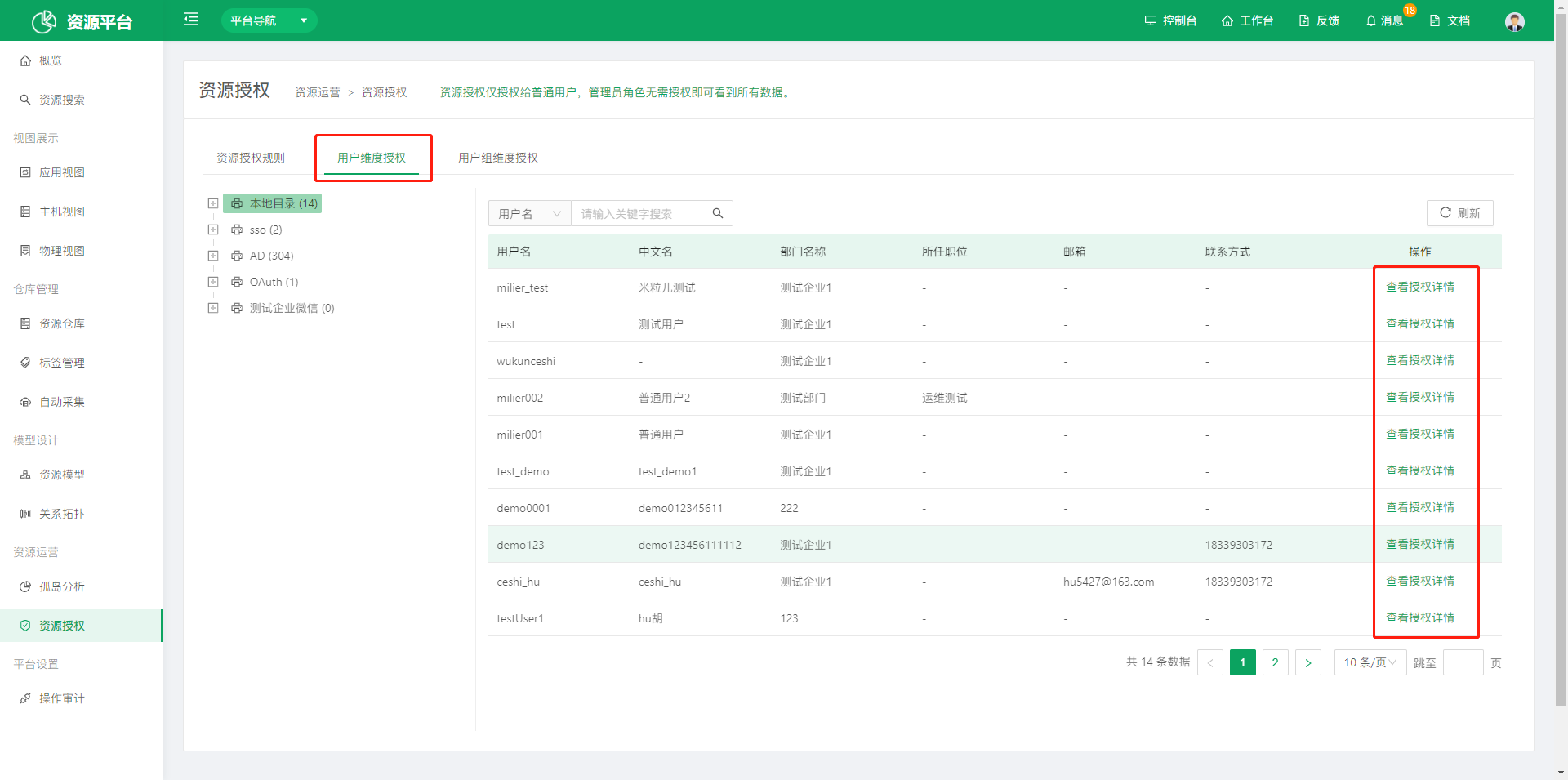
- View, from the user dimension, which resources have been authorized to which users.
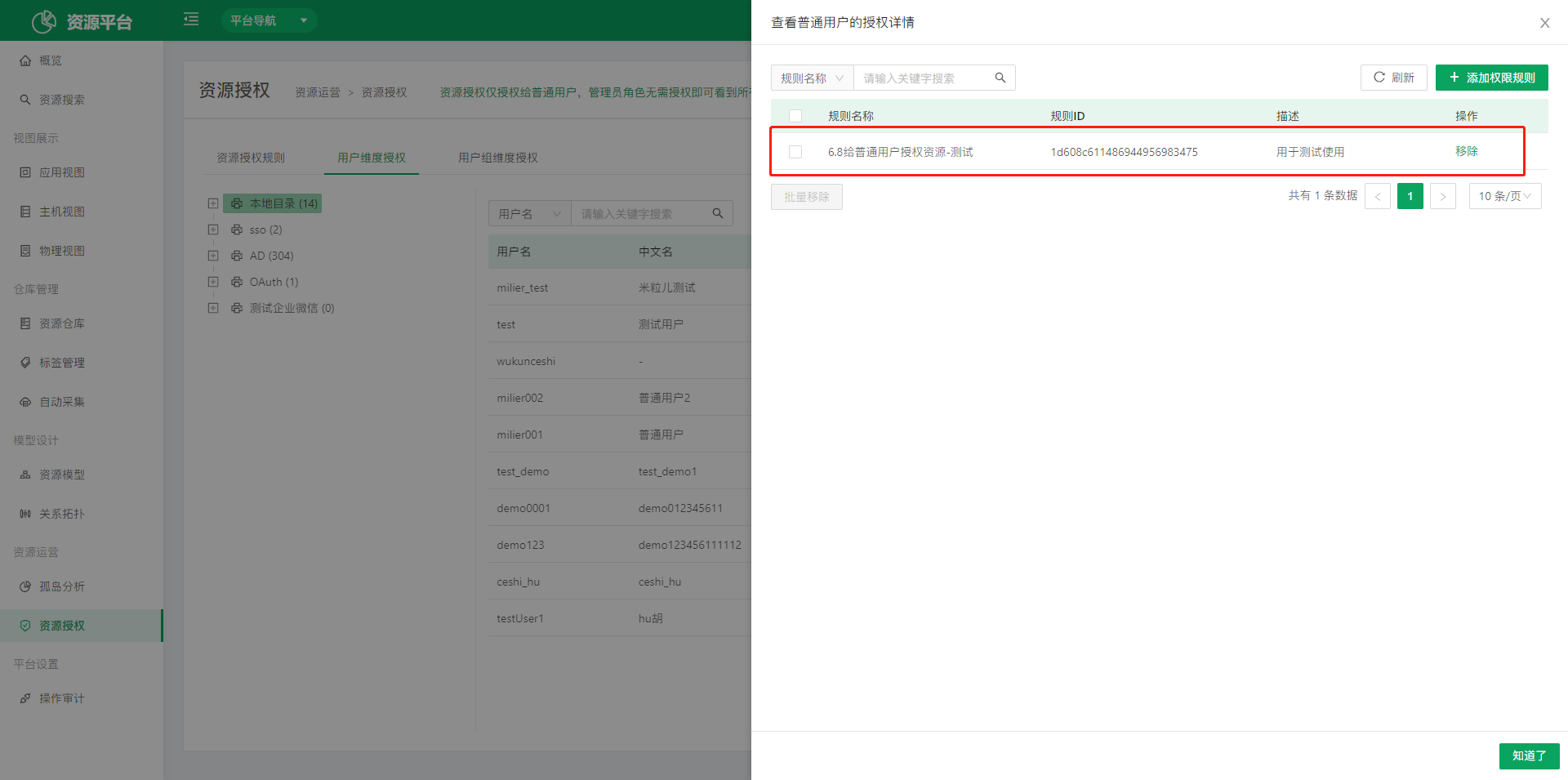
- Click View Authorization Details in the operations column to see which resource rules are authorized to the current user.
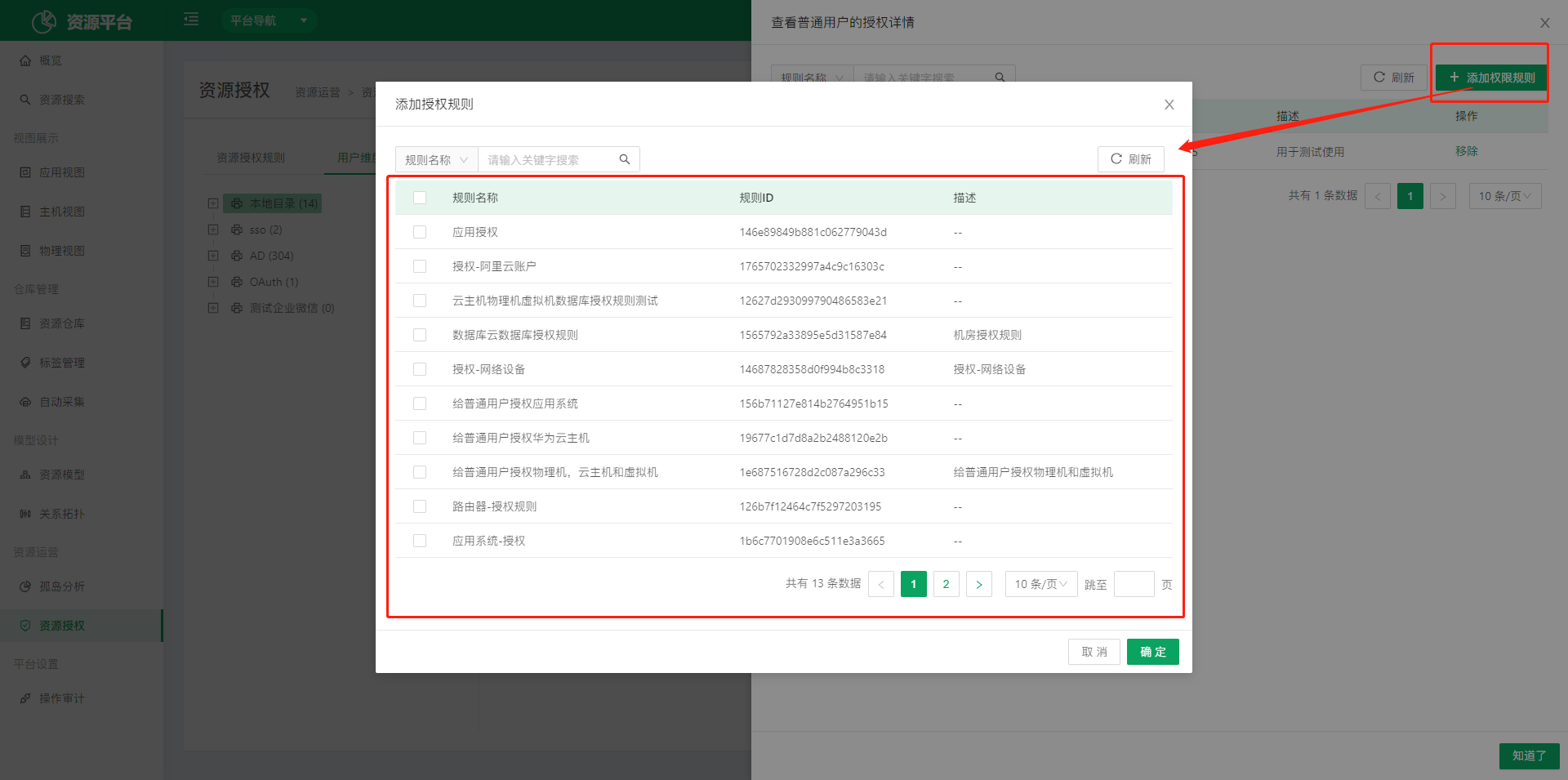
- Click Add Permission Rule in the upper right corner to quickly grant rules to the current user.
4.2.3 User Group-dimension Authorization
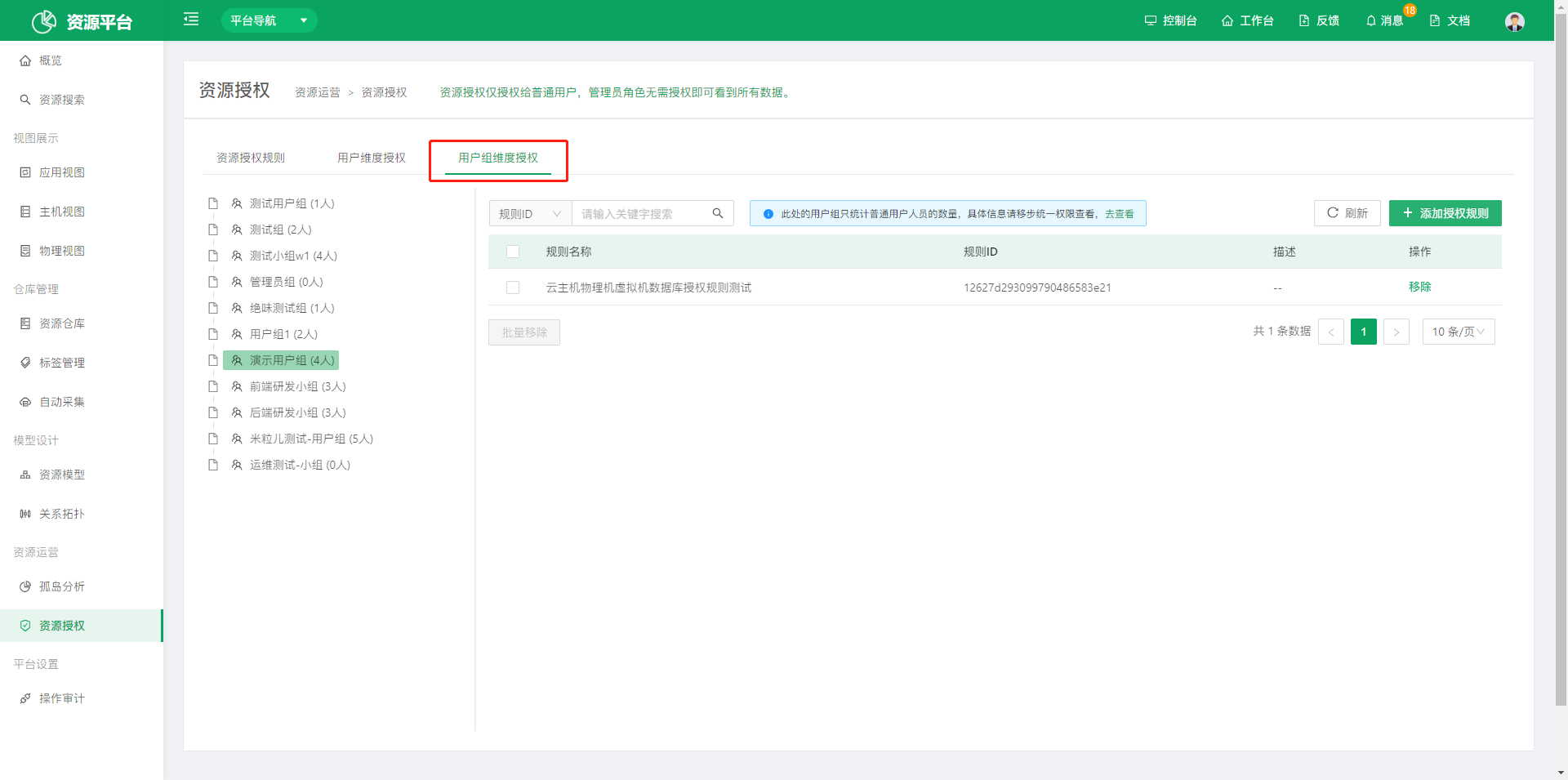
- View, from the user group dimension, which resources have been authorized to which user groups.
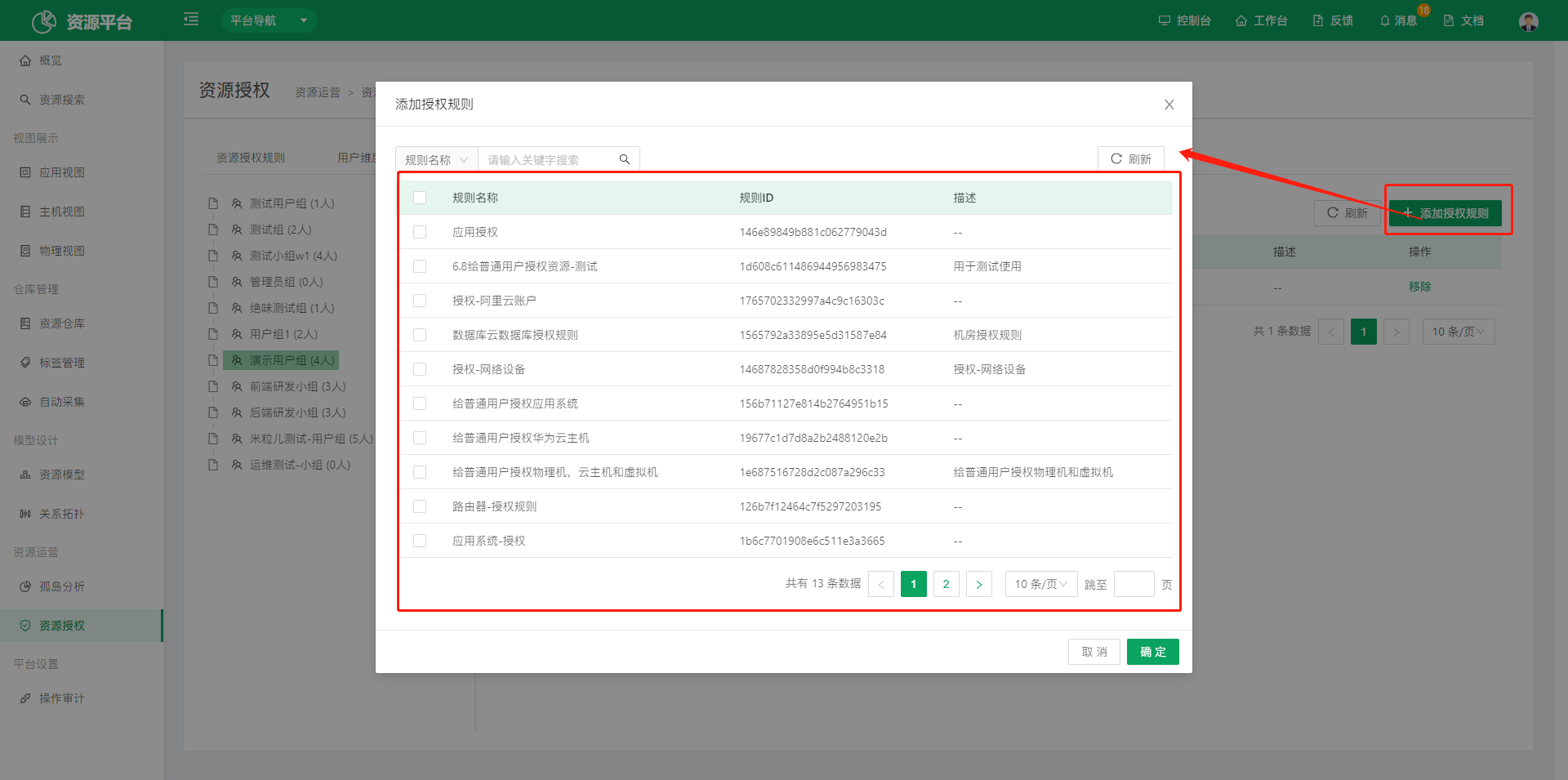
- Click Add Authorization Rule in the upper right corner to quickly grant rules to a user group.
5. Platform Settings
5.1 Operation Audit
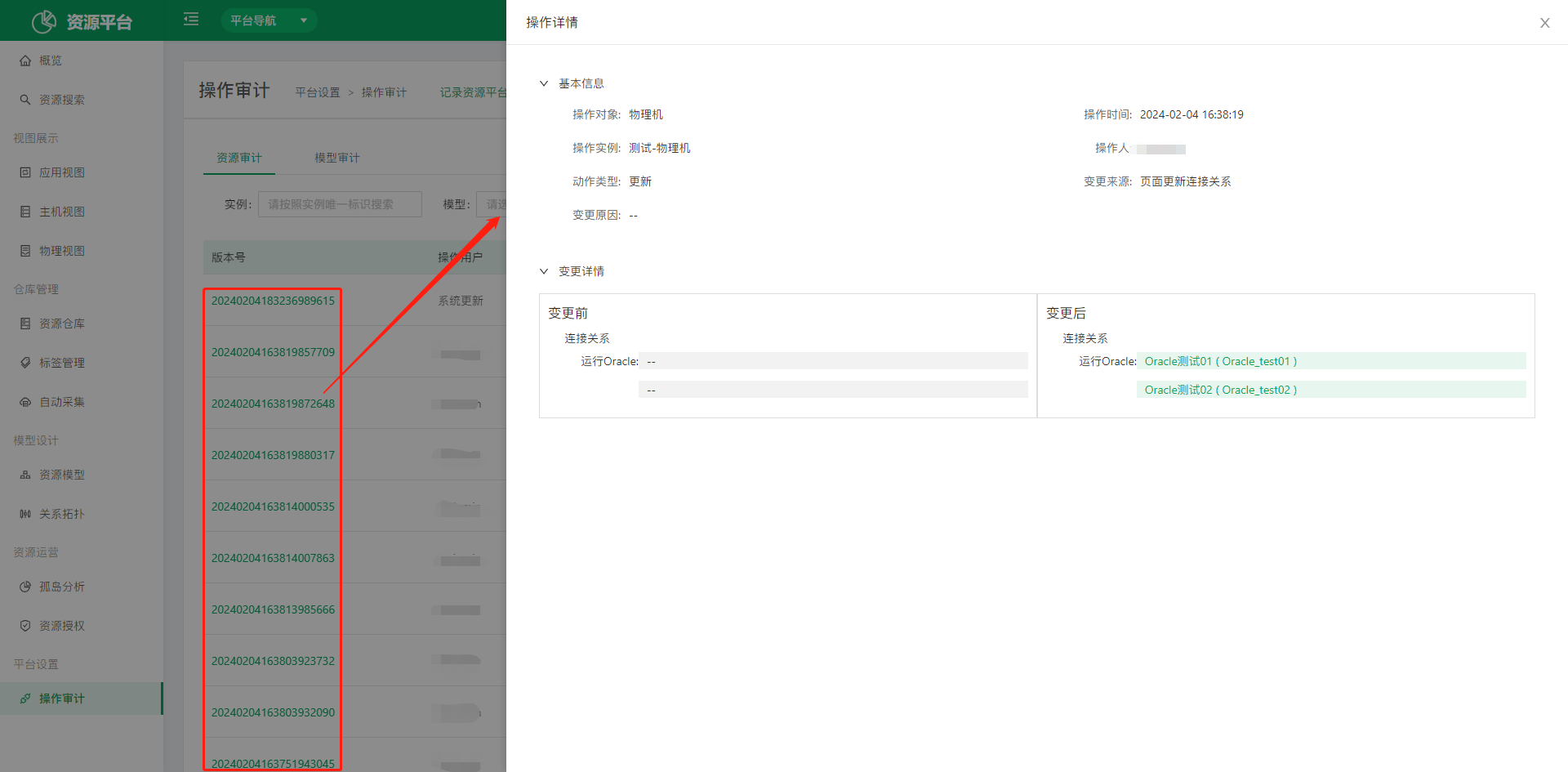
Operation Audit records the history of user operations on resource models and resource repositories to help users review and manage them.
5.1.1 Resource Audit
Records the operation and change history of all resource instances in the Resource Platform.
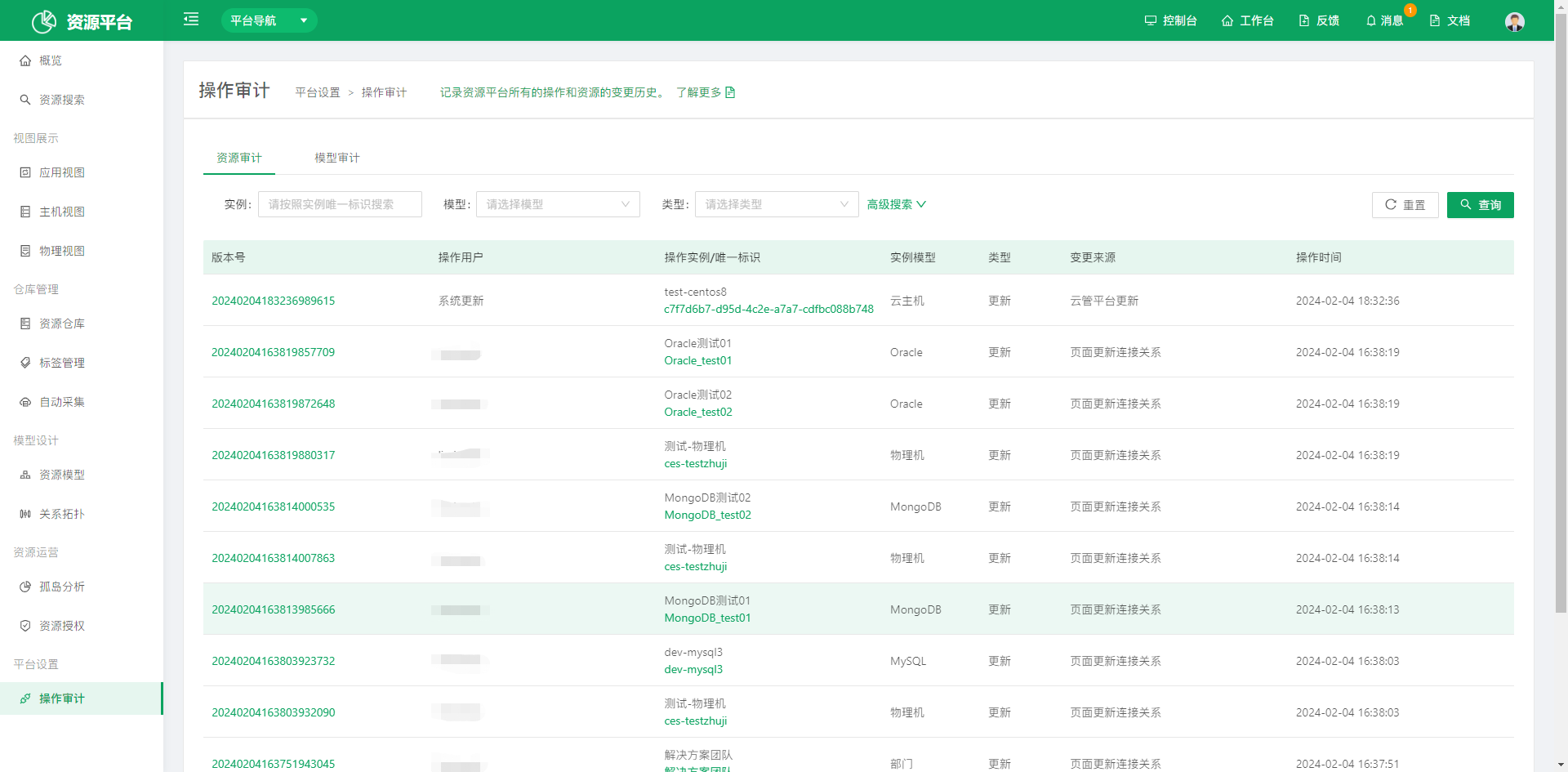
Click a version number to view the details of that operation
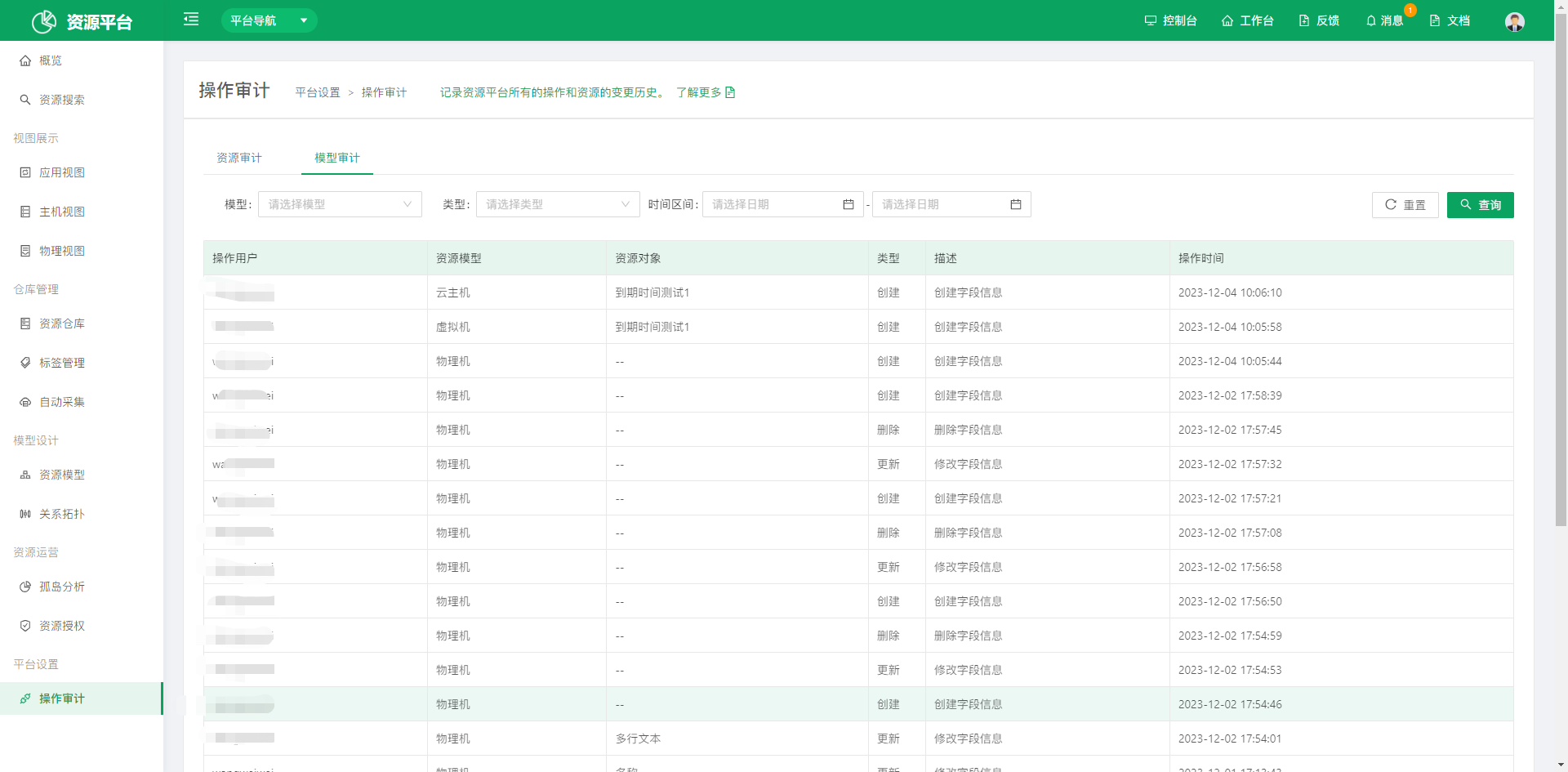
5.1.2 Model Audit
Records the operation and change history of all models in the Resource Platform.