












LLM Platform
Product Introduction
The LLM Platform (APPID: llmops) is OpsAny's integration platform for large language models. The current version supports models hosted by DeepSeek and Ollama.
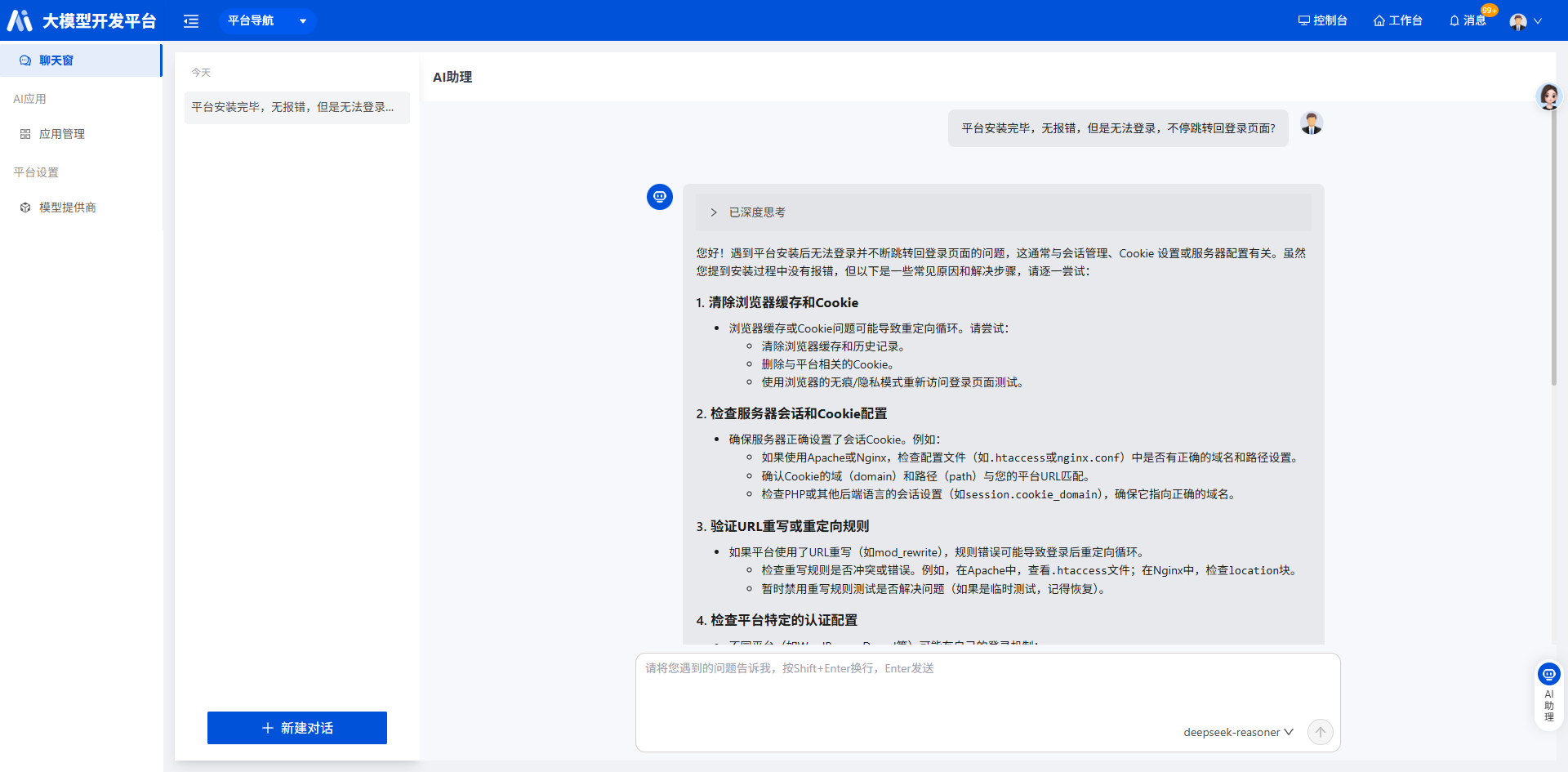 You can chat with the AI right away in the chat window. The left side holds the conversation history and the right side is the chat window.
Click the AI assistant in the lower-right corner to open the floating panel.
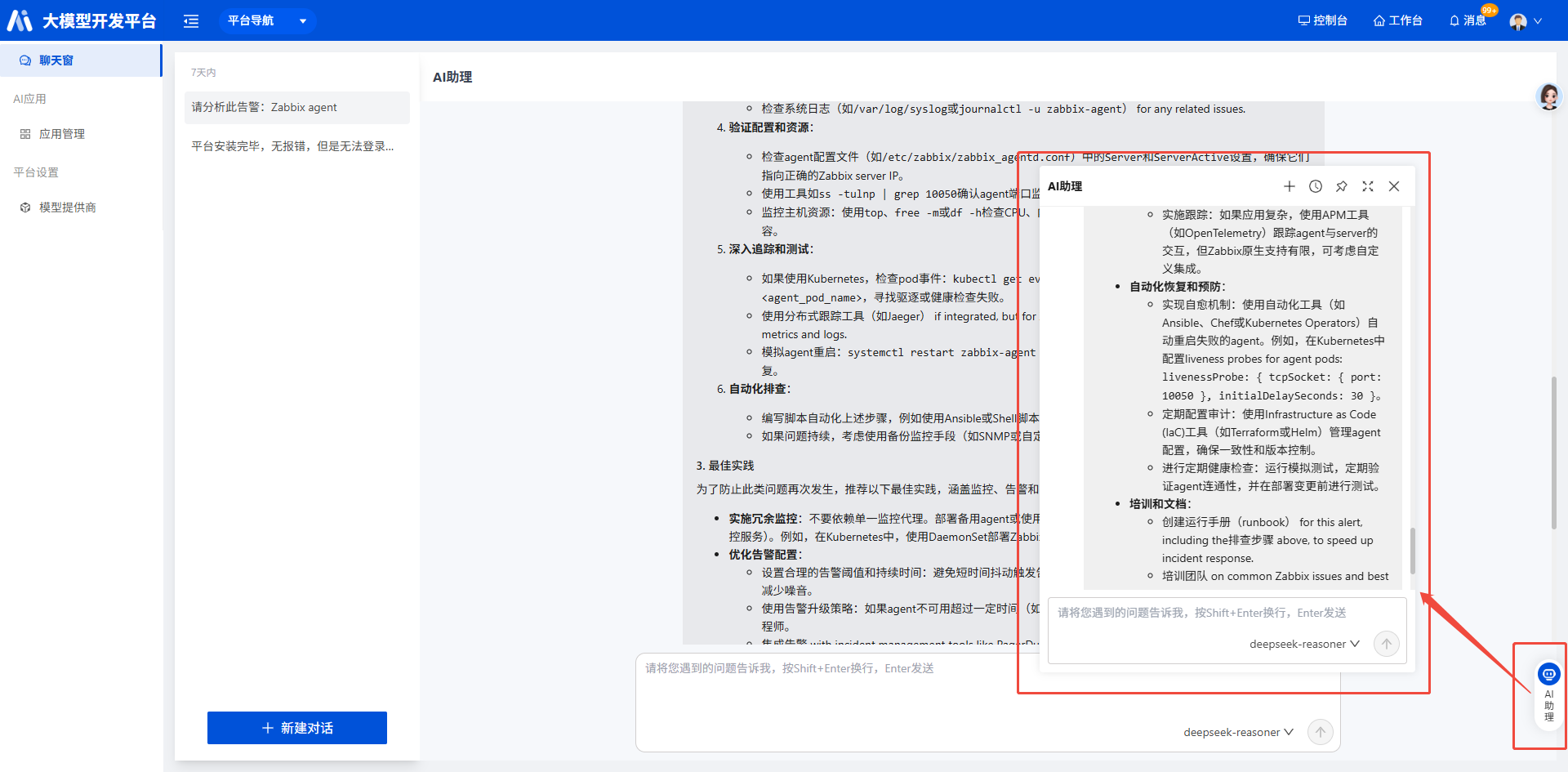 The AI chat box can be docked to the right side, expanded to full screen, and used to view history.
1. AI Applications
1.1 Application Management
AI application management. The Community Edition does not yet support creating applications. You can click the configure button to edit the default AI application.
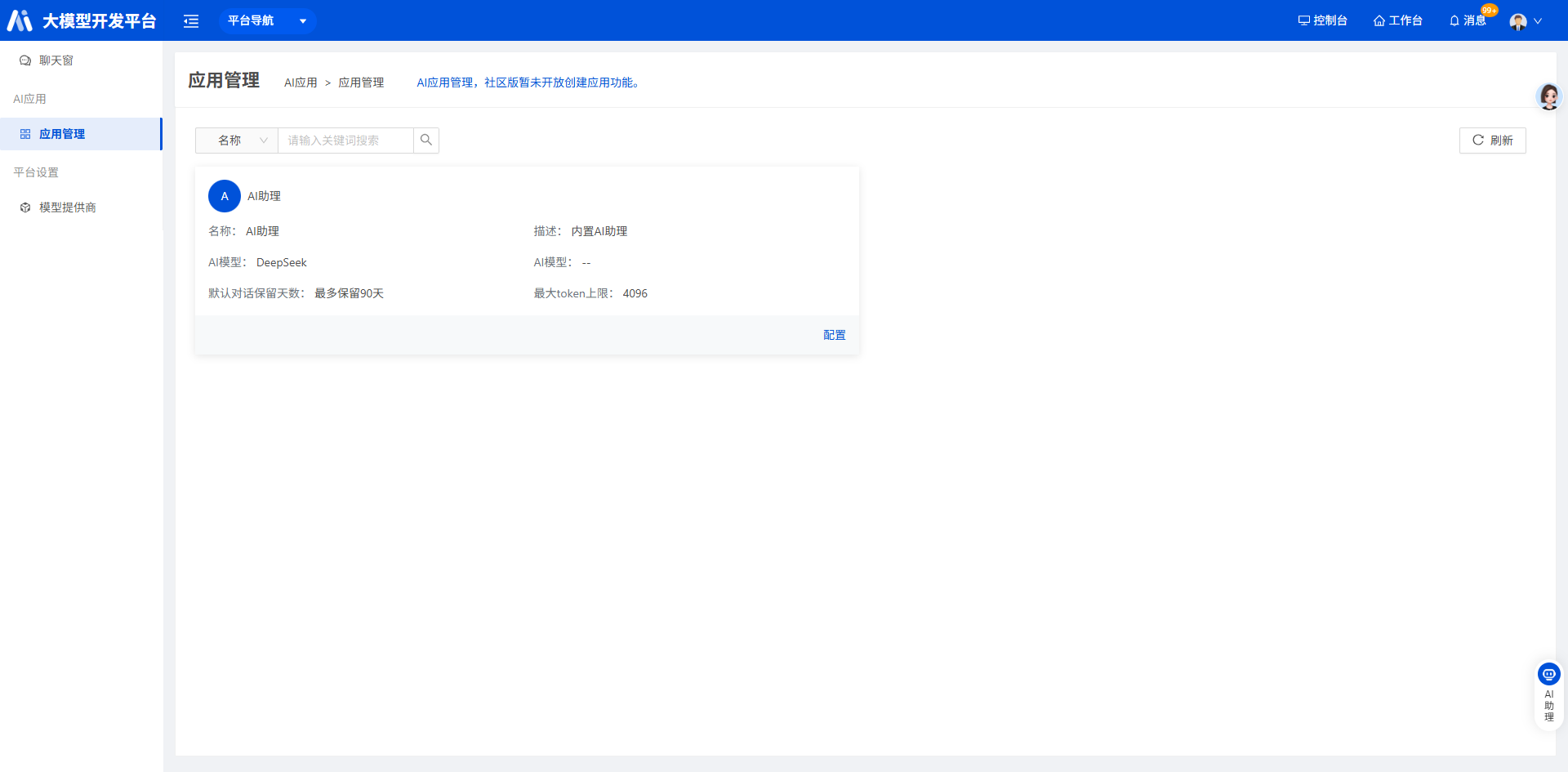
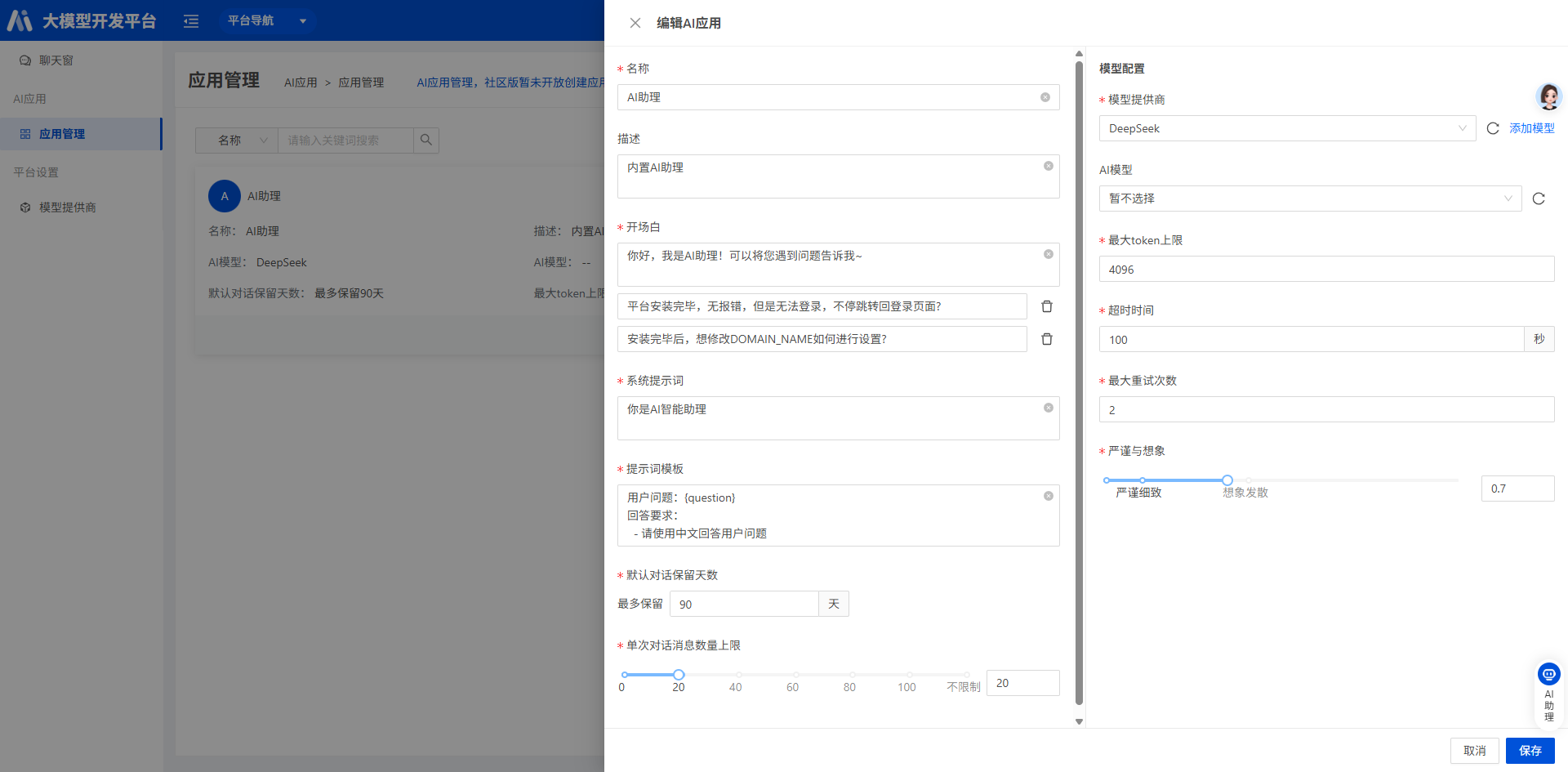
You can edit the AI application's name, greeting, system prompt, prompt template, default conversation retention days, maximum number of messages per conversation, and other information. You can also edit the model configuration the AI application relies on, such as the model provider, AI model, maximum token limit, timeout, maximum retry attempts, and strictness versus creativity.
2. Platform Settings
2.1 Model Providers
Configure large model providers. Models deployed with DeepSeek and Ollama are supported.
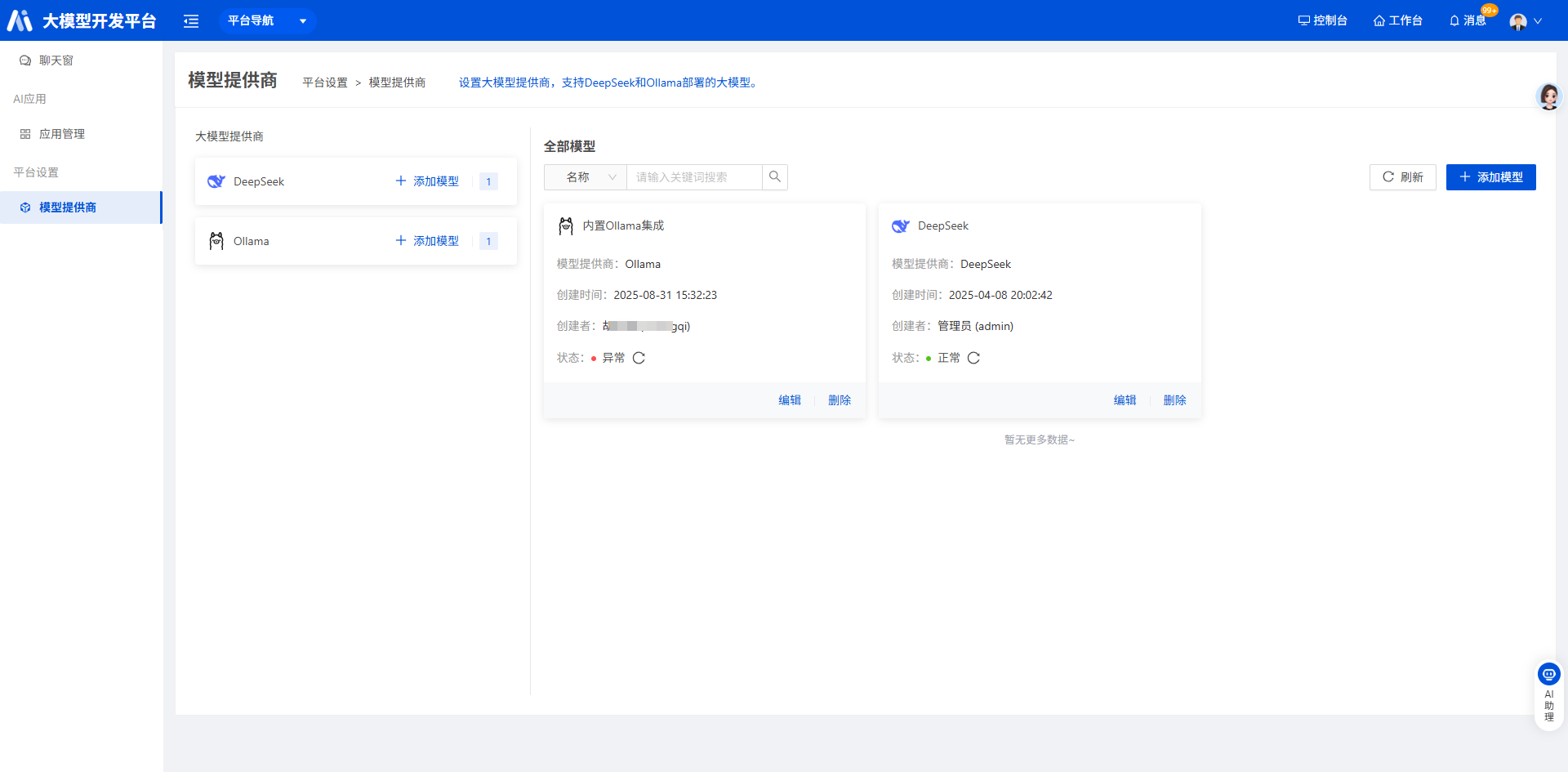
Click Add Model to add custom DeepSeek and Ollama models.
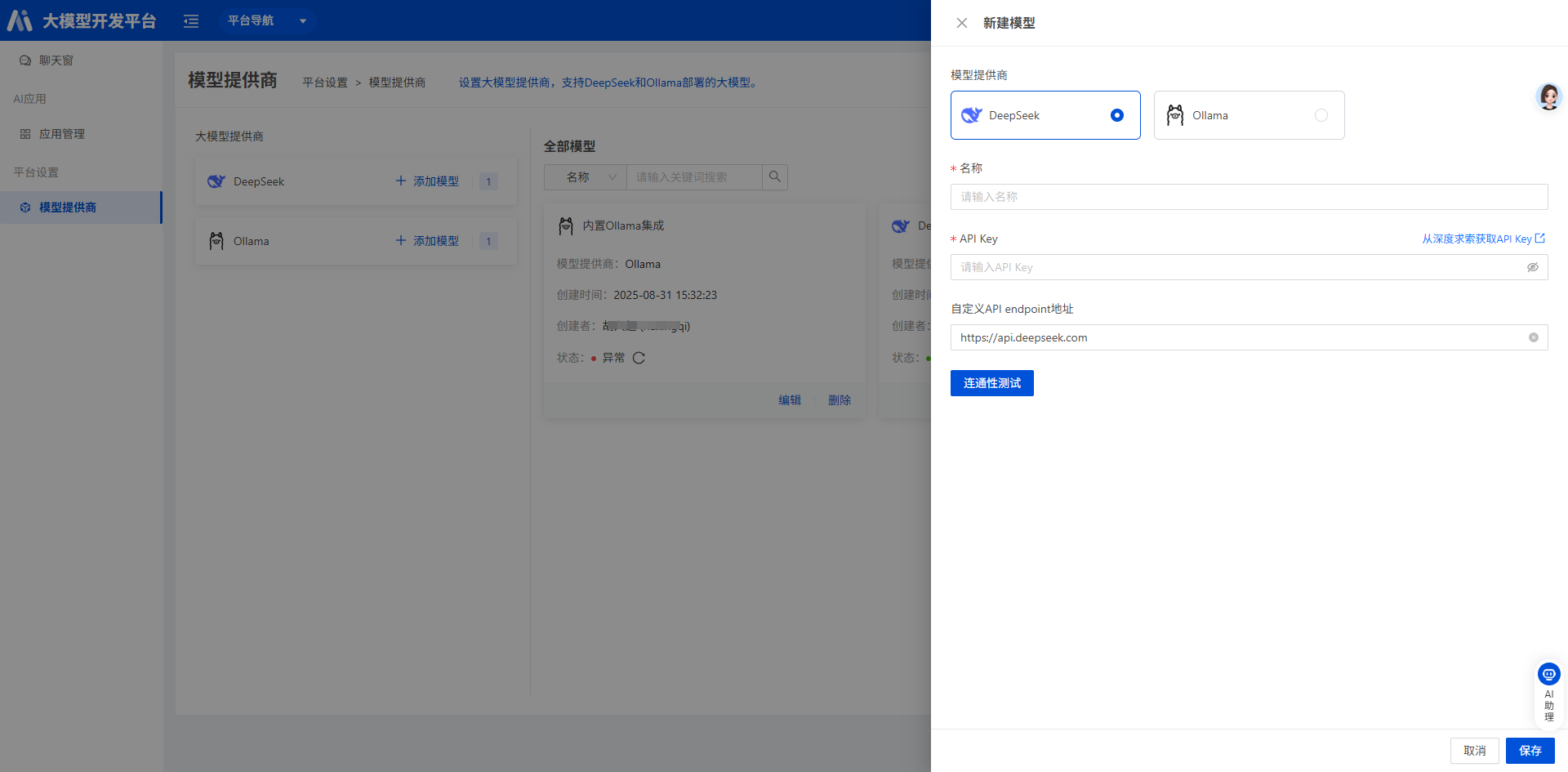 Select the DeepSeek model provider, enter the DeepSeek model API Key (obtainable from the DeepSeek official site), then click Connectivity Test to check whether it works. The setup is then complete.
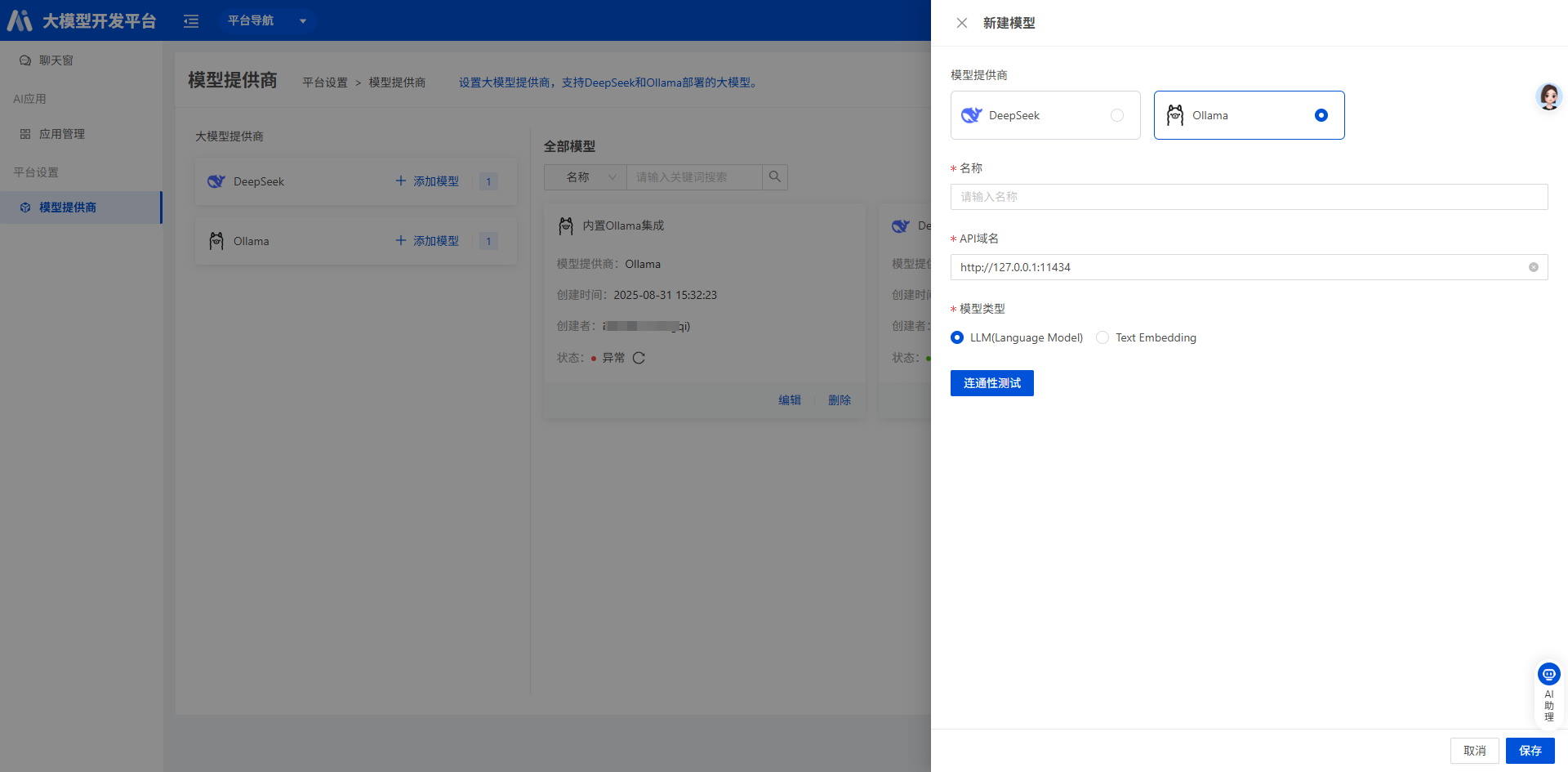 Select the Ollama model provider. The API domain is pre-filled with the local default port. After deploying the Ollama model locally, enter the correct domain address and click Connectivity Test to check whether it works. The setup is then complete.
3. Use Cases
3.1 Enable the AI Assistant Chat Window
Go to Workbench - Personal Settings - Access Settings and turn on the platform AI assistant switch. The AI assistant floating panel then appears in the lower-right corner.
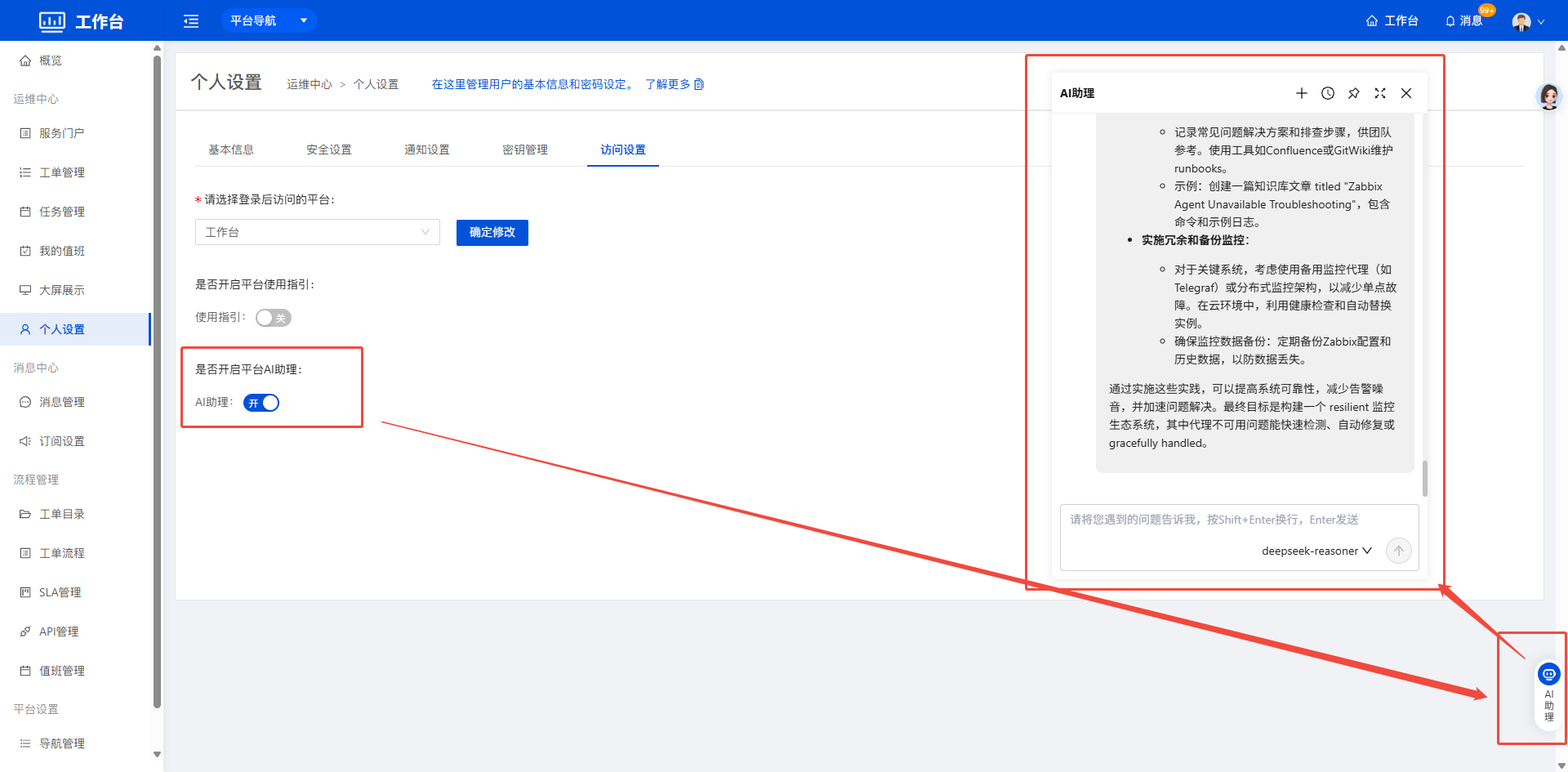 This switch controls whether the AI assistant chat window is enabled across the entire platform.
3.2 Intelligent Analysis
On the Basic Monitoring - Alert Events page, an intelligent analysis scenario has been added for alert events. Click the Intelligent Analysis button to open the AI assistant chat window.
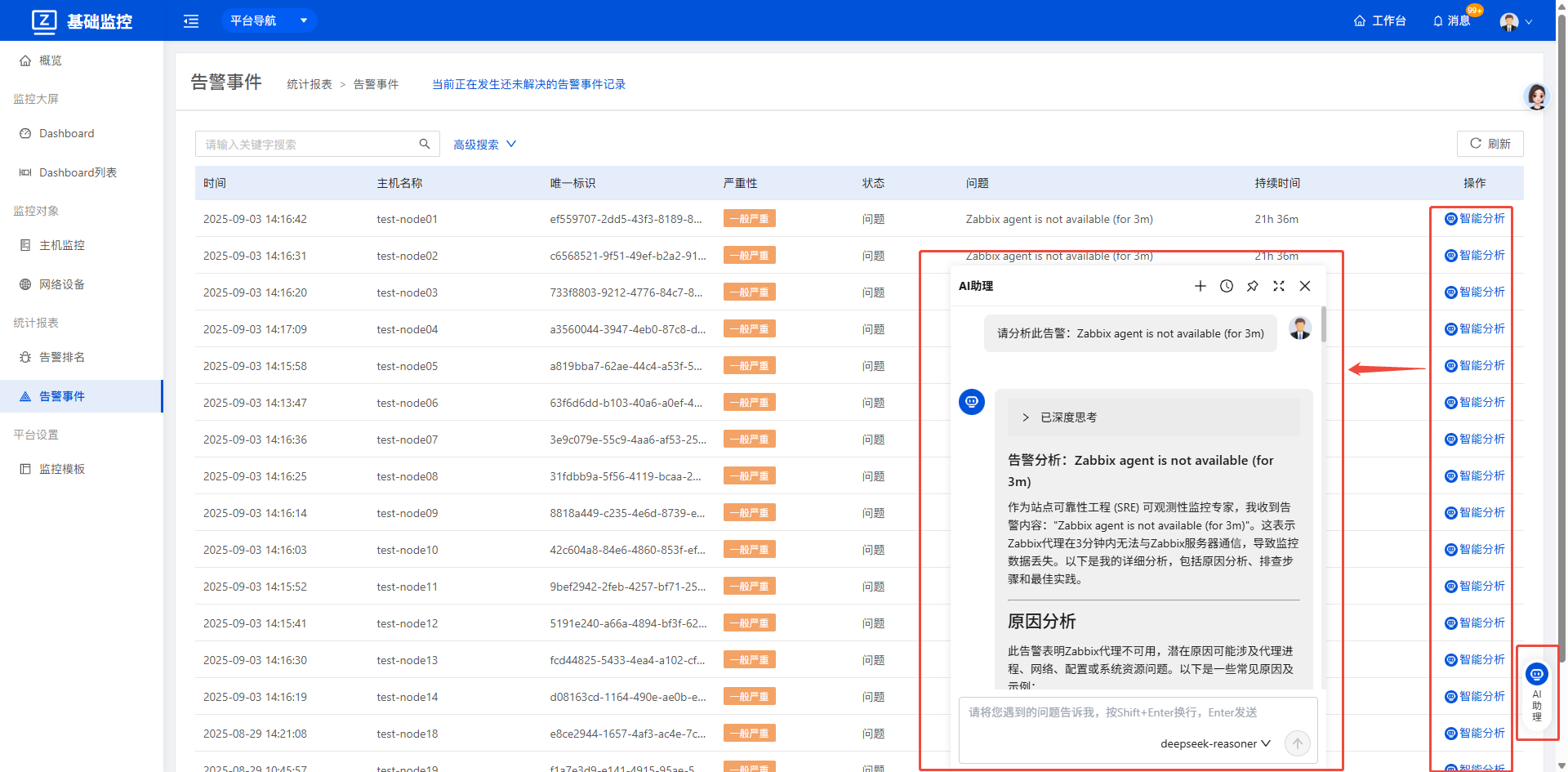 After the chat window opens, the alert question to be analyzed is sent automatically, and the AI assistant then outputs the corresponding answer.