













Pipeline
Pipeline (APPID: pipeline) is the OpsAny platform for continuous integration and continuous delivery. It is compatible with Jenkins Pipeline and can integrate with Jenkins for data import and synchronization. Pipelines are also managed by application. After Jenkins integration, creating an application automatically creates a folder in Jenkins named after the application's unique identifier.
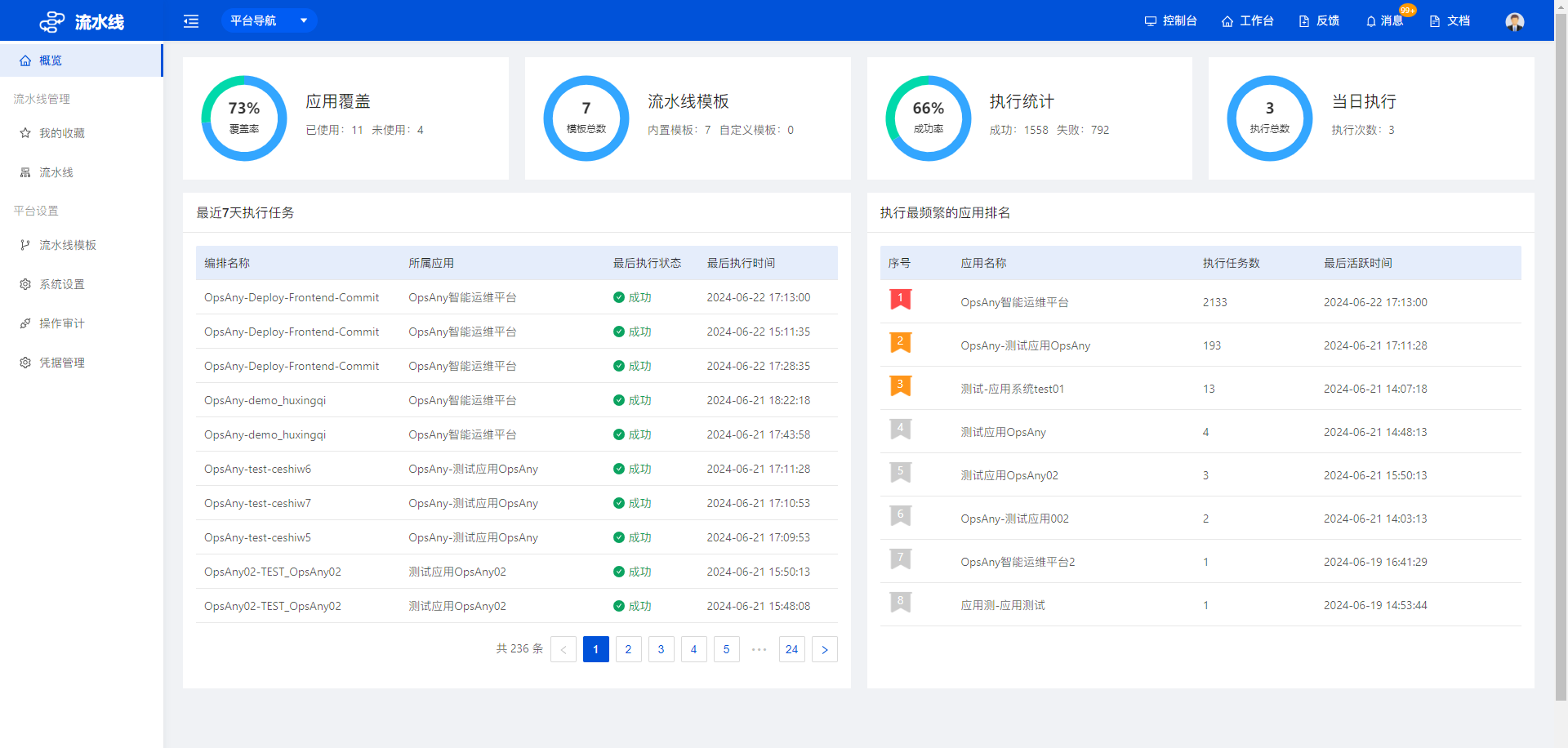
1. Pipeline Management
Pipeline management is the day-to-day management center for pipelines. Frequently used pipelines can be added to favorites and viewed in My Favorites. You can create, edit, delete, and run pipelines.
1.1 View Management
You can create global views that span application systems and group pipelines by dimensions such as environment and frontend/backend.
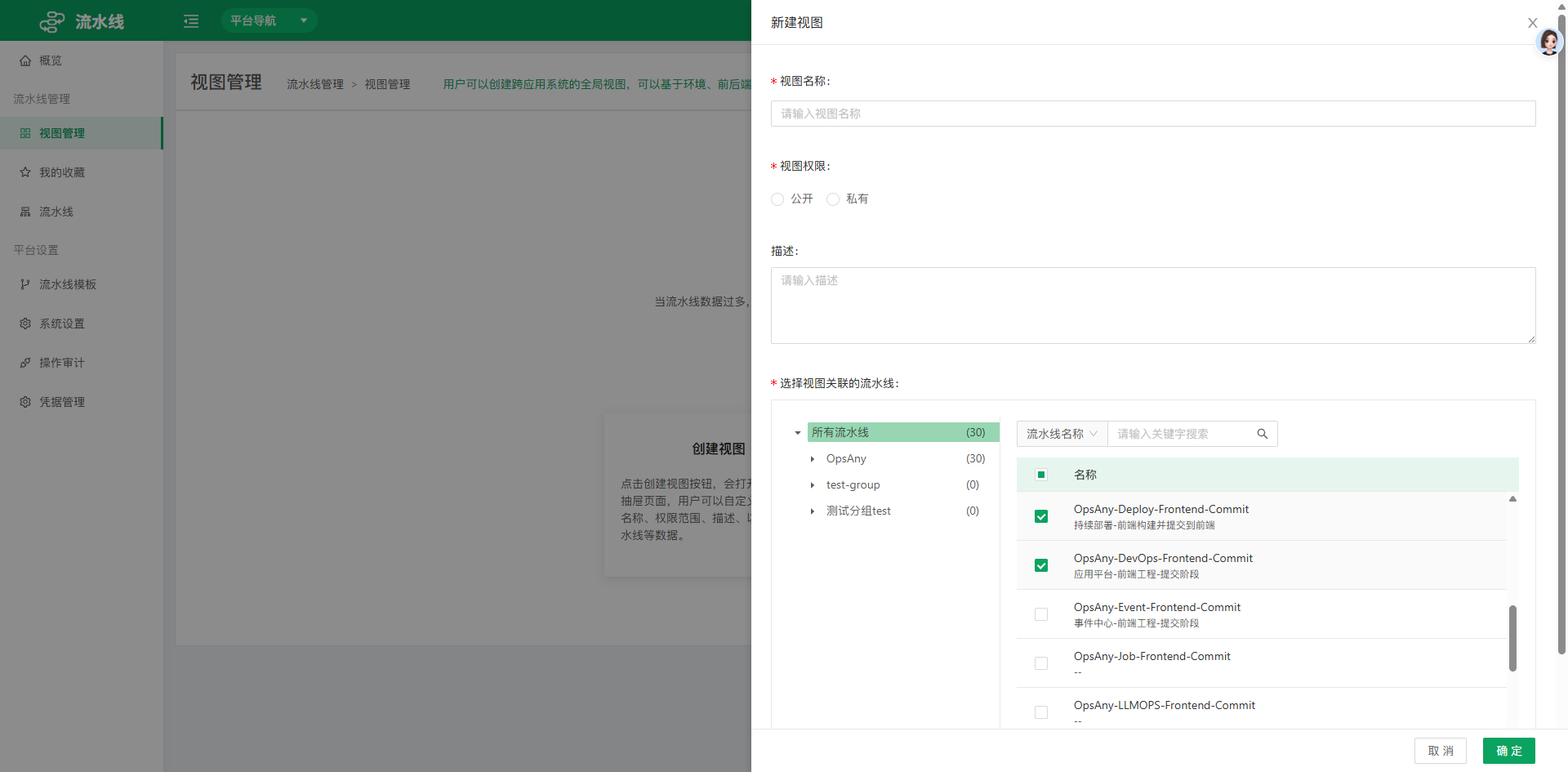 Name the view, choose whether the view is public, and select the pipelines to associate with it to create the view.
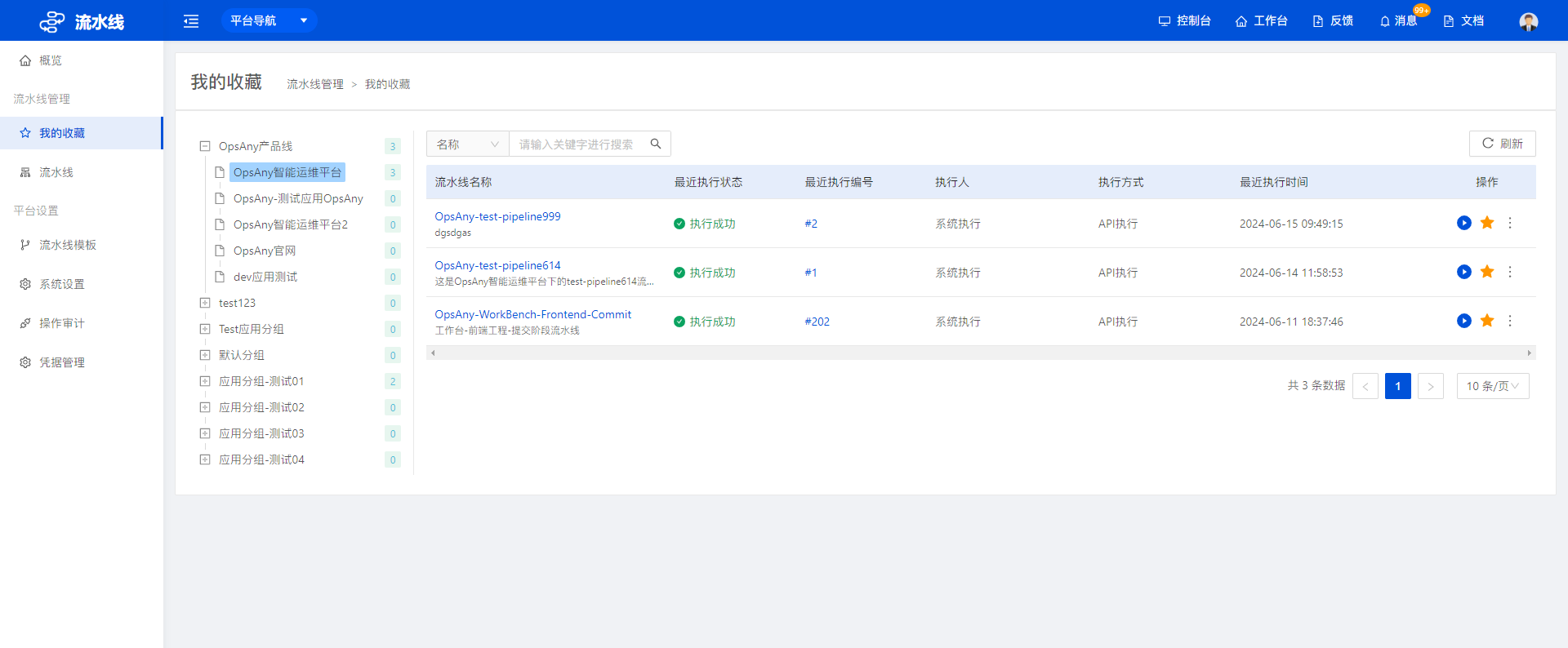
1.2 My Favorites
View the pipelines you have favorited. You can run favorited pipelines and view their execution history.
1.3 Pipelines
Here you can create, edit, delete, and run pipelines and view execution history.
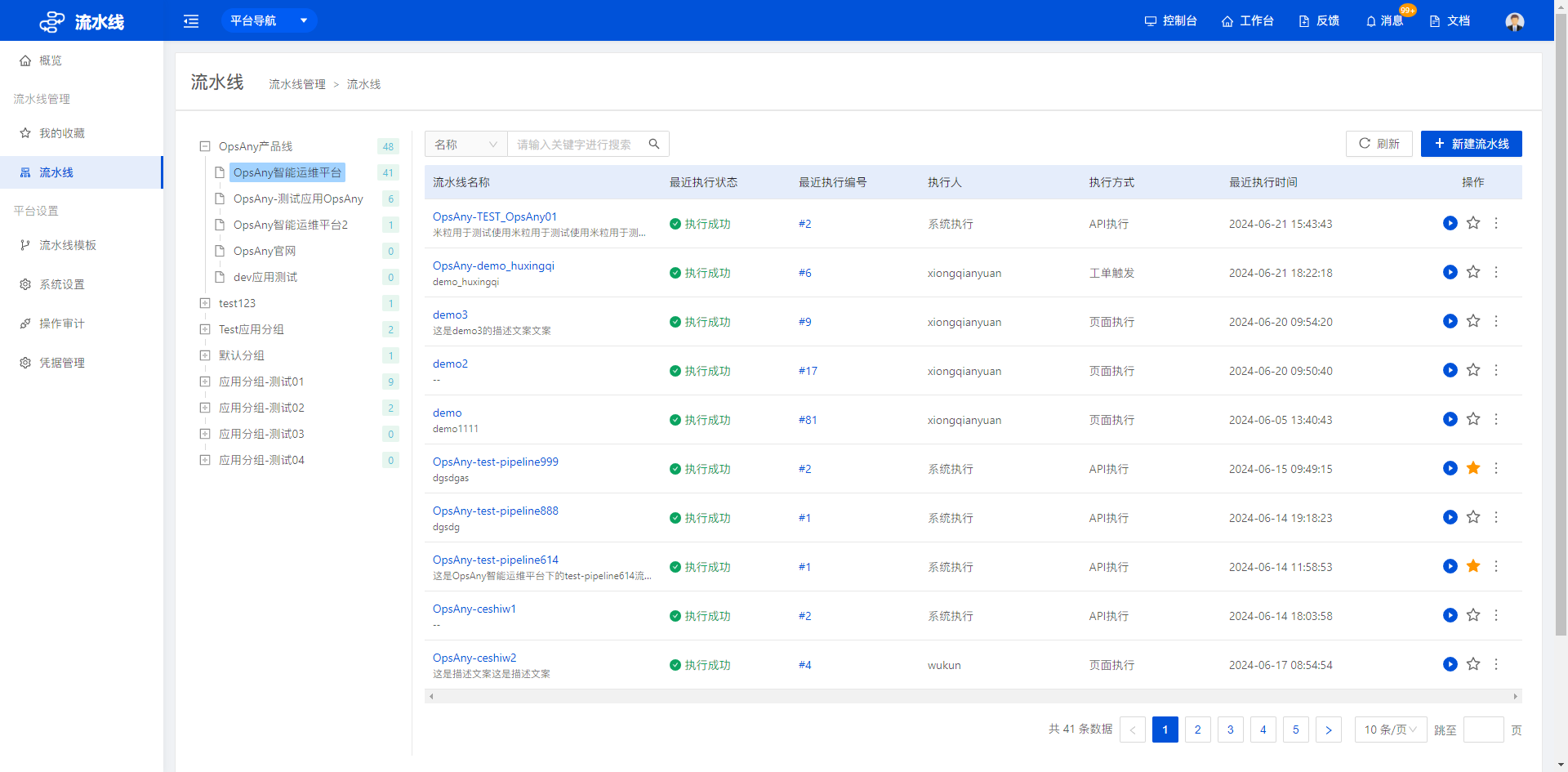
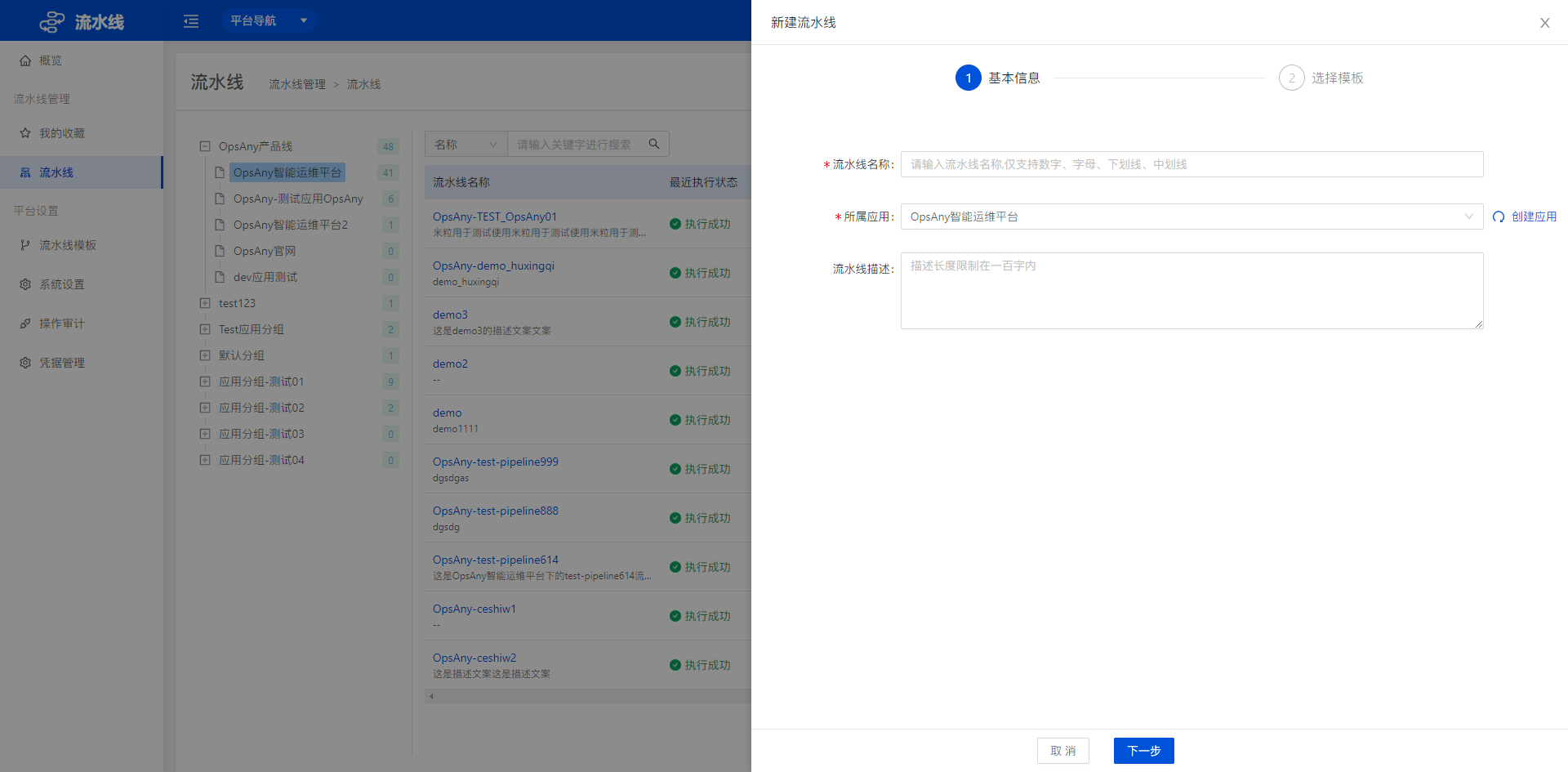
- Click New Pipeline in the upper-right corner to create a custom pipeline. In step 1, configure the basic information: enter the pipeline name, select the application it belongs to, and enter a description.
- In step 2, select a pipeline template. Built-in general templates are available, and custom pipeline templates are also supported.
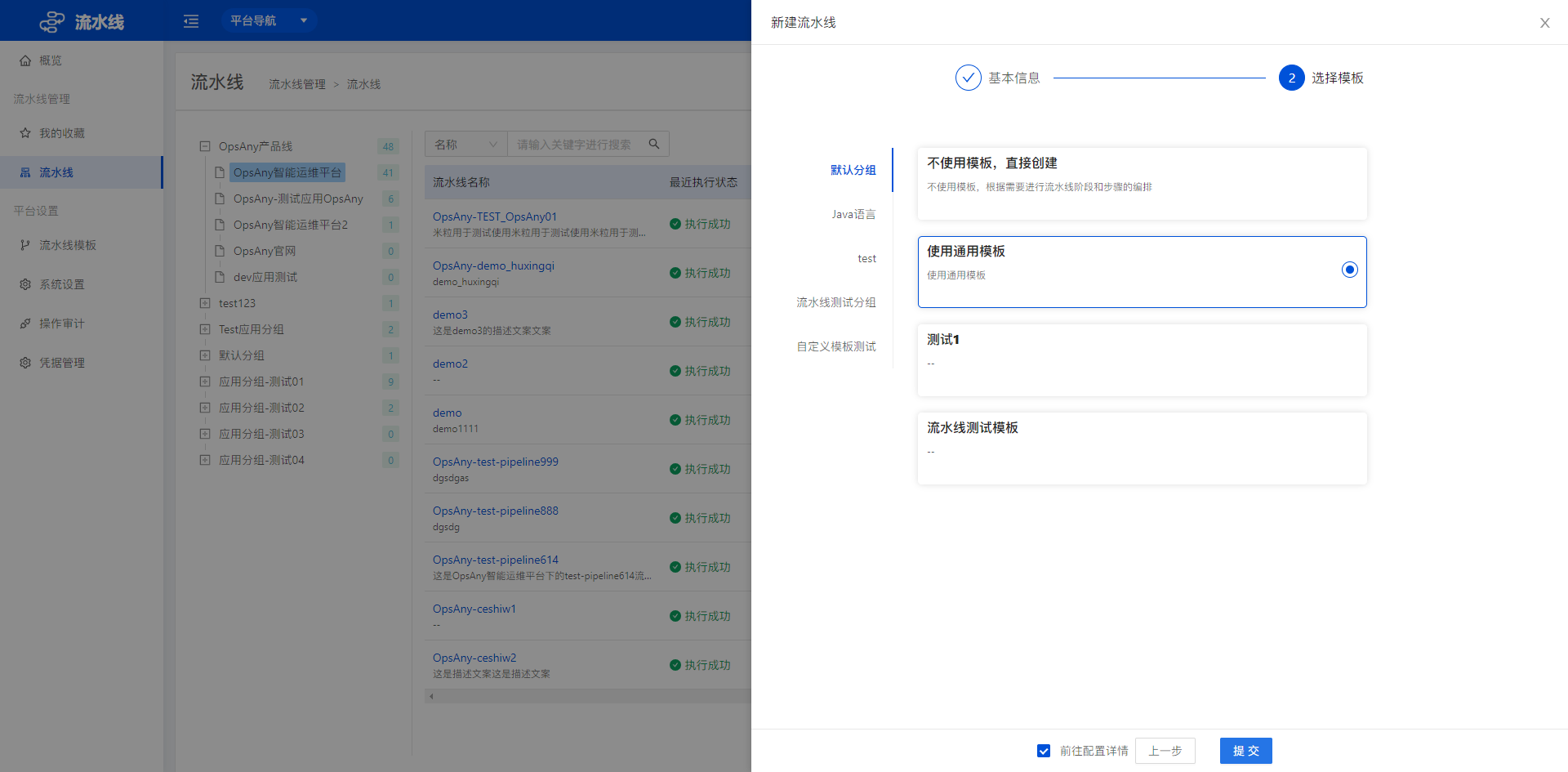
- For example, if you select a general template, click Submit after selecting the template to open the flow configuration page.
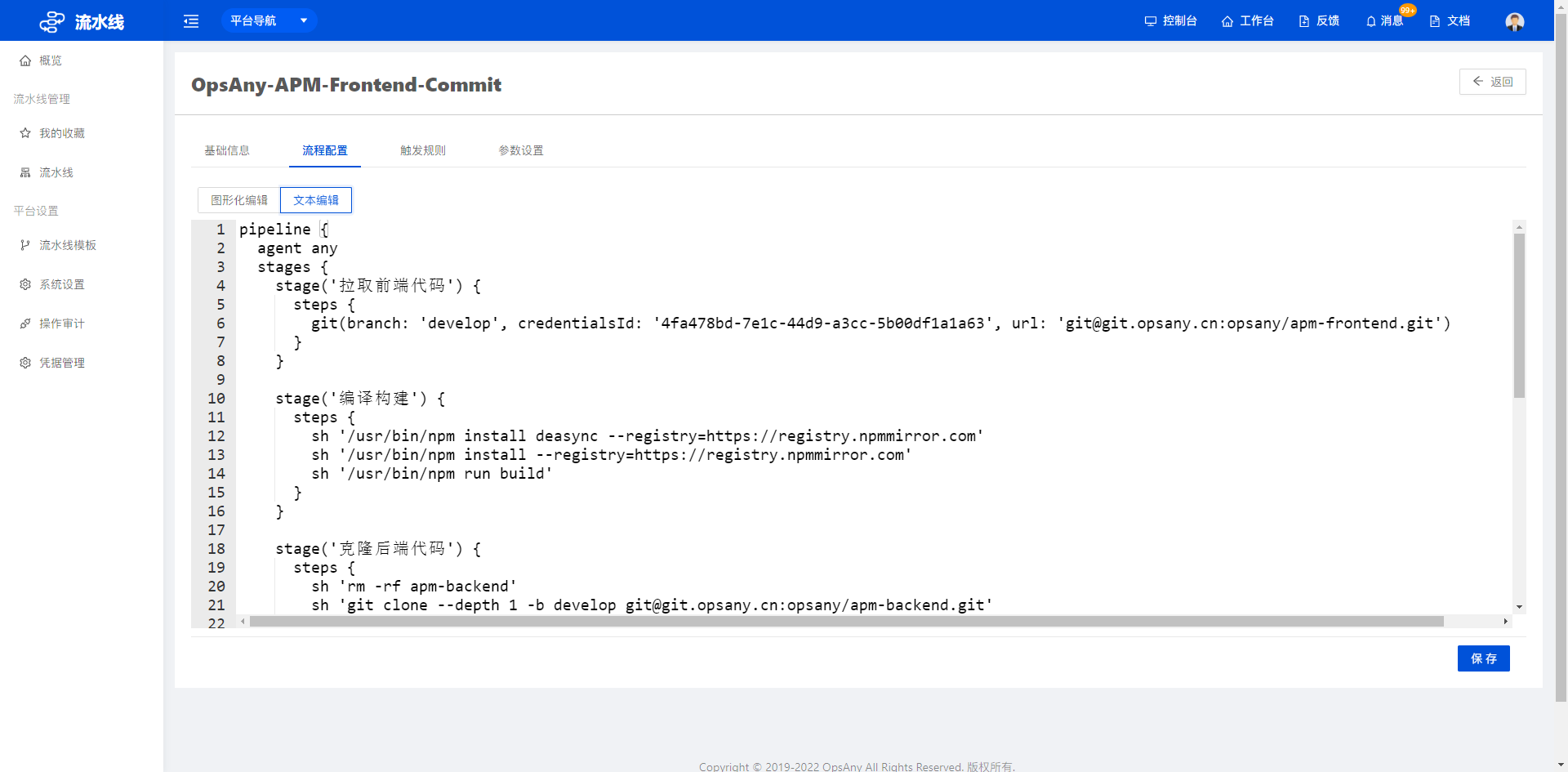
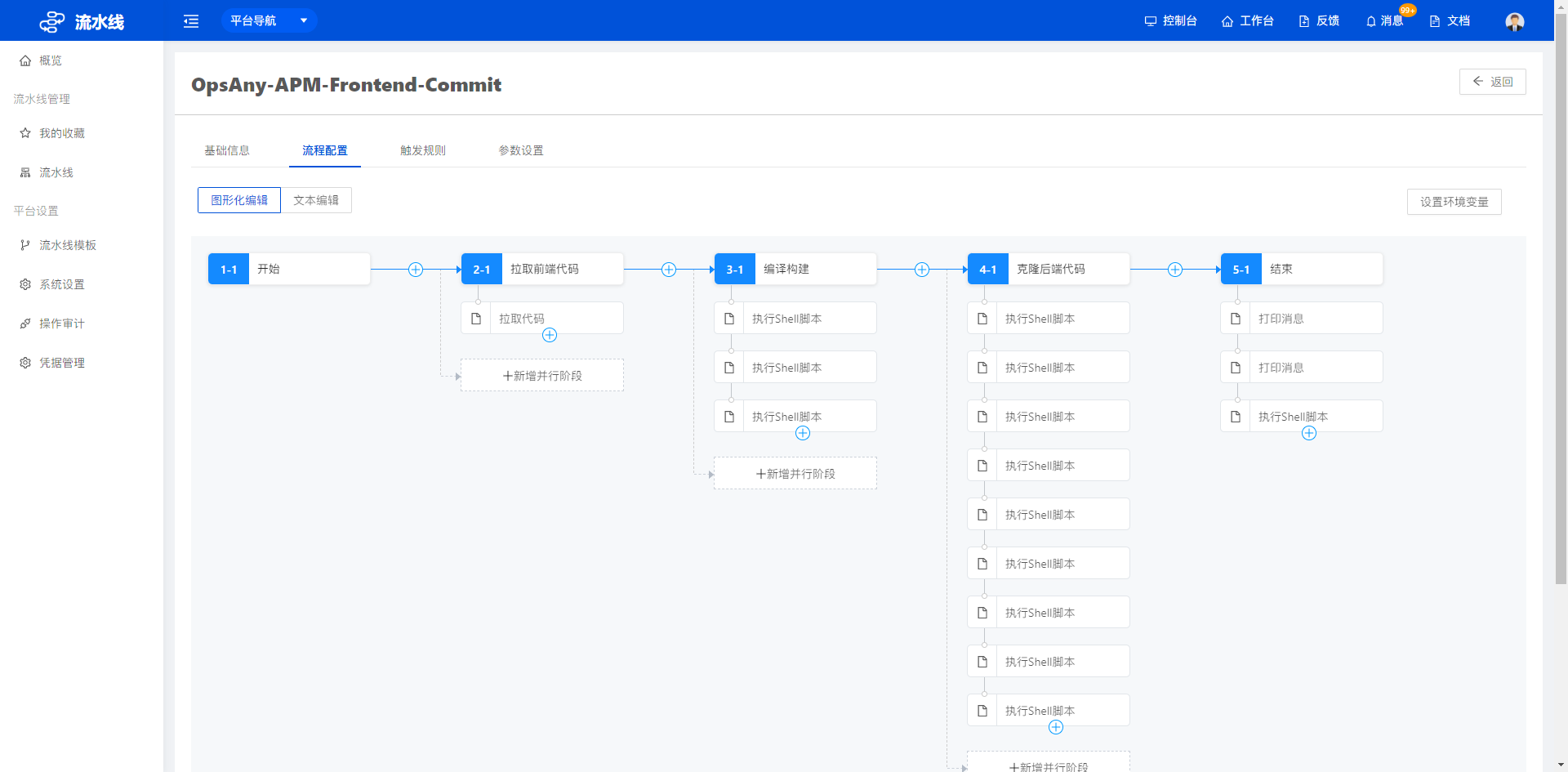 The flow configuration page supports graphical editing and text editing. Text editing looks like this:
- Configure trigger rules. Triggers include code source triggers, scheduled triggers, and build triggers.
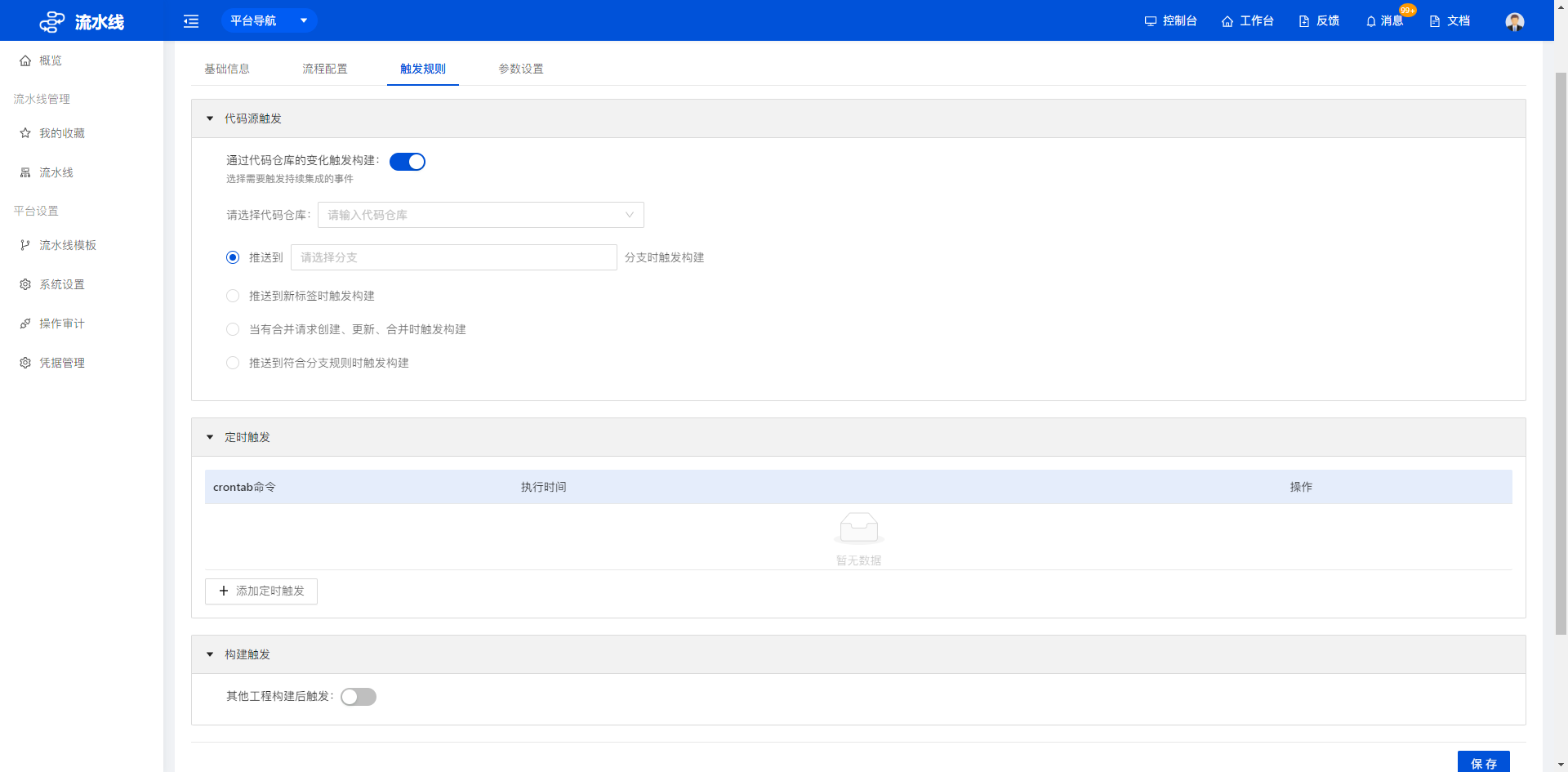
- Parameter settings add execution parameters to the pipeline. When you run the pipeline manually, you are prompted to select the parameters.
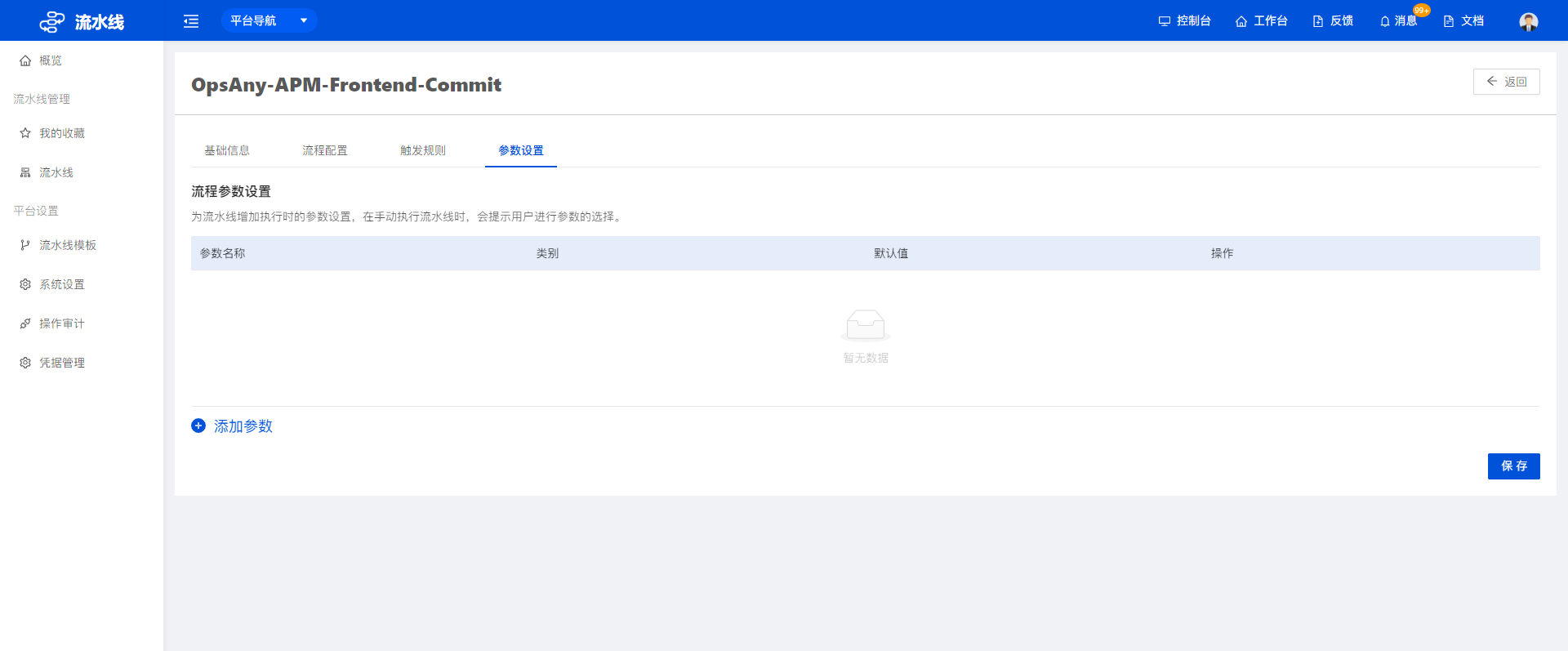 Click Add Parameter to define custom parameter settings.
- Click the run icon in the Actions column of the pipeline list to run the current pipeline.
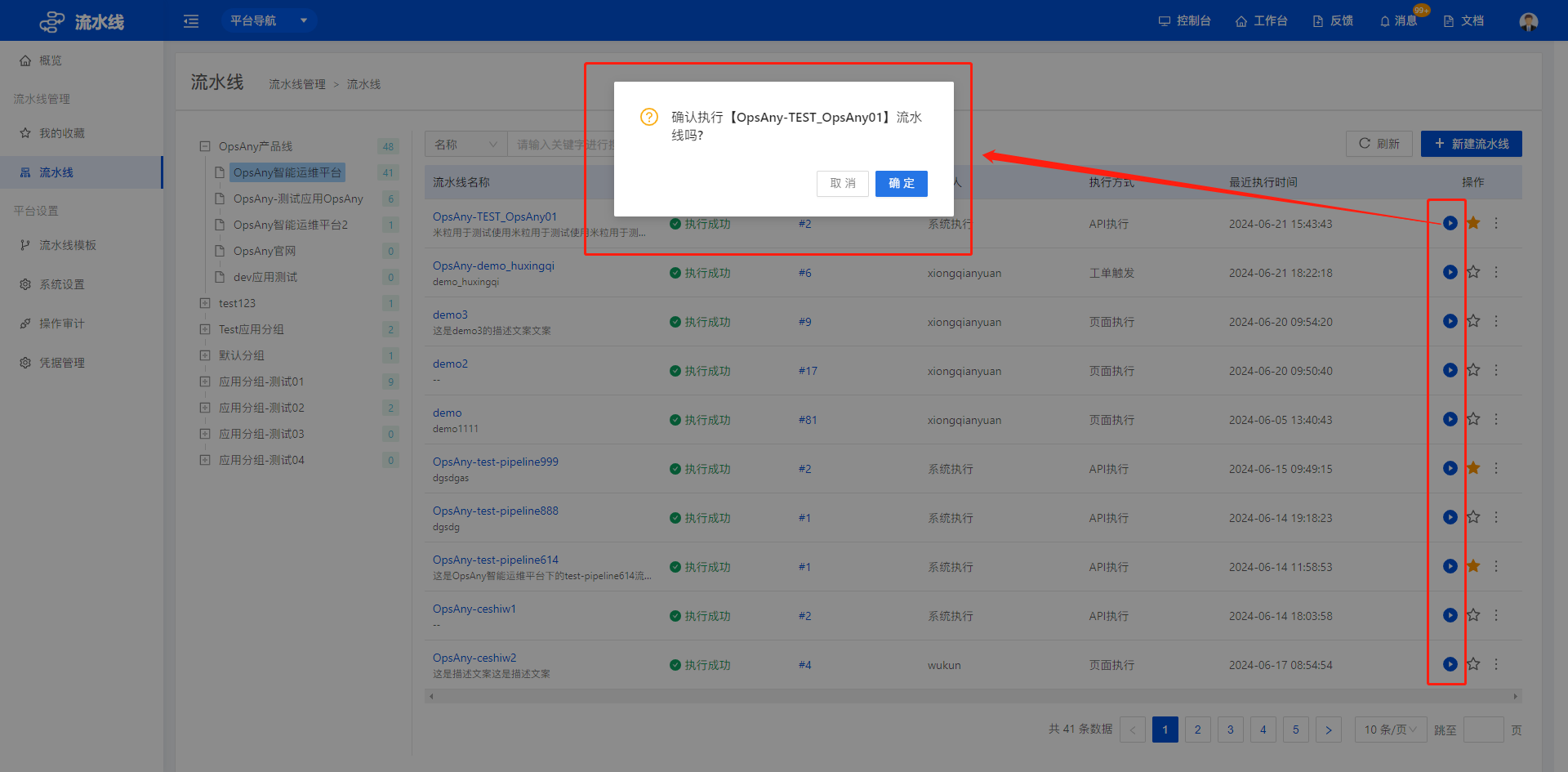
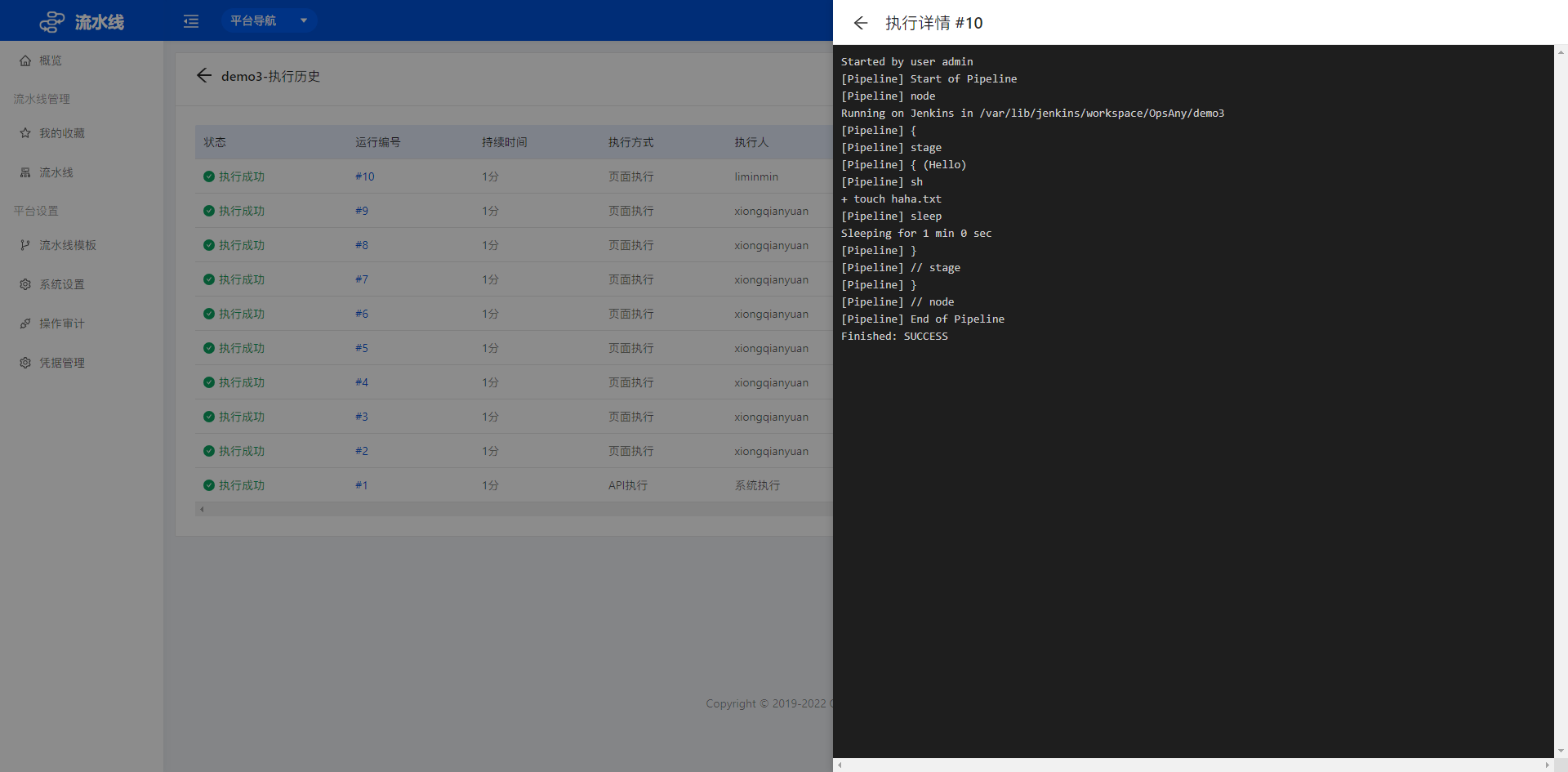
- Click a pipeline name to view its execution history.
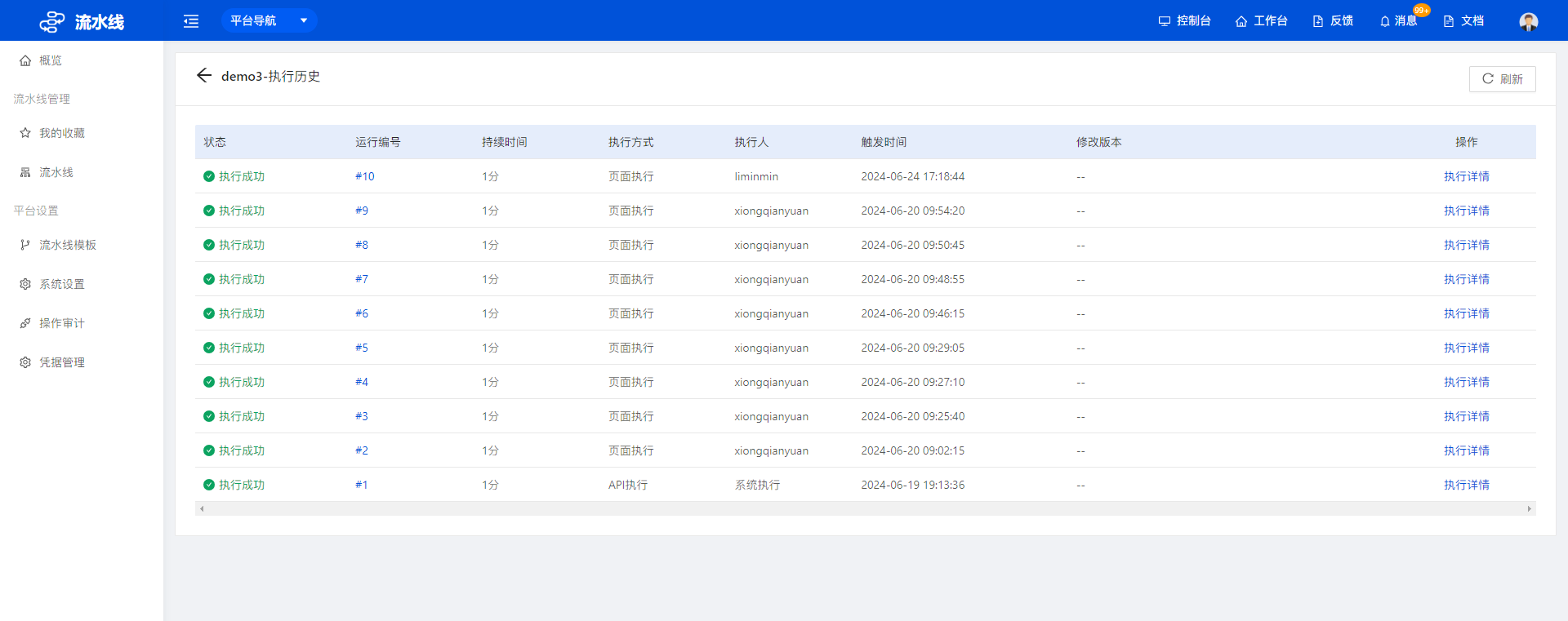 Click Execution Details to view the operation log of each execution history record.
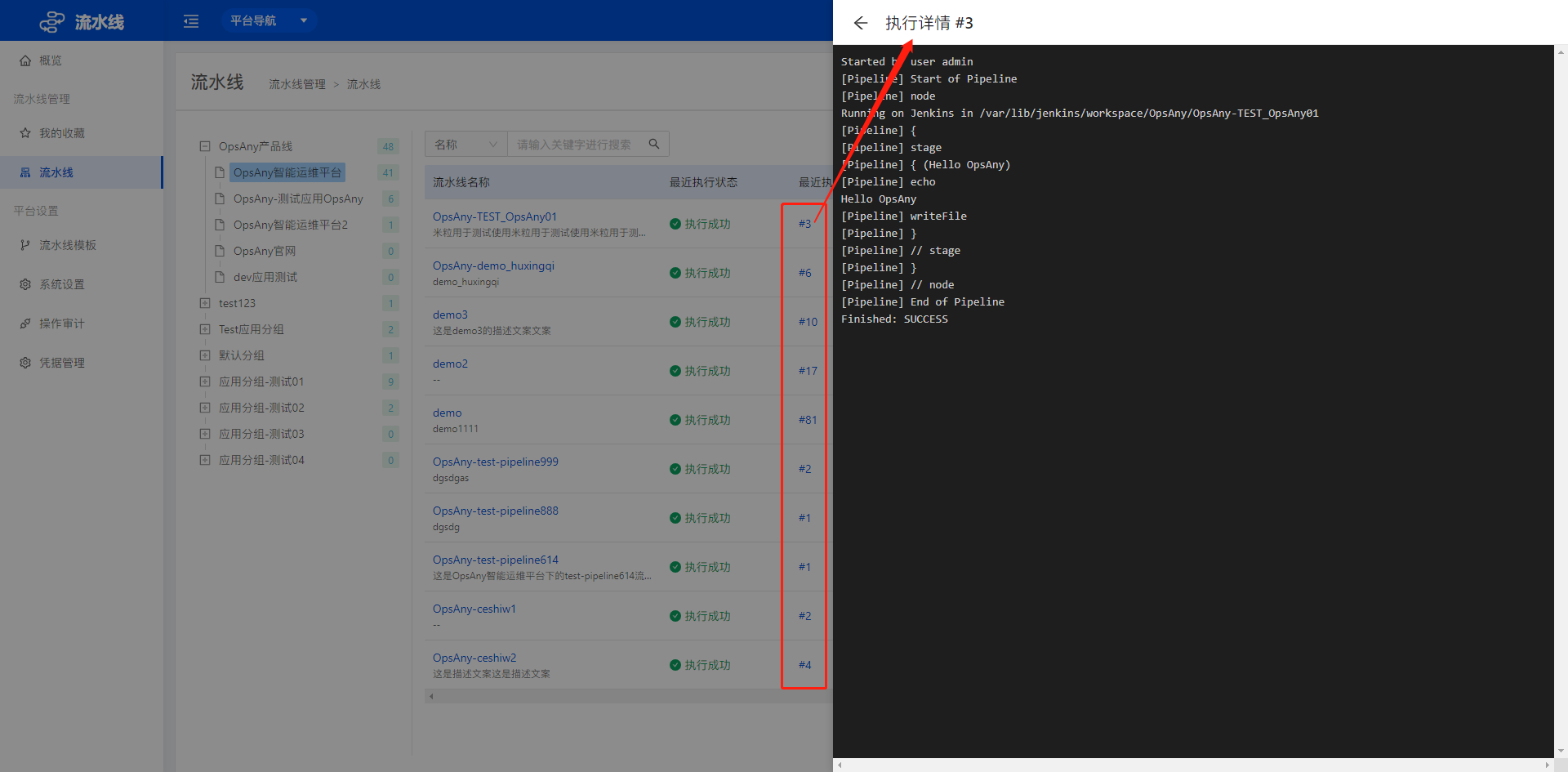
- Click the latest execution ID on the list page to view the most recent execution record.
2. Platform Settings
Platform settings let administrators customize pipeline templates, integrate common tools, and manage day-to-day credentials.
2.1 Pipeline Templates
Pipeline templates are either built-in or custom. Built-in templates cover common, general cases, while custom templates let you define your own. Pipeline templates support creating, editing, deleting, and copying.
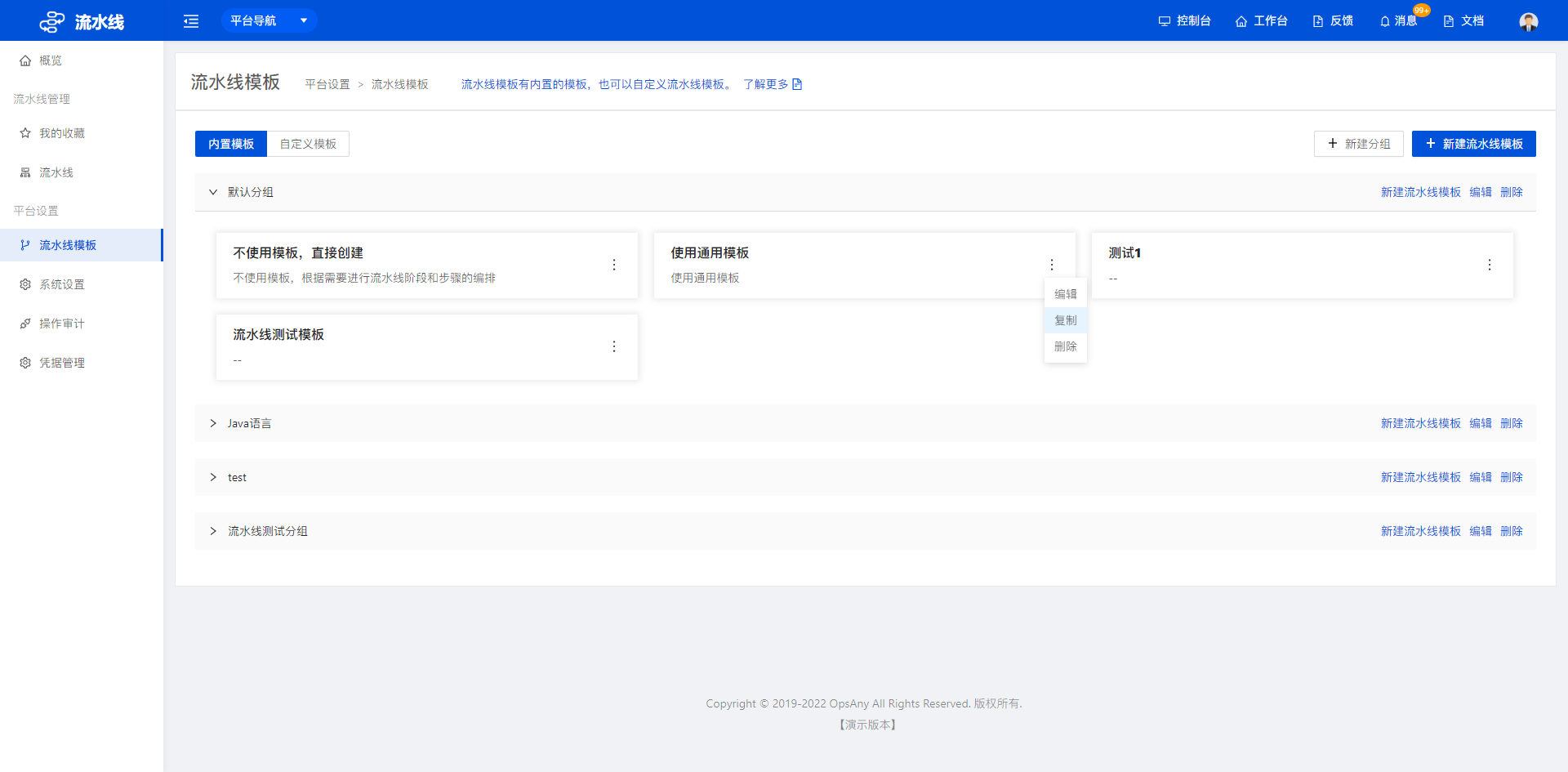
- Copy a pipeline template: click the copy button in More to copy the current pipeline template into the group you need.
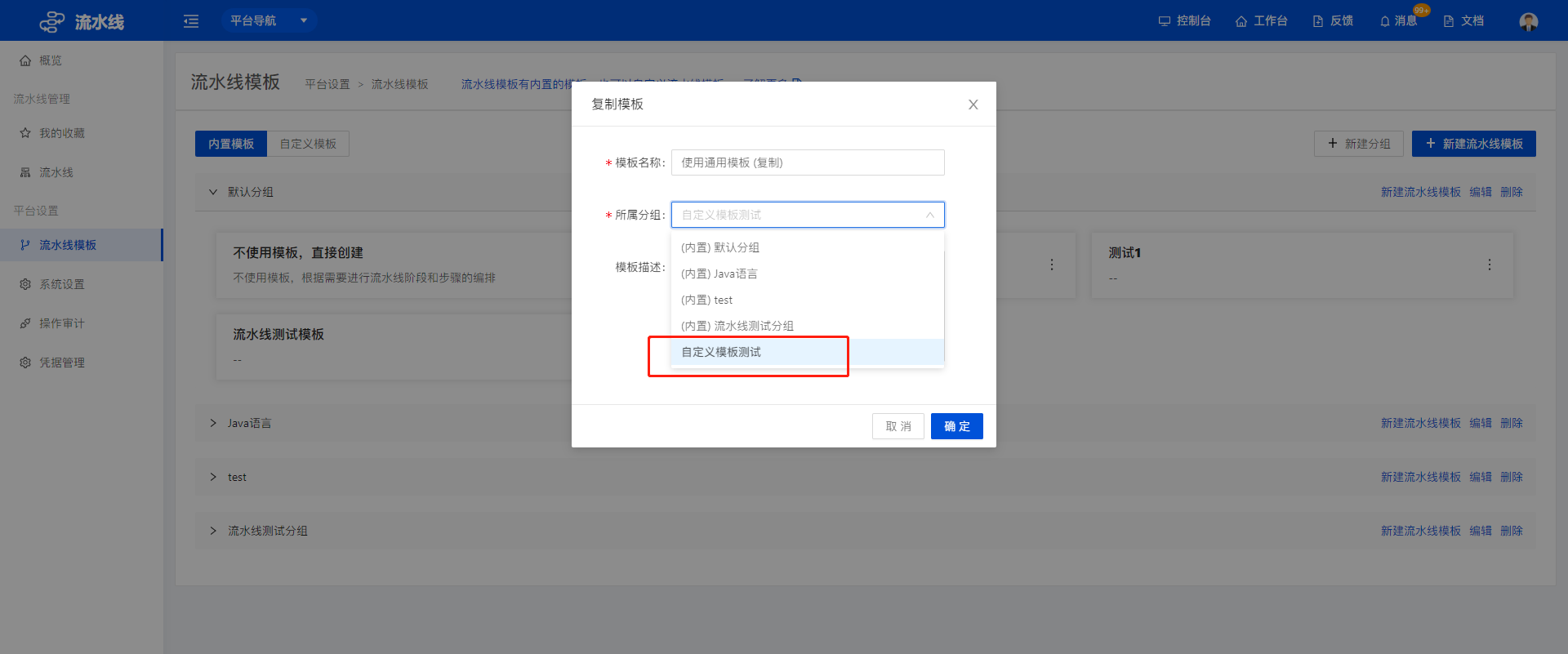 For example, after copying it into custom templates, the result looks like this:
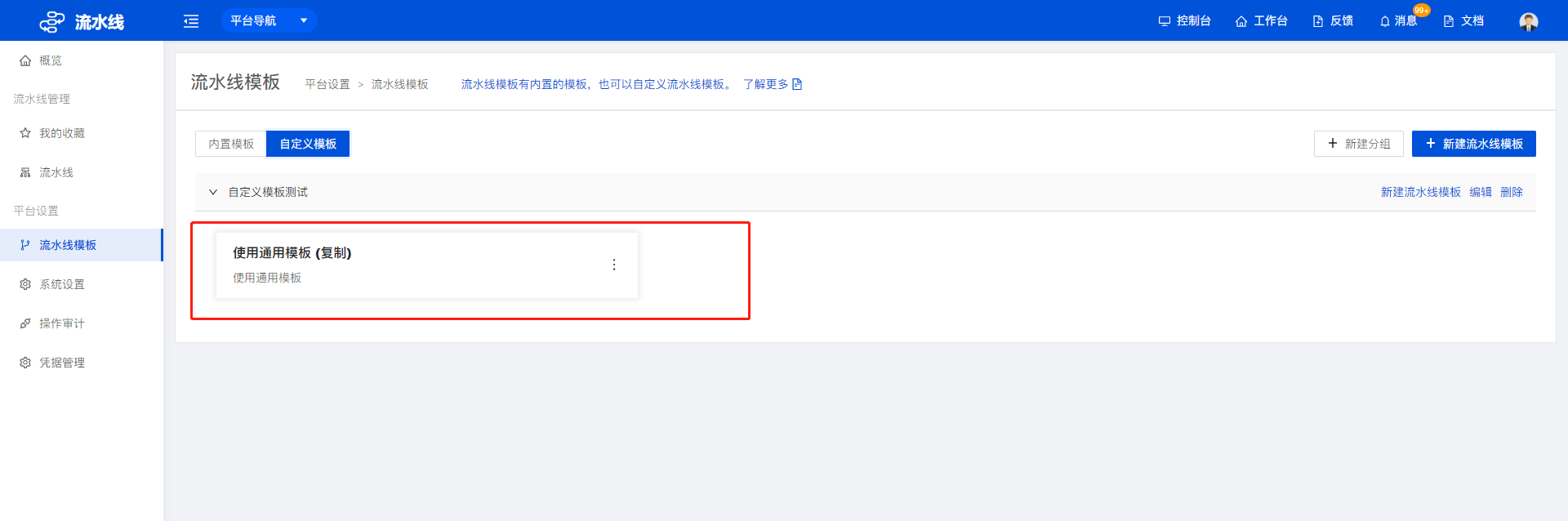 The template name and description can both be modified.
-
In the current custom template, click New Group in the upper-right corner to create an easily recognizable group first.
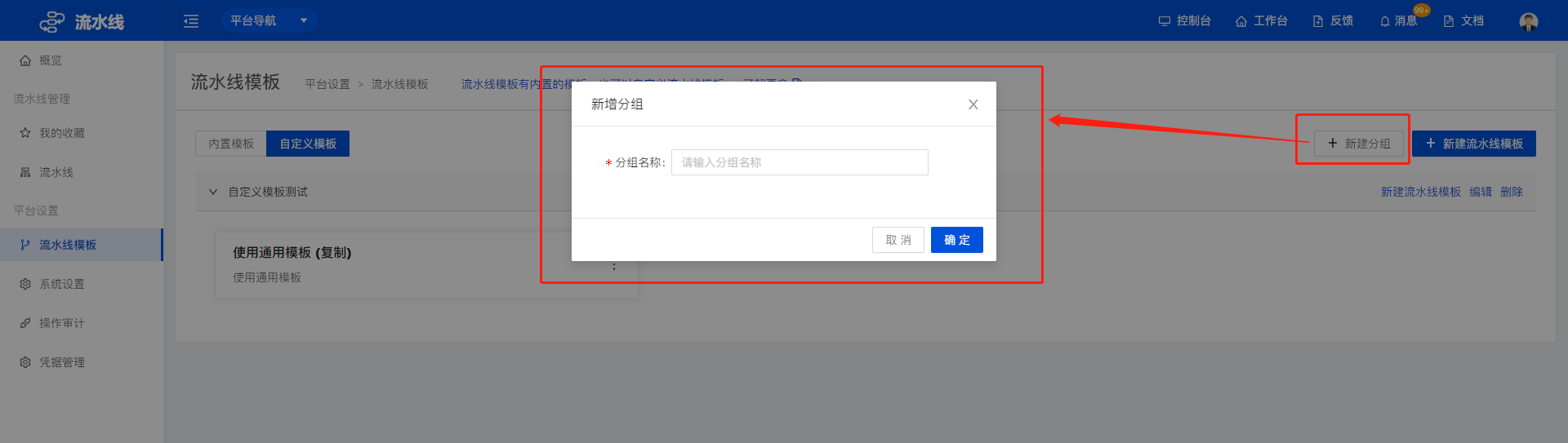
-
Click New Pipeline Template in the upper-right corner to open step 1 of the template configuration page, Basic Information.
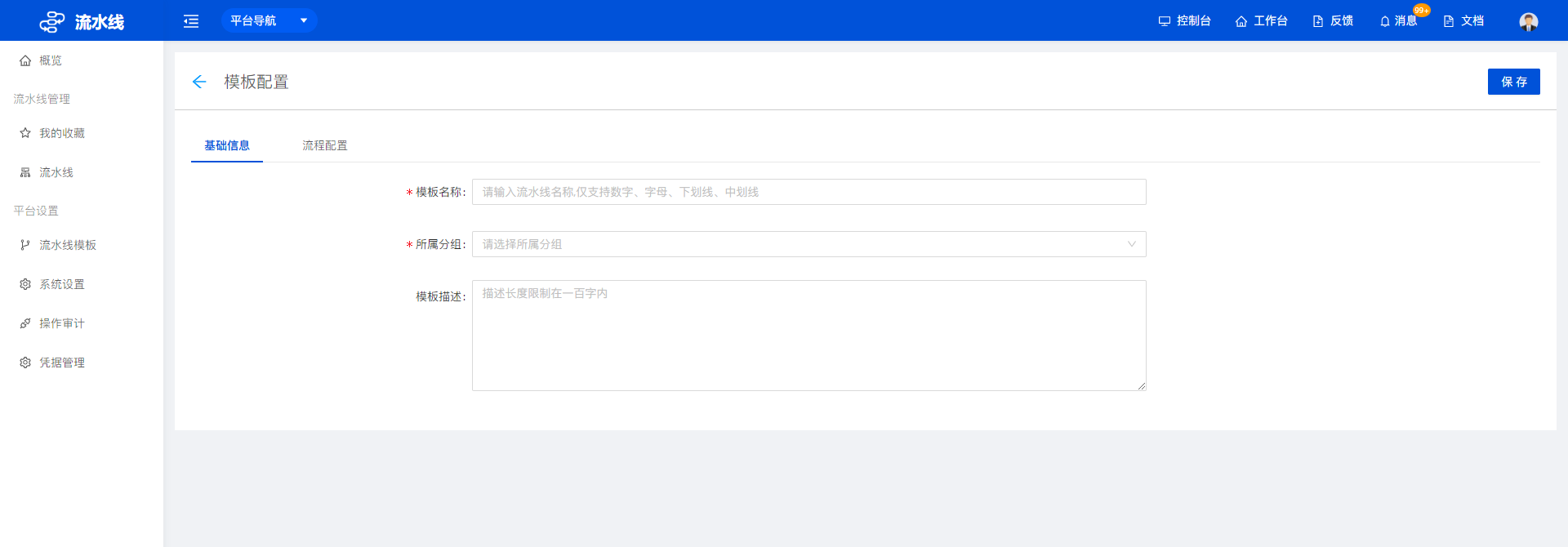 Enter the template name, select the group the template belongs to, and enter the template description to complete the basic information.
-
After completing the basic information, open the flow configuration page, where you can add custom step orchestration information to the template. When configuration is complete, click Save in the upper-right corner.
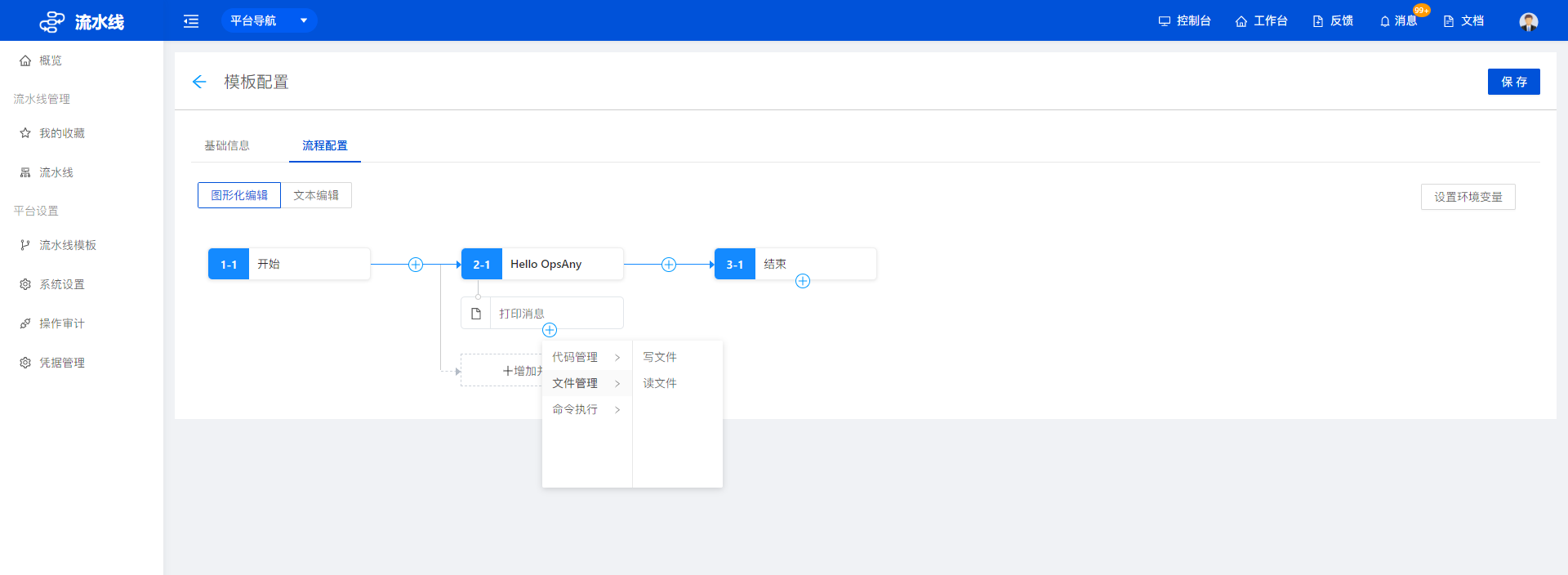
2.2 System Settings
Add the tools commonly used by pipelines on the System Settings page. Jenkins and GitLab are currently supported.
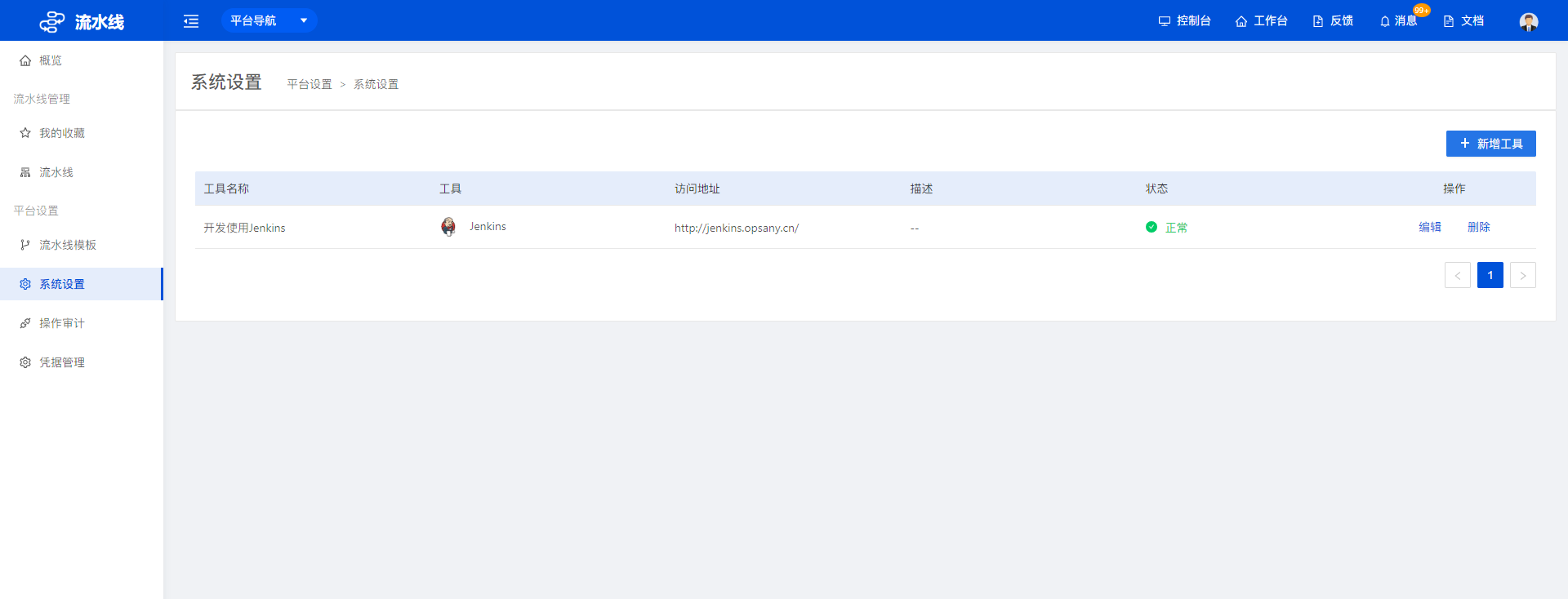 On the current System Settings page you can create, edit, delete, and refresh tools.
The Status column shows the connection status of each tool. When the status is abnormal, the tool is unavailable; change the address, username, or password, or check whether the service is running.
Click Refresh to refresh the status of the tool list.
Note: Be careful when changing the API address or deleting a tool. If pipelines have data, changing the API address or deleting the tool may cause existing data loss.
- Click Add Tool in the upper-right corner to open the Add Tool dialog. Complete the configuration according to the fields on the page.
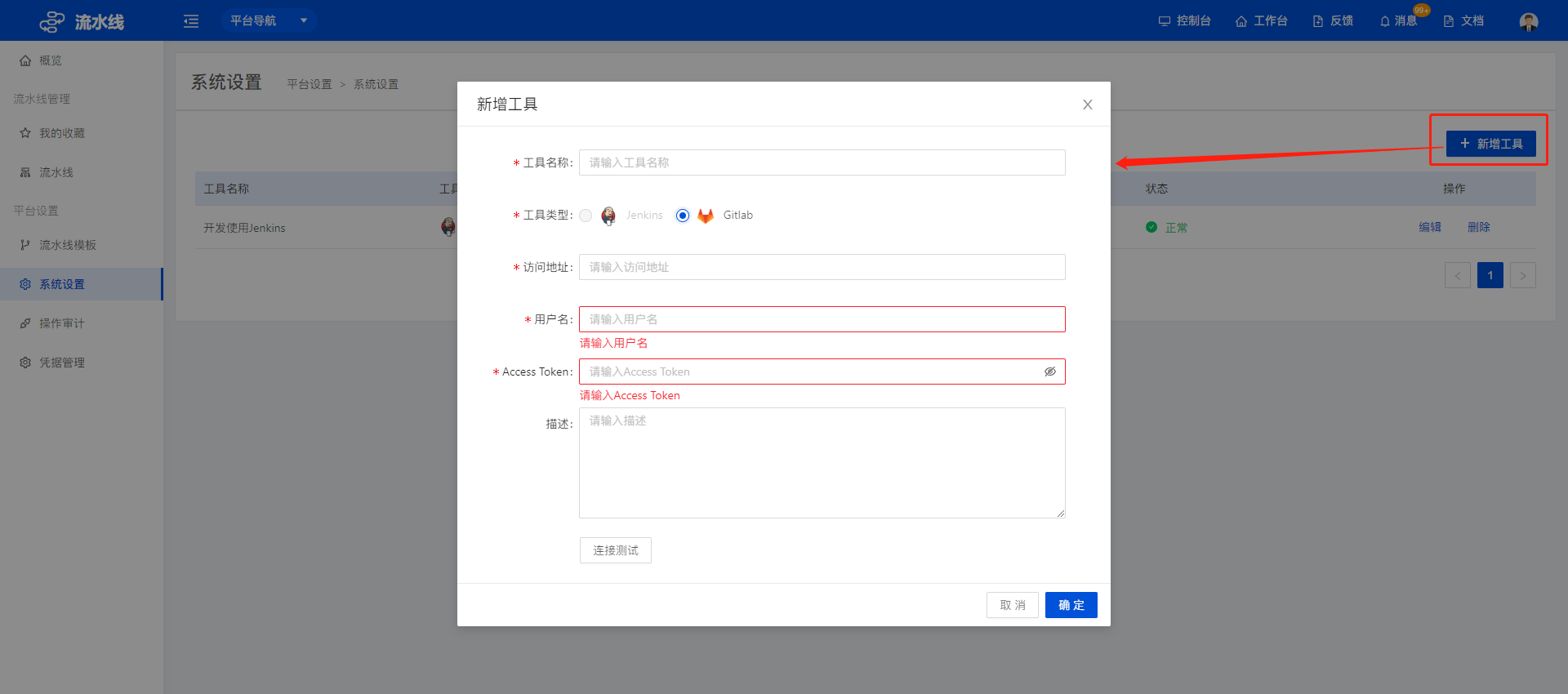 Note:
Click Test Connection to verify the connection; you cannot create the tool if the connection fails.
Each tool supports only one address.
2.3 Operation Audit
The Operation Audit page records which users performed which operations on the Pipeline platform, making it easy to trace back.
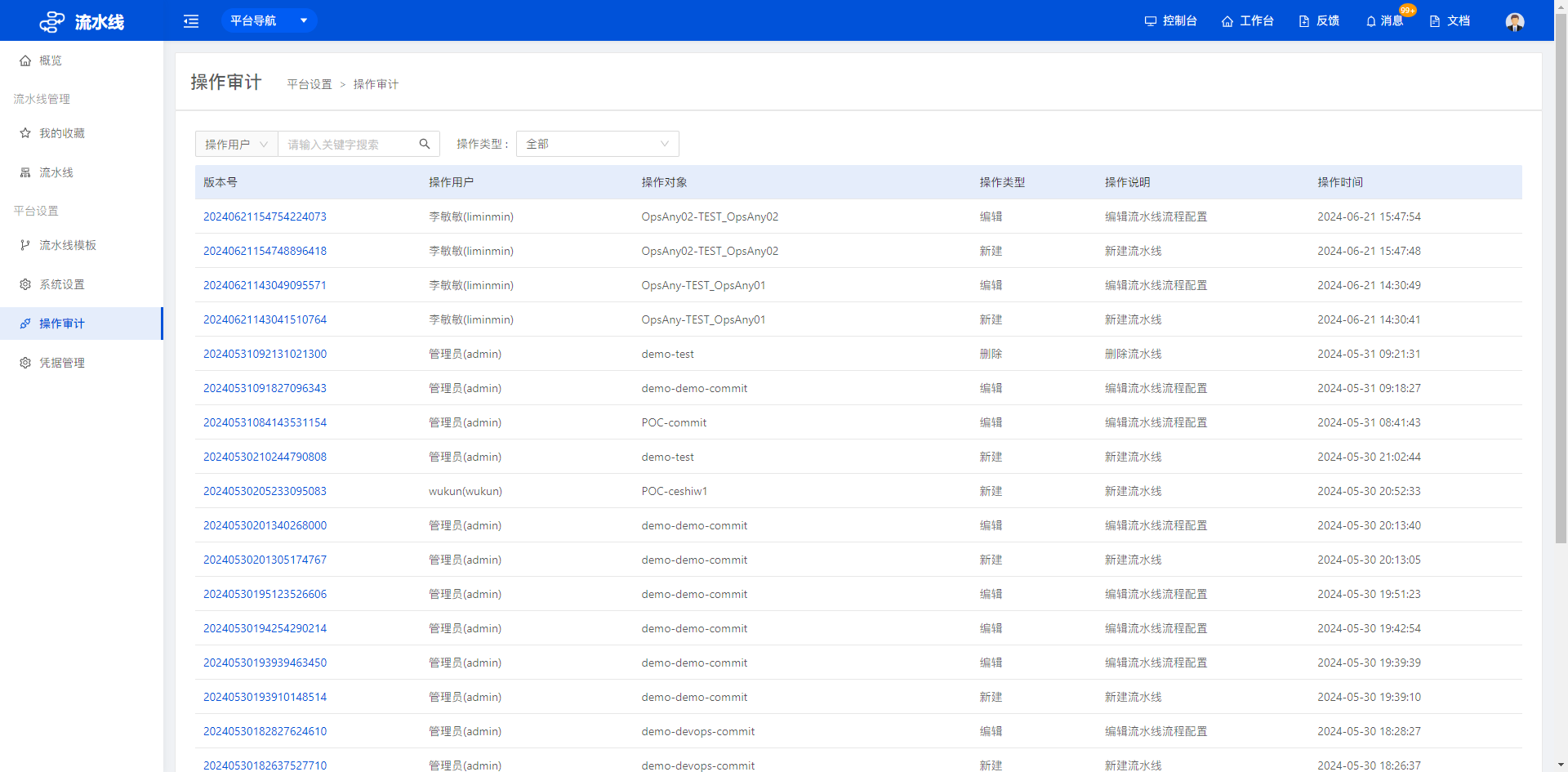
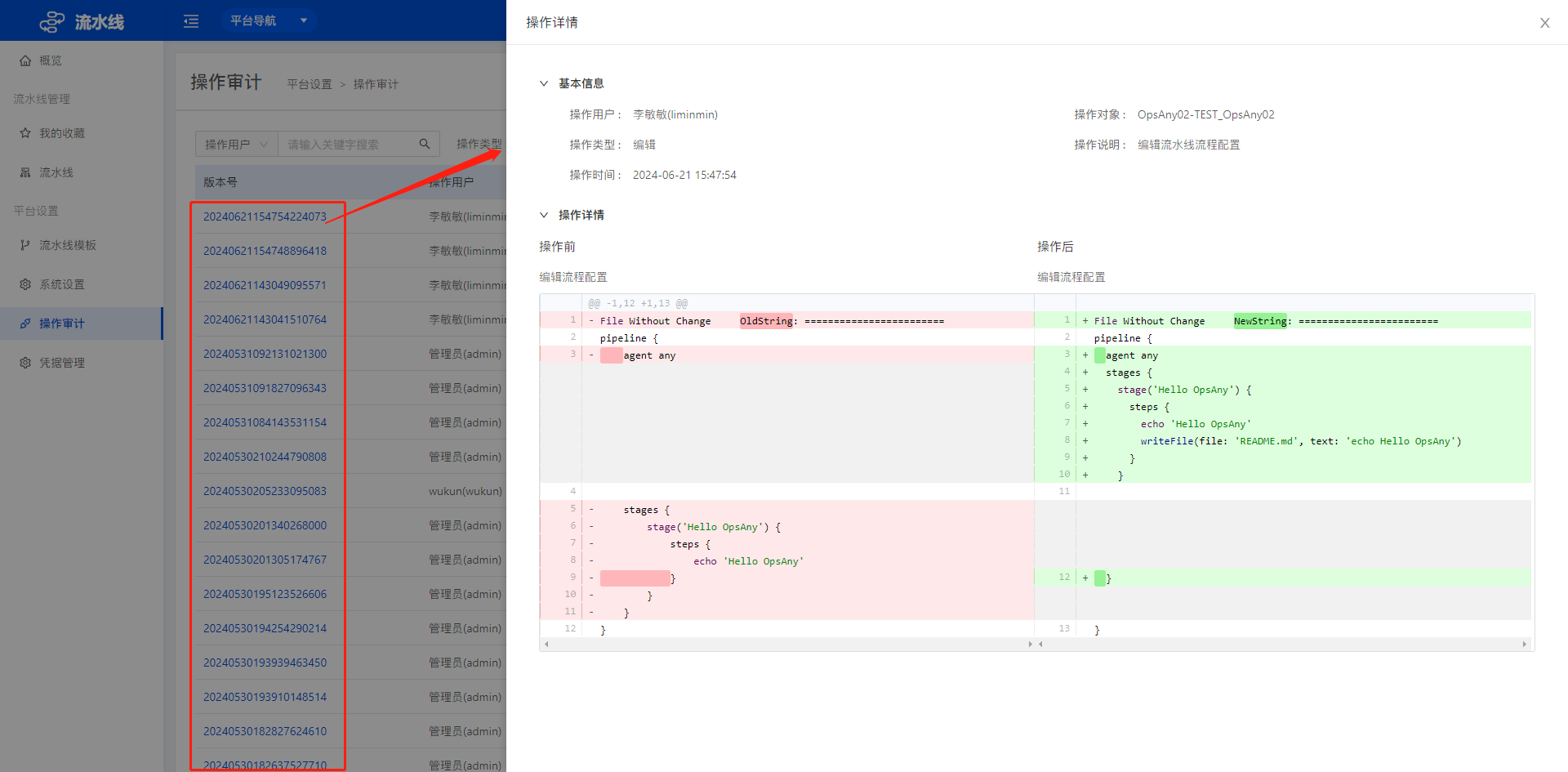
- Click a version number to view the specific operation details.
2.4 Credential Management
Credential management currently supports four credential types: Password, GitLab Token, SSH Key, and Secret Text.
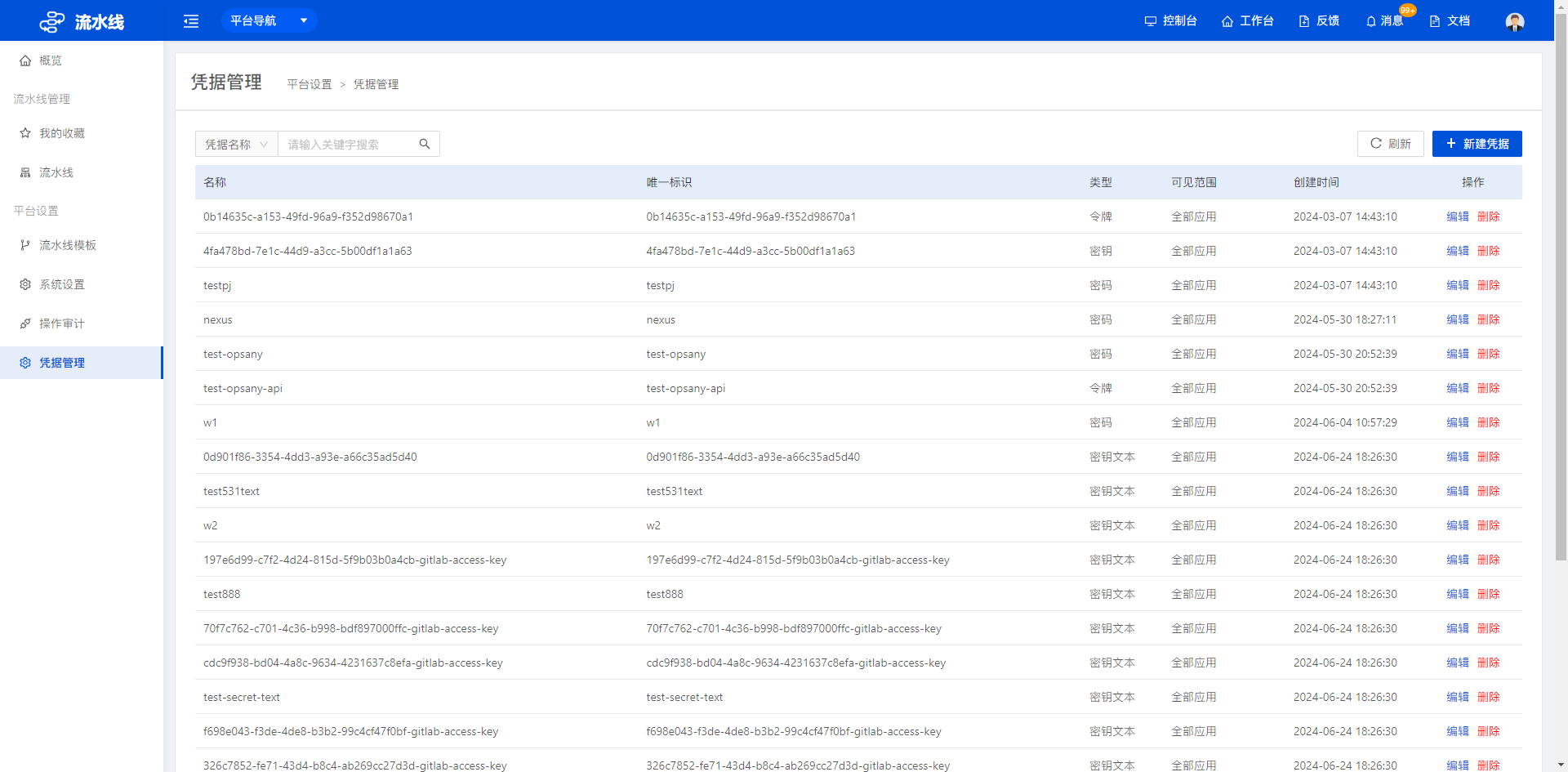
- Click New Credential in the upper-right corner to open the New Credential drawer.
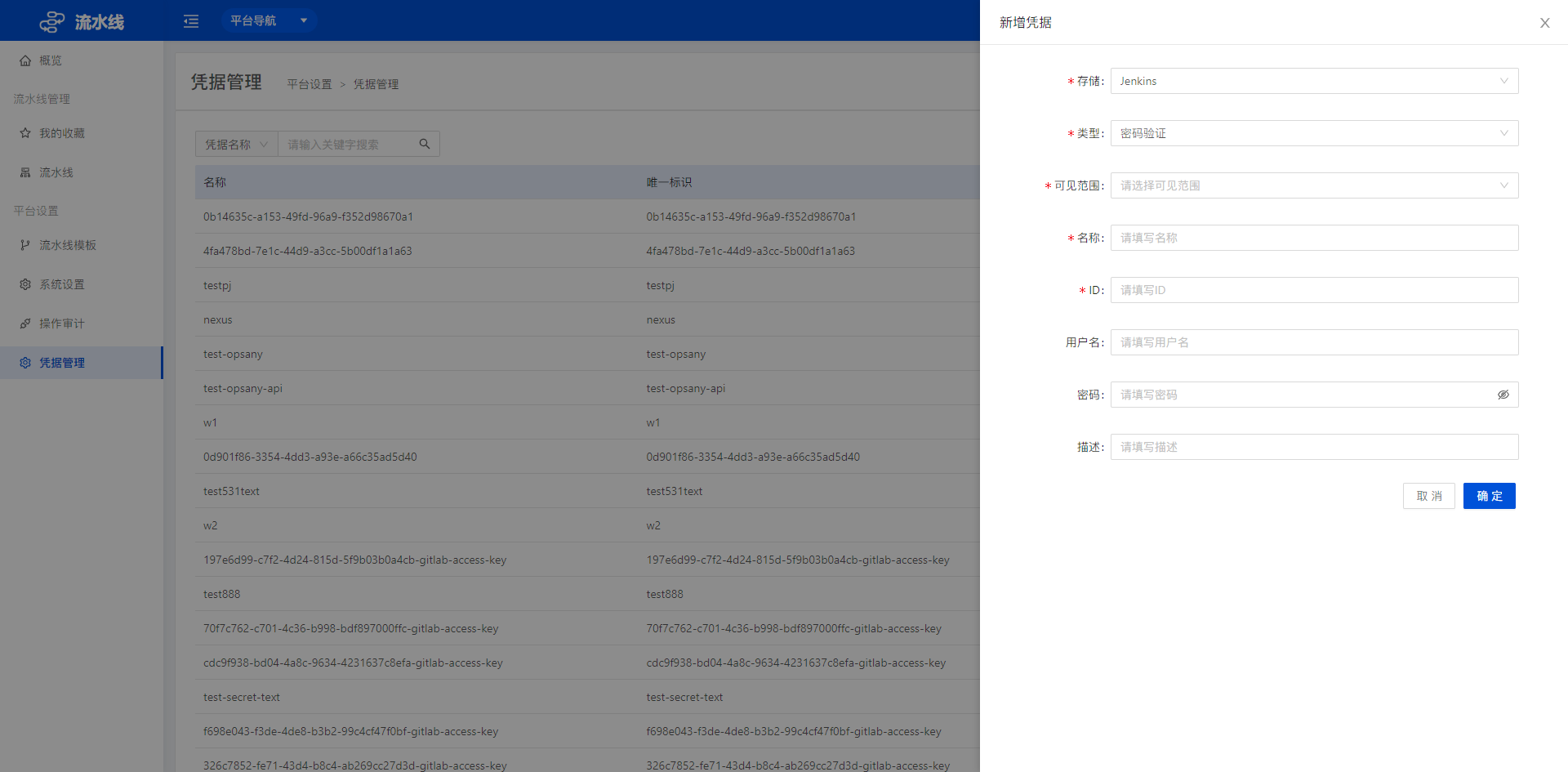 Complete the new credential operation according to the fields on the page.
Info
Open source technology statement: OpsAny actively embraces open source technology and encourages everyone to protect the intellectual property of open source technology and use it lawfully. The Bastion Host uses the following open source technologies.
- Guacamole: http://guacamole.apache.org/
- Asciiplayer: https://github.com/qeesung/asciiplayer