












Developing an OpsAny Asset Inspection Plugin
The OpsAny Smart Inspection SaaS is an Enterprise Edition feature. You can create inspection templates, define custom inspection metrics, write inspection scripts and design report templates. This document walks through creating an inspection template.
Creating an Inspection Template
-
- Create a template:
- Go to
https://domain/o/auto/#/patrolManage/patrolTemplateand click Create. Enter the name and unique identifier of your template. Note: the unique identifier cannot be changed once entered. -
Click the template you just created to open its detail page.
-
- Metric management
- Notes:
- Metrics are organized into metric groups and individual metrics. Every unique identifier matters and cannot be modified after the metric is created.
- The metric type determines the data type and data structure. Thresholds can only be set on metrics whose type is single value.
- Under threshold settings you can define multiple thresholds at different severity levels for a single metric.
- Metrics are tightly coupled to the output of the inspection script.
-
Create metrics and metric groups:
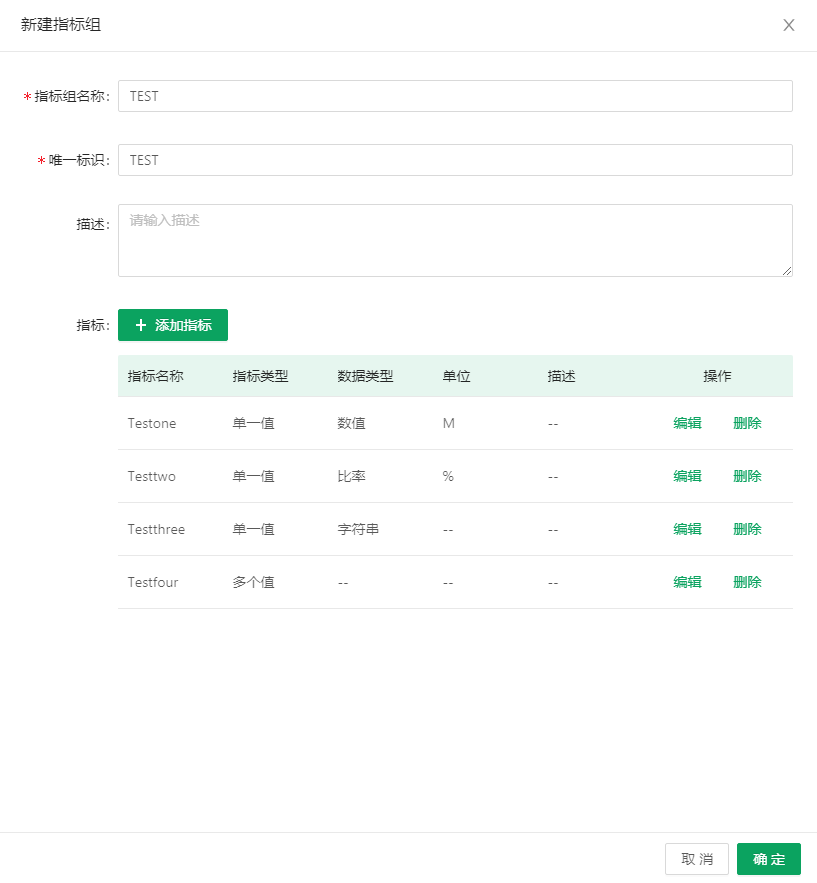
- On the inspection detail page, click Create Metric Group in the upper right corner, enter the group name and unique identifier, then click Add Metric to add your metrics and click OK. As shown:
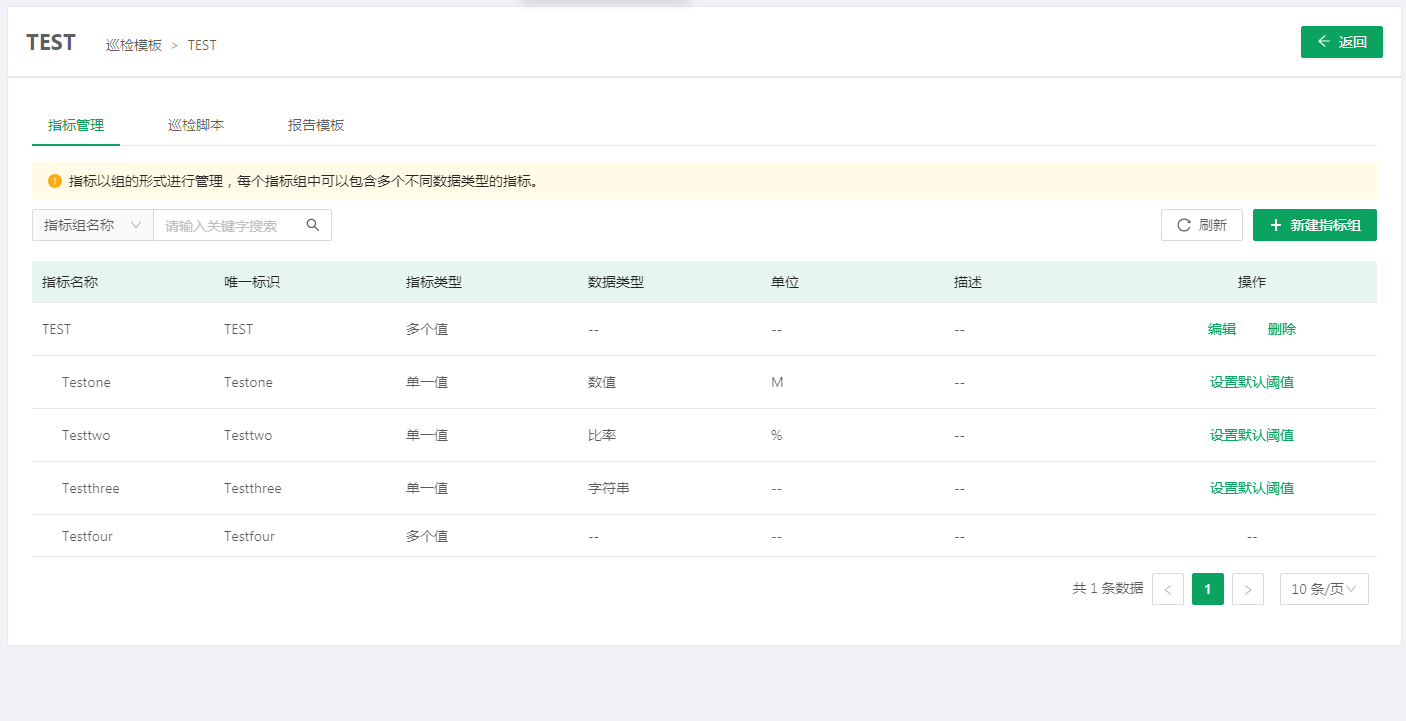
- After creation:
- On the inspection detail page, click Create Metric Group in the upper right corner, enter the group name and unique identifier, then click Add Metric to add your metrics and click OK. As shown:
-
- Write the inspection script:
-
There is no restriction on how you write the inspection script, but the output must follow the format below: (very important)
----------------start------------------ {"return": []} # the key must be "return" and the value must be a list -----------------end------------------- -
Using the metrics created in this document as an example:
#!/usr/bin/env python3 # -*- coding: utf8 -*- def info(): res = {"return": [{"key": "Testone", "value": 1},{"key": "Testtwo", "value": 80},{"key": "Testthree", "value": "INFO"},{"key": "Testfour", "value": [{"item": "count_one", "count": 1},{"item": "count_two", "count": 2},{"item": "count_three", "count": 3}]}]} print("----------------start------------------") print(res) print("-----------------end-------------------") if __name__ == '__main__': info() -
Enter the script name and script content, then click Save.
-
Test the script:
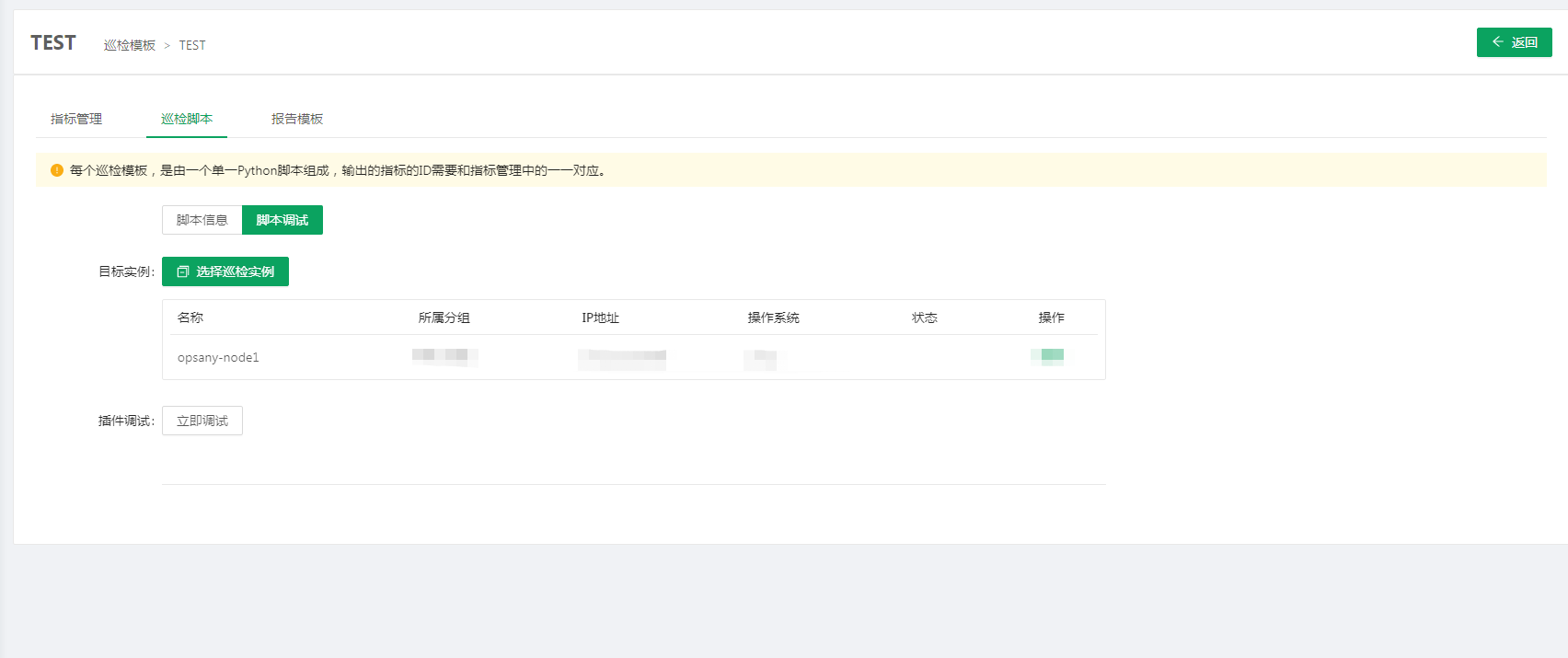
-
Execution result:
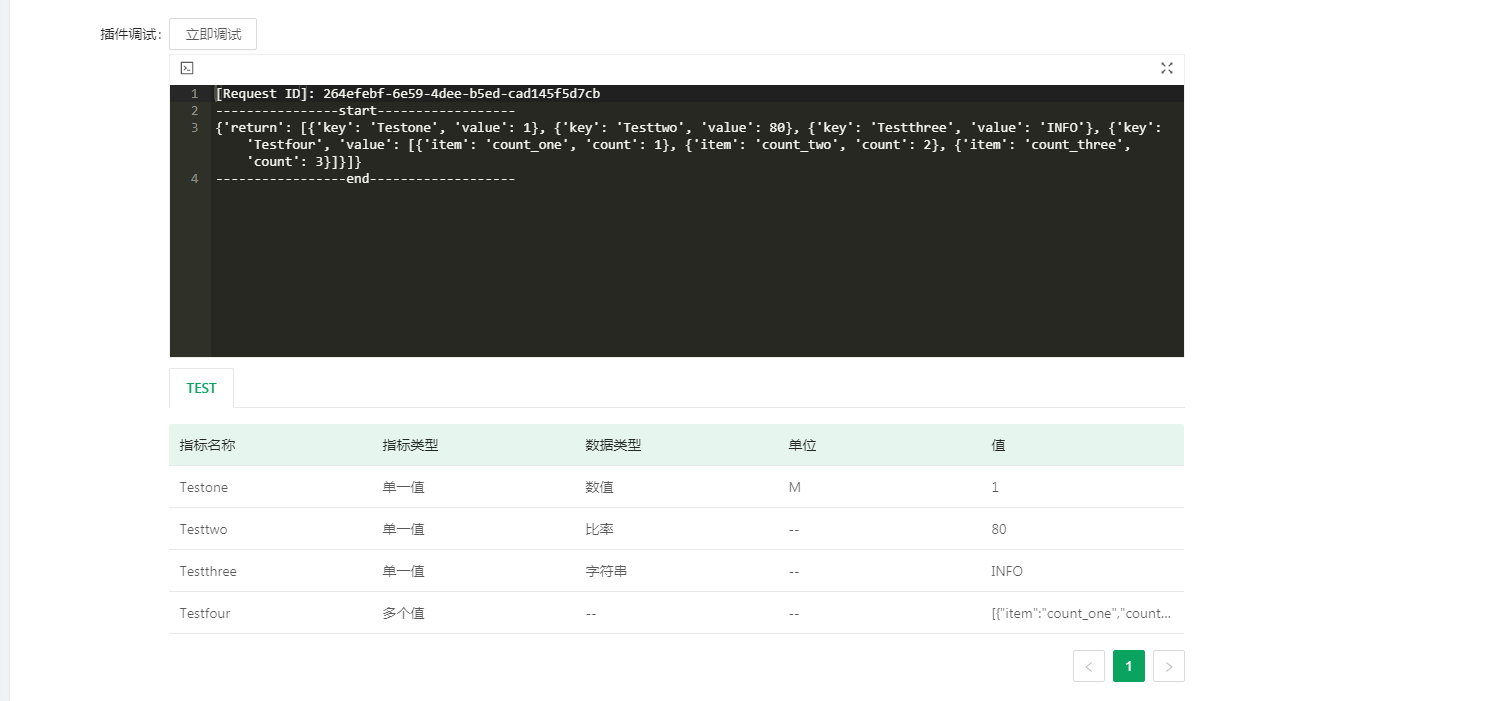
-
Notes: In the script output, the list bound to
returnholds a series of dictionaries. Each dictionary key must be the unique identifier of a metric, and the value is that metric's value. The value type depends on the metric type — if the metric type is numeric, the value must be an int or float; if it is a string, the value must be a string. Note in particular that for multi-value metrics you must return the following data structure:[ {"item": "xx", "count": 1} ] -
In the execution result you can see the value extracted for each metric. Once every metric has the correct value, your script is complete.
-
- Create a report template:
-
Click Create Template, enter the template name and description, then click Next.
- Design your template:
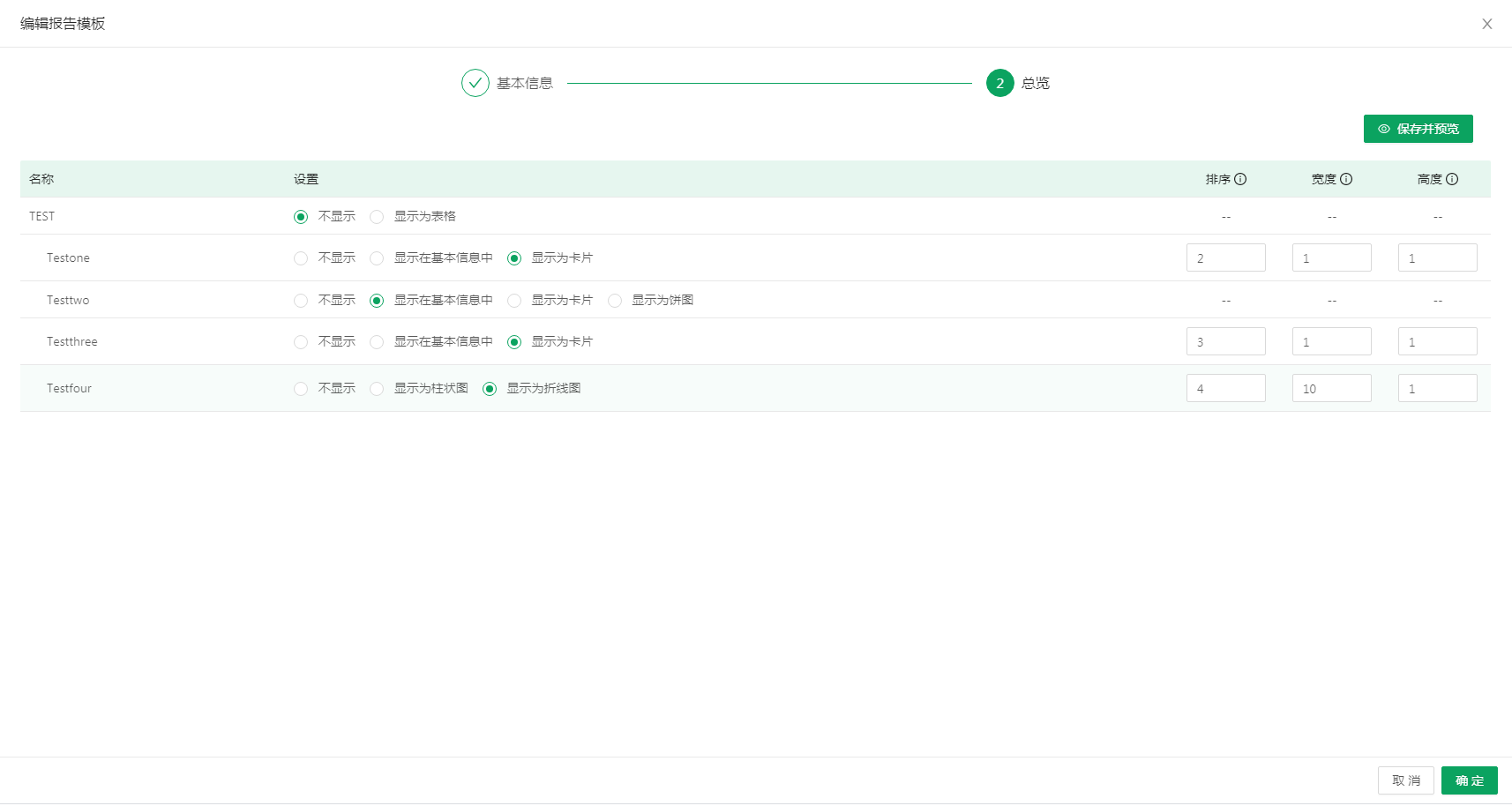
- Click OK when the design is finished.
Using an Inspection Template
- Take Quick Inspection as an example:
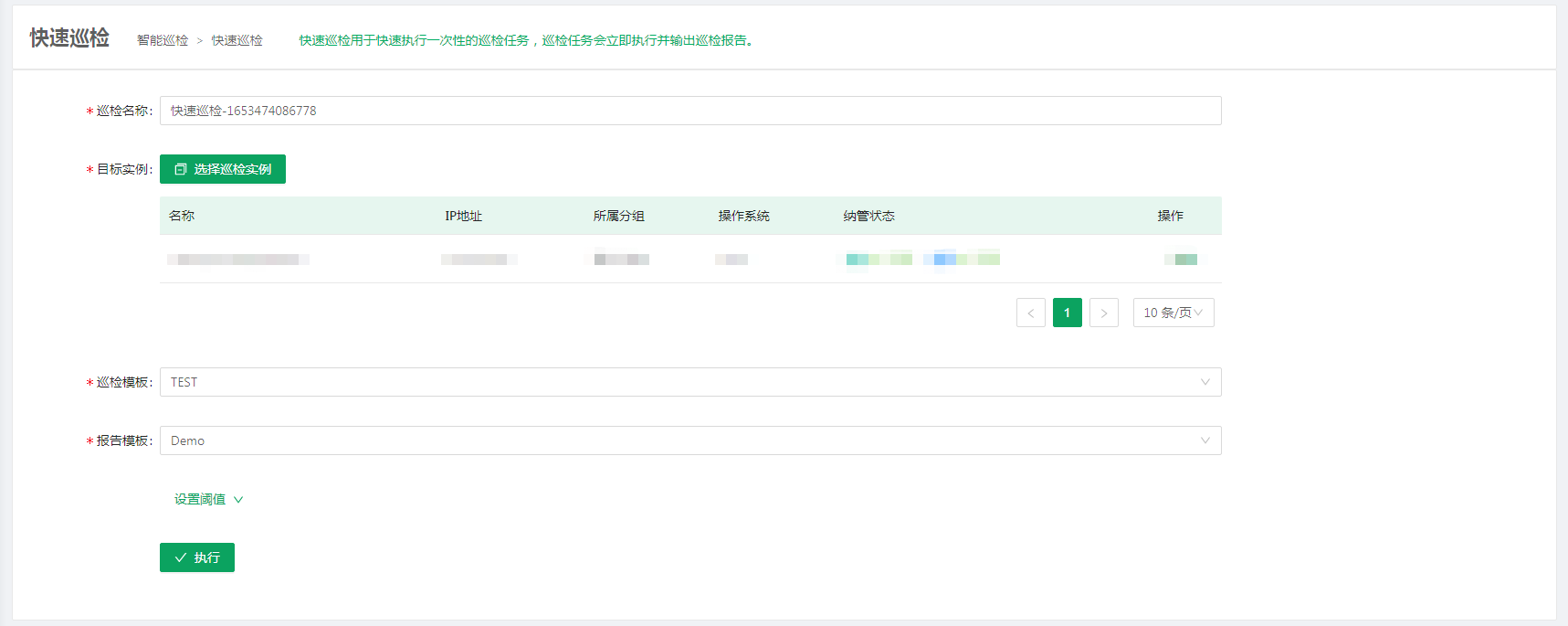
- Note: you can also click the threshold settings here to redefine the thresholds for this inspection run.
- Click Execute to run the inspection.
- In Inspection History you can review the content of this inspection task, and on the Result Statistics tab you can view the report and raw output for each host.