













Artifact Repository
The Artifact Repository platform (APPID: repo) is where OpsAny stores general file-type artifacts built by pipelines and where files are pulled from during deployment. It is also compatible with Nexus for multi-language artifact repository management.
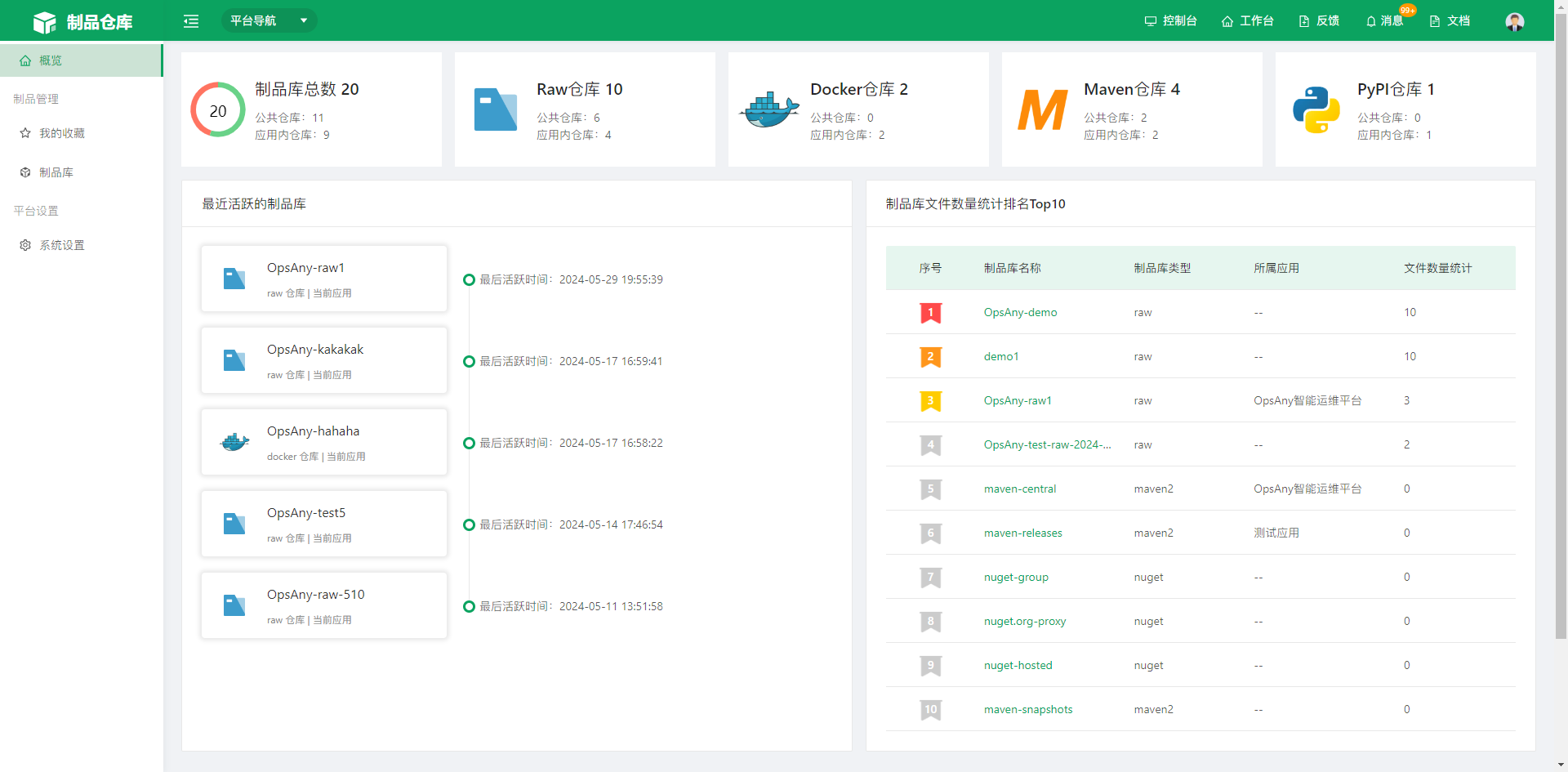
1. Artifact Management
This is the daily management center of the Artifact Repository. Frequently used artifact libraries can be favorited and then viewed in My Favorites. You can create, edit, delete artifact libraries, upload artifacts, and perform other routine operations.
1.1 My Favorites
View the artifact libraries you have favorited.
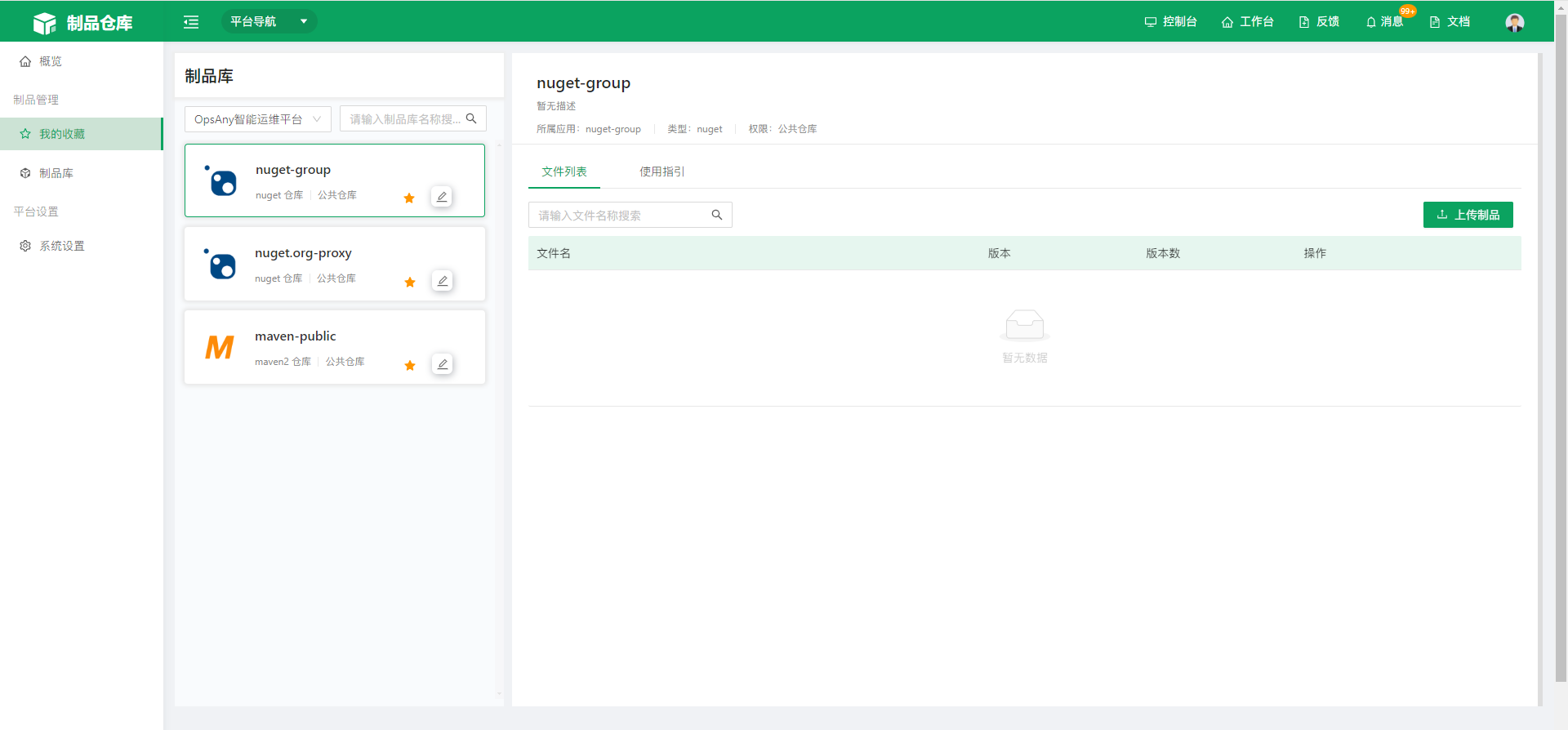
1.2 Artifact Libraries
On the Artifact Libraries page, you can create and delete artifact libraries, upload, view, and delete artifact library resources. Note: to use this feature, add the Nexus artifact repository tool on the System Settings page and make sure its status is normal.
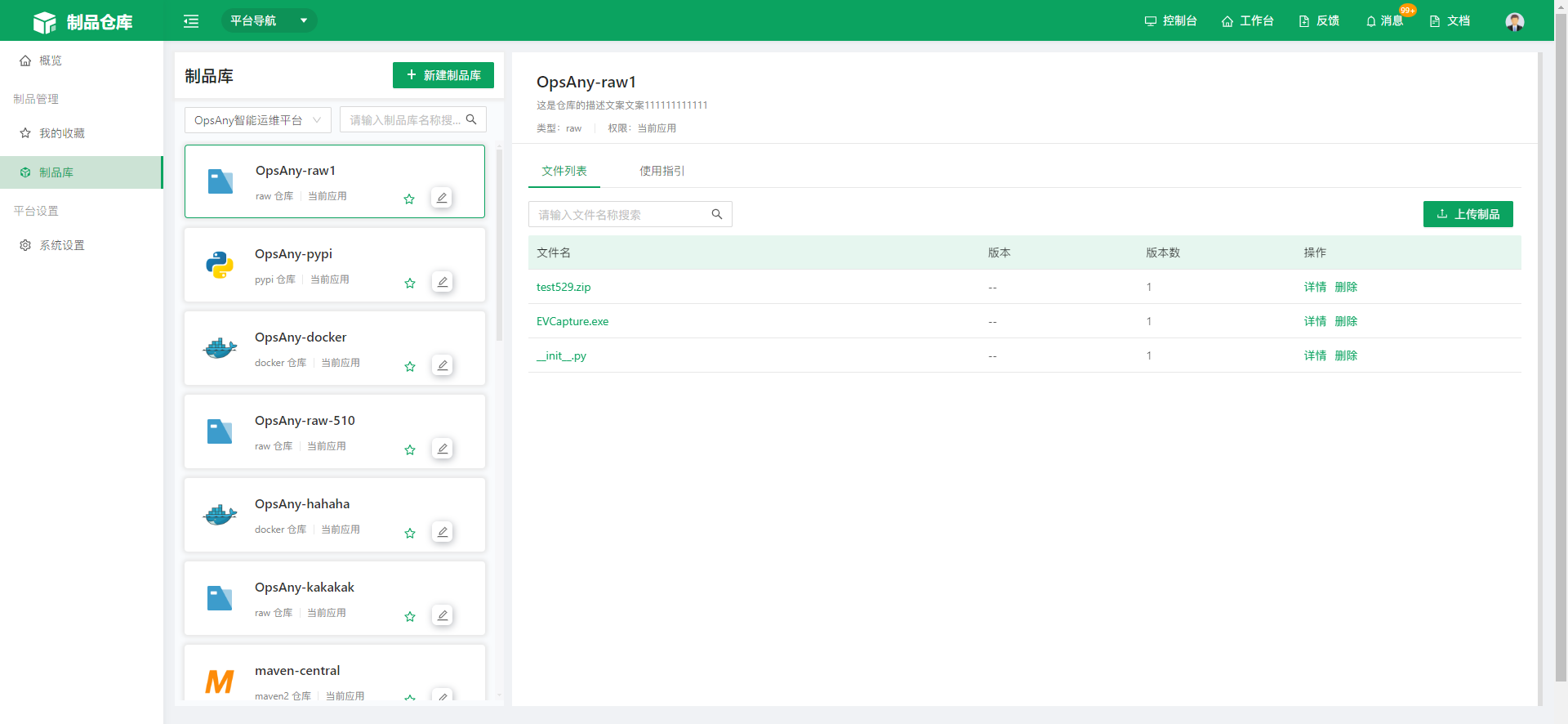
- Click New Artifact Library to open the New Artifact Library drawer, and complete the creation according to the field information on the page.
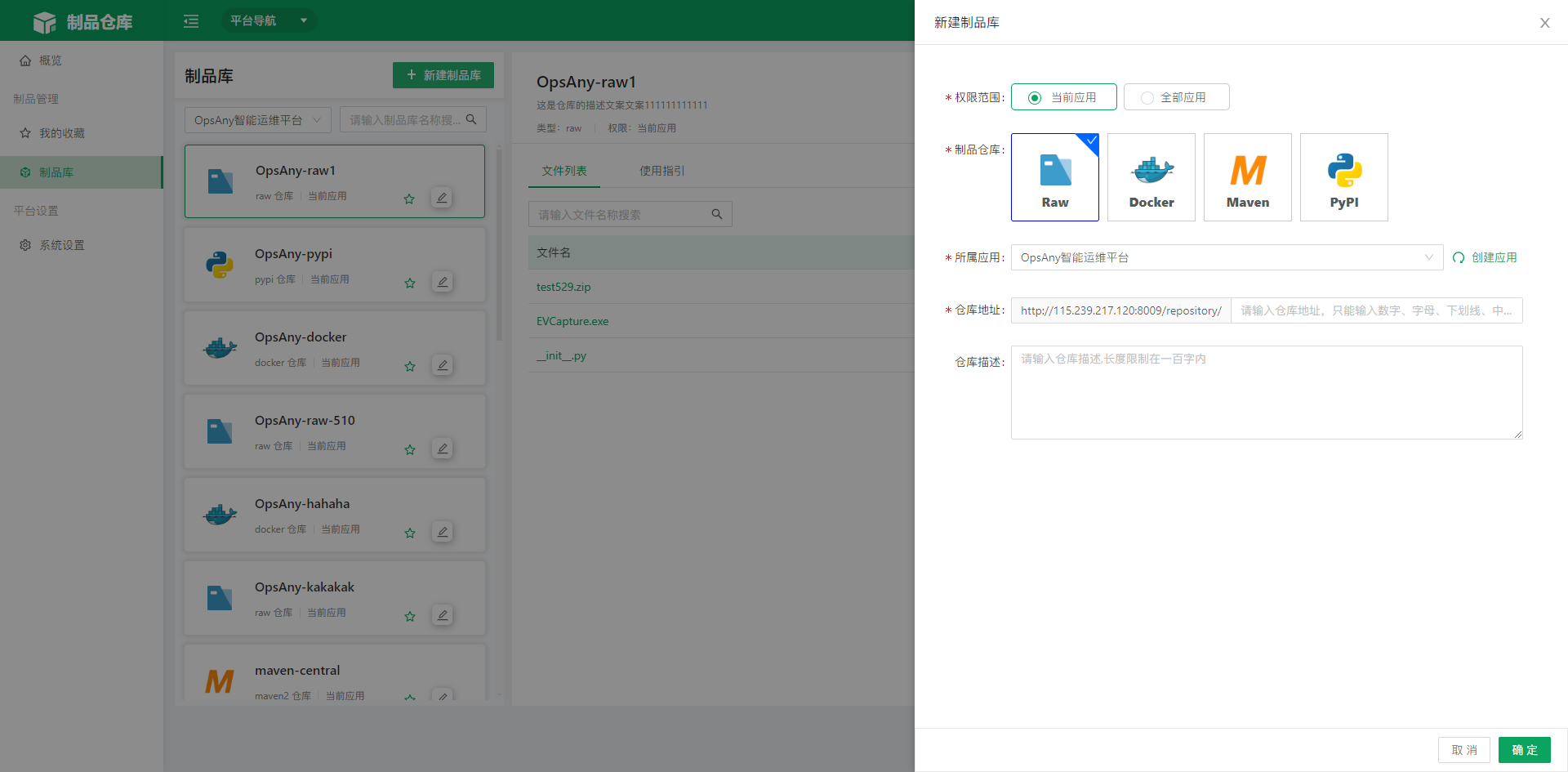
The platform currently supports five types of artifact repositories: Raw, Docker, Maven, PyPi, and Helm.
- Choose in-application or out-of-application: if you select out-of-application, the artifact library is a global repository that other applications can also view and use; if you select in-application, only the current application can see it.
-
The repository address is the API address configured in tool management. Only letters, digits, and underscores are supported in the latter part; Chinese characters are not supported.
-
Click Edit to modify the artifact library information, including the permission scope and description, or to delete the artifact library.
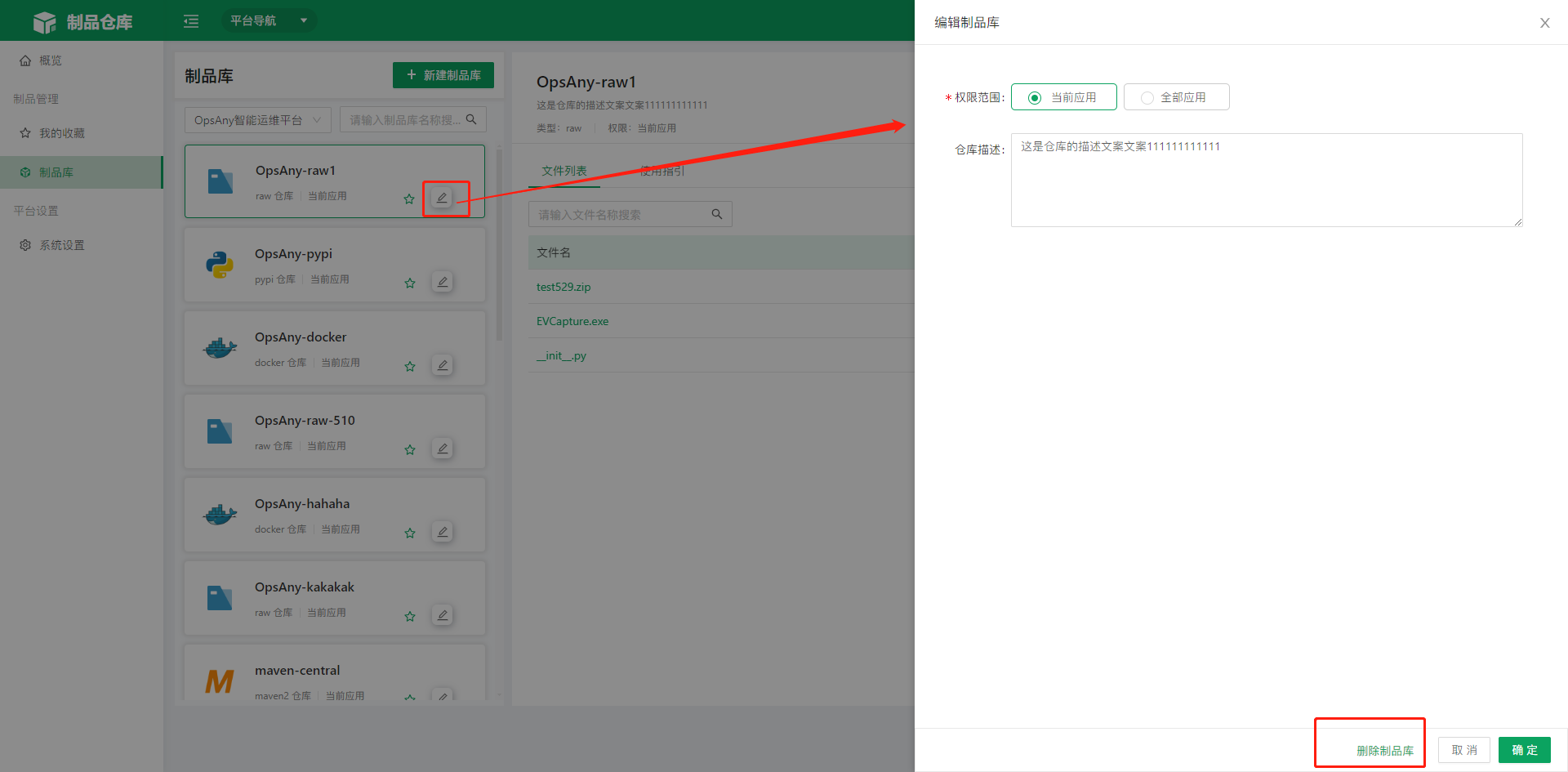 Note: Use the delete button with caution. Deleting the current artifact library clears all resources in the repository.
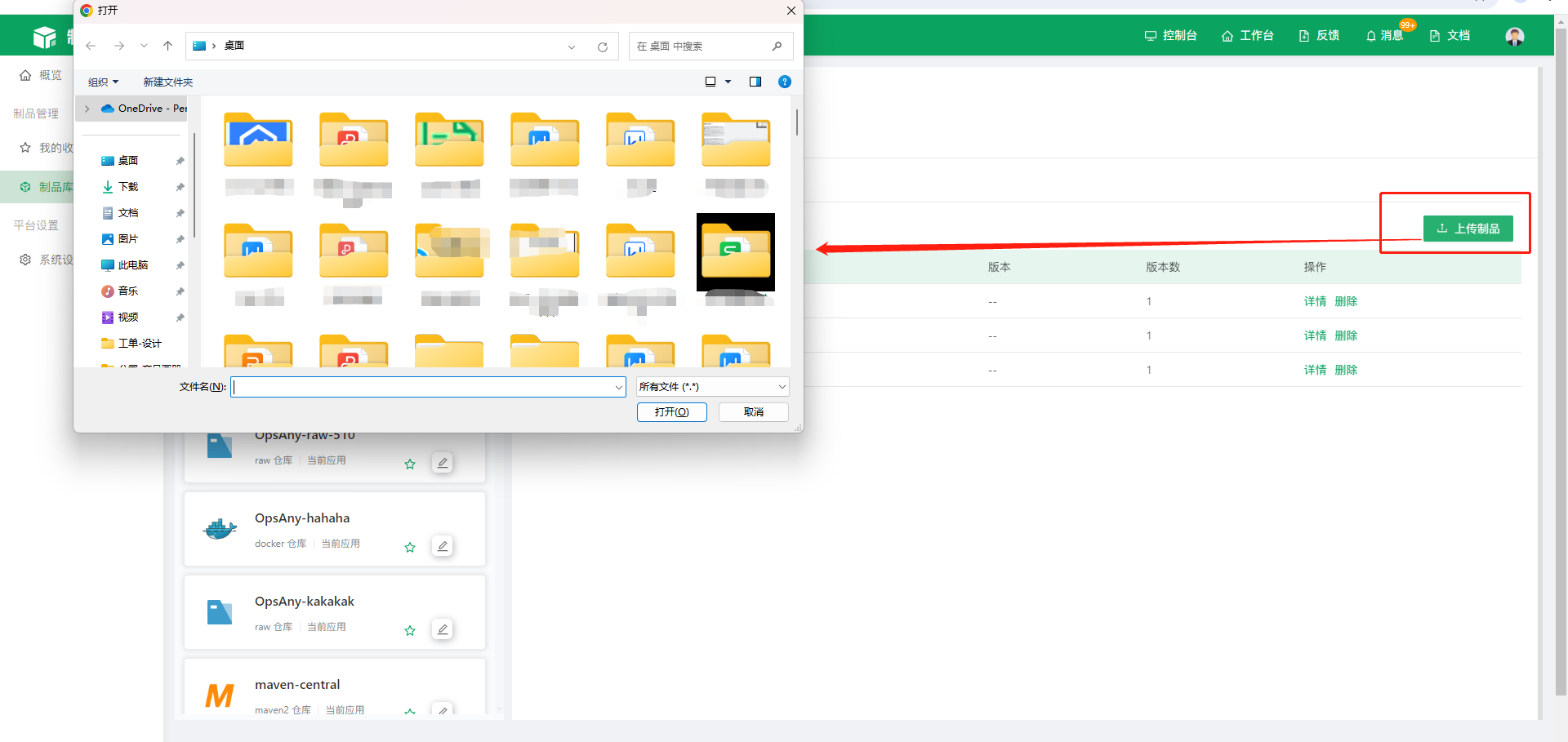
- In the file list on the right, click Upload Artifact to upload files from your local machine.
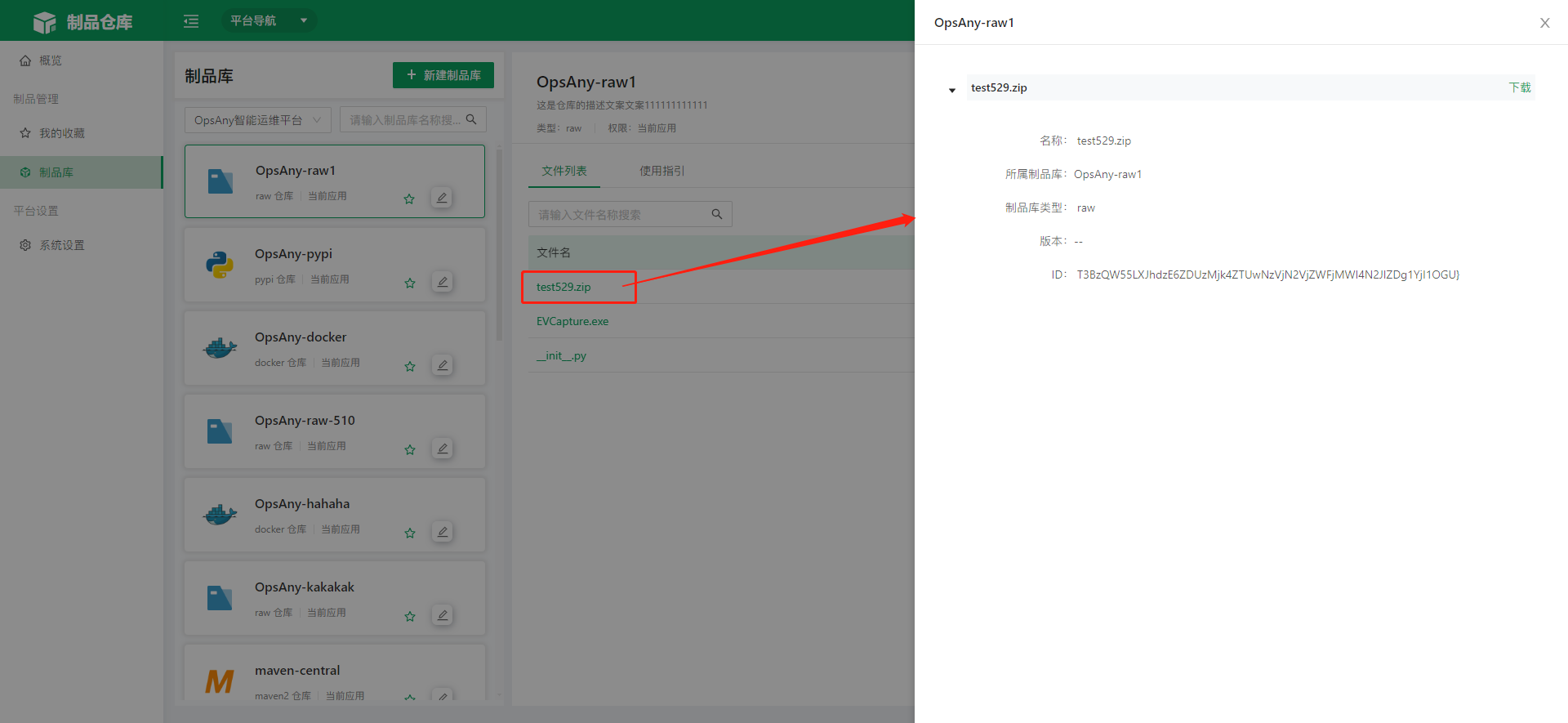
 For uploaded artifact library files, you can view file details and delete them. File details are shown below:
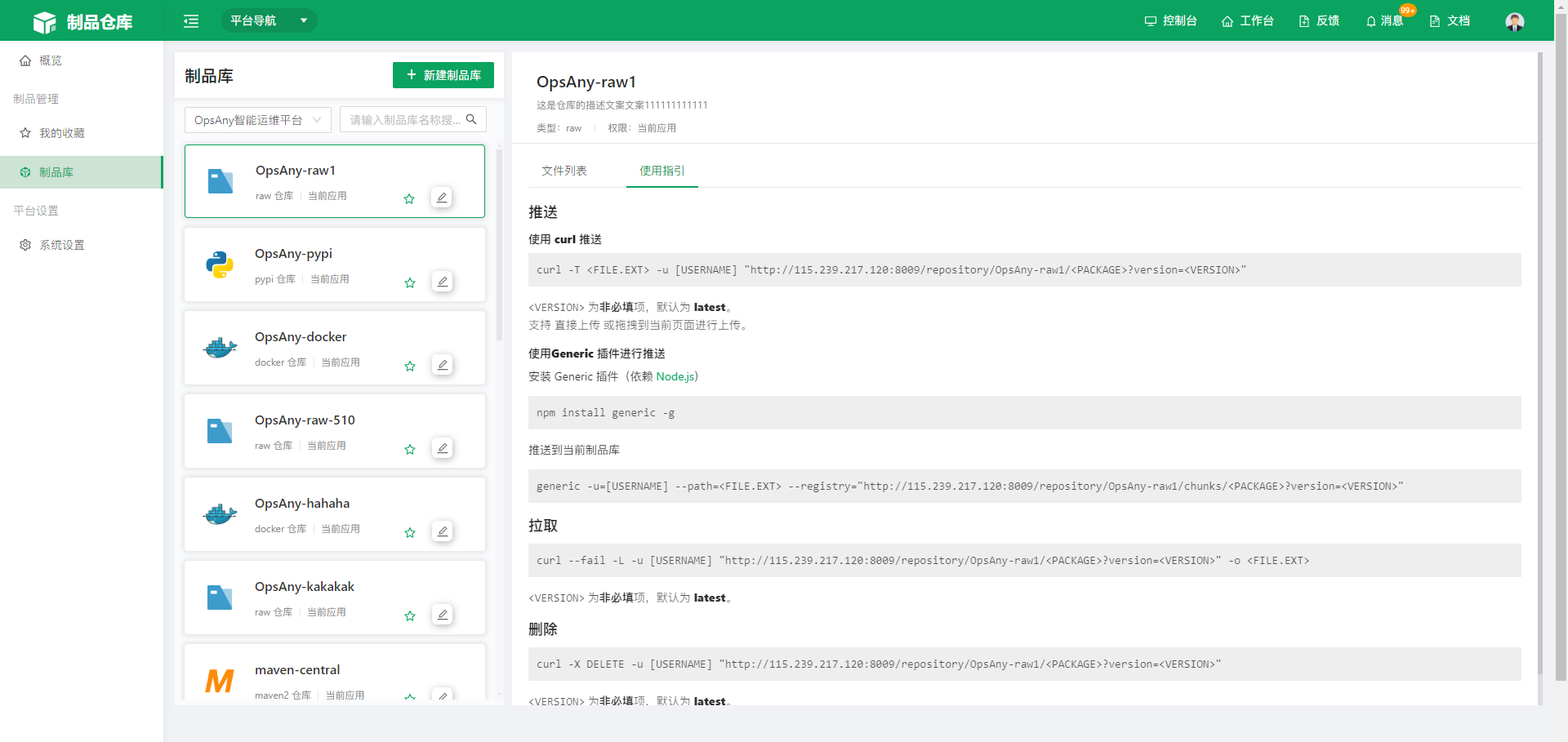
- On the Usage Guide page, you can view usage instructions and follow them to upload or download from the artifact library.
2. Platform Settings
2.1 System Settings
Add commonly used artifact repository tools on the System Settings page. The Nexus tool is currently supported.
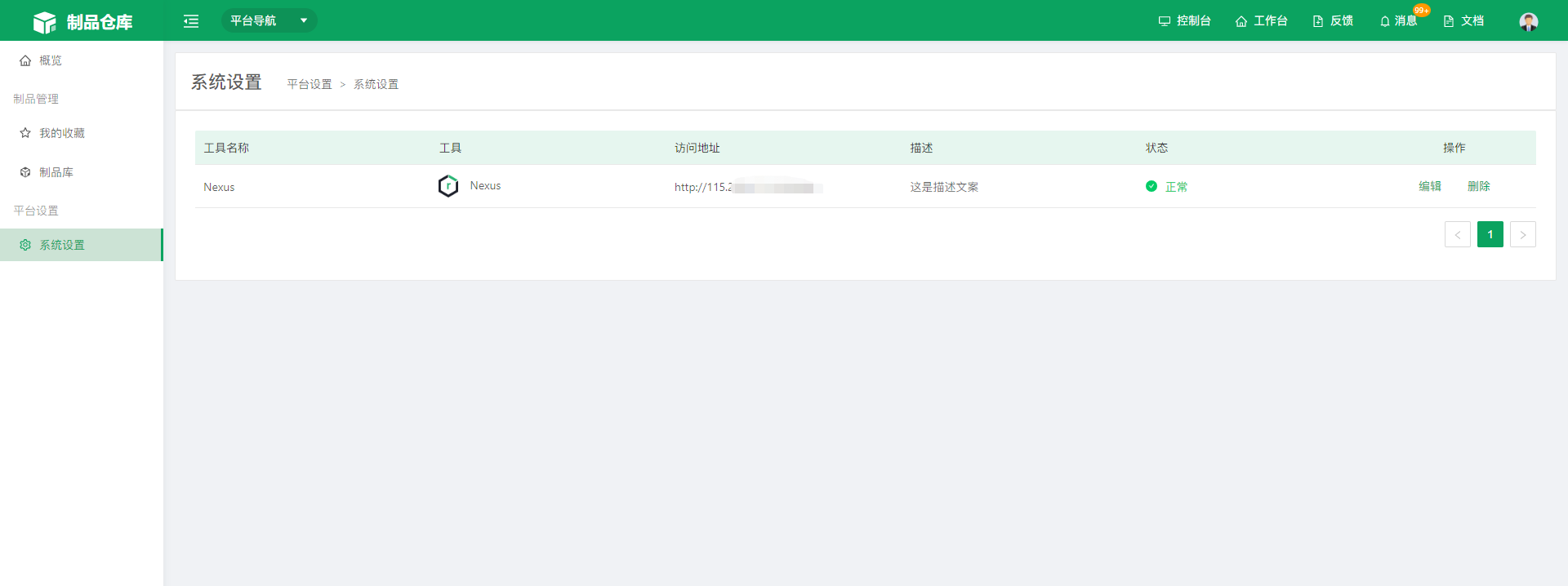 Only one Nexus tool can be added.
On the current System Settings page, you can create, edit, and delete tools (each creation adds only one record; if a record already exists, the New button is not available).
The Status column shows the connection status of the current tool. When the status is abnormal, the tool is unavailable; modify the address, user name, and password, or check whether the current service is running properly.
Click Refresh to refresh the status of the current tool list.
Note: Modify the API address and delete tools with caution. If the artifact library contains data, changing the API address or deleting this tool may result in loss of existing data.
- When adding or editing a tool, complete the operation according to the field information in the dialog box.
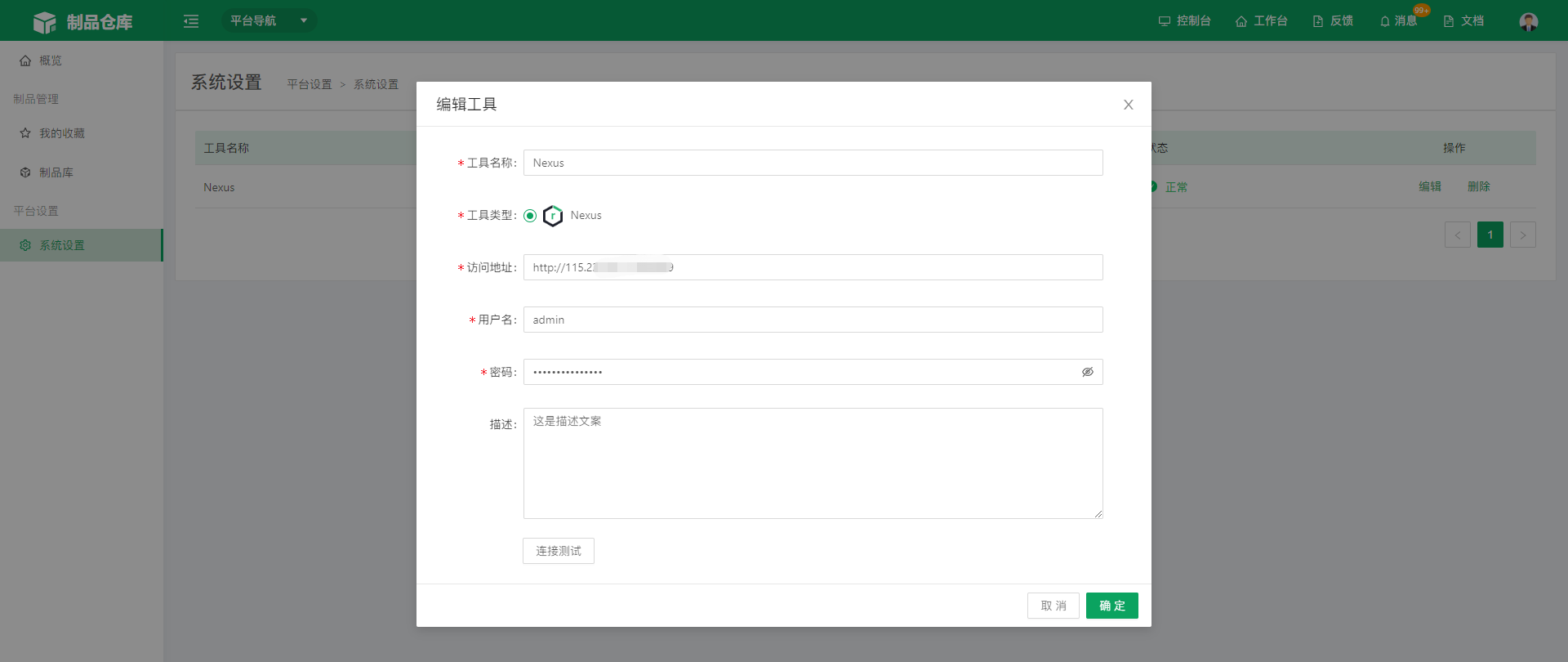 Note:
Click Connection Test to verify whether the connection is normal. If the connection is abnormal, you cannot create the tool.
Each tool supports only one address.
3. Artifact Management
3.1 Uploading a Helm Chart
-
- Create a Helm Chart locally
First create a Chart locally named helm-nginx.
helm create helm-nginx
-
- Modify the created Chart.
For example, modify the image address, image version, and so on.
cd helm-nginx/
vim Chart.yaml
-
- Package it with helm package
root@k8s-node1:~# helm package helm-nginx/
Successfully packaged chart and saved it to: /root/helm-nginx-0.1.0.tgz
-
- Push it to the Helm repository
helm push helm-nginx-0.1.0.tgz http://101.227.48.4:8014/repository/default-hub